

CPU usage is an important marker of how your computer is operating. If the usage is unusually high and you don’t see any heavy task running on your PC, there is definitely some issue. Most of the time, this issue is related to the operating system or the software installed on your computer.
Whenever a program runs, it doesn’t get handed a CPU core by the hardware. A process is created first by the application, and that process contains one or more threads. It is the CPU scheduler that treats the thread as the actual unit of execution. Microsoft itself says that a thread is an entity that can be scheduled, while a processor executes threads rather than processes.
But what does that mean?
What I am trying to say is that it is the scheduler that determines which competing thread should receive processor time, using factors like processor affinity, thread priority, thread’s state, time allocation, etc. So, if your CPU usage is unusually high, it means one or more threads are constantly asking for processor time and the scheduler is handing it to them. Usually that’s a program doing real work. Sometimes it could be a process that is stuck in a loop or a driver generating constant interrupts.
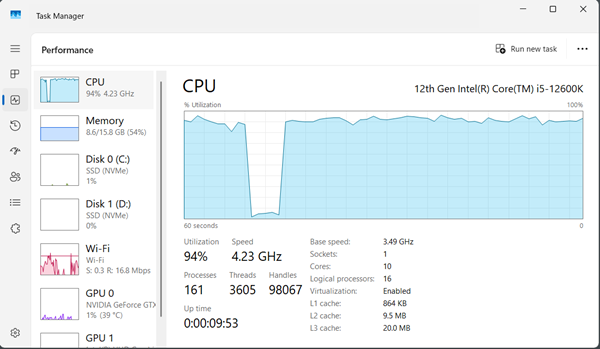
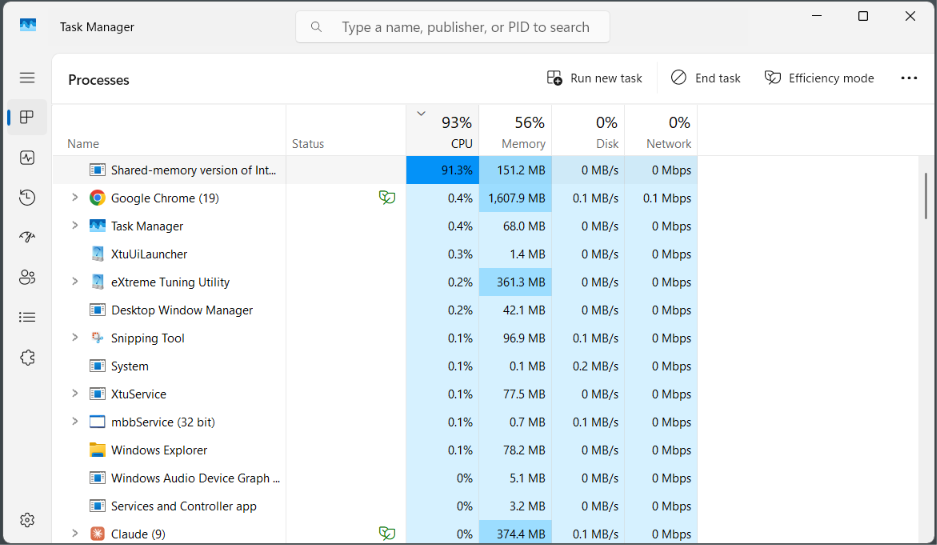
If the issue is related to a background process, the Task Manager will most likely tell you the whole story. You can just sort the CPU usage in the Processes menu. But, if there is some internal problem, you may not see any ongoing process consuming the resources. So, there can be multiple variations and reasons for the problem. In this article, I will tell you all of them along with the ways to fix them.
What does 100% CPU usage really mean?
100% CPU usage occurs when the processor has essentially no idle execution capacity during a measurement period. When the active or background processes completely occupy your CPU’s resources, it will show you that there is a 100% utilization.
For example, if your CPU has 8 cores and 16 threads and every logical processor is continuously executing work, the operating system will report approximately 100% CPU utilization. In the same way, if one logical processor is at 100% and all others are at idle, the total utilization will be around 6.25%.
Windows’ Task Manager averages usage across all of them, so 100% there means every core is maxed, not just one. You can always switch to the logical processes from overall CPU utilization to get a clear view on what is going on on a thread basis.
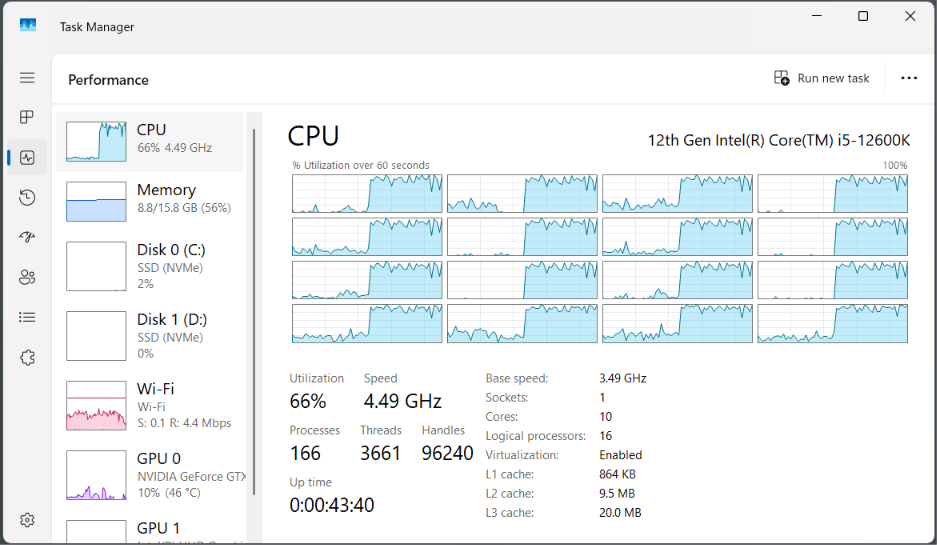
CPU usage is a measure of time, not effort. A CPU core does one thing at a time, but the scheduler rotates threads on and off it many times a second, which can feel like it is doing things simultaneously. 100% CPU usage means everything available is already claimed. A new process may not get the resources, and this is where you feel the lag or even a computer freezing.
A brief spike is normal, but constant 100% usage, especially without major work going on, indicates some problem.
What can cause the problem?
Various CPU-intensive tasks like rendering, compiling, compression, encoding, gaming, and scientific calculations can put significant load on the CPU and end up consuming up to 100% of its power. A well-written software asks the OS to wake it up when something happens; it does nothing until then.
But, there can be some pathological causes like runaway applications, malware, broken drivers, an infinite loop, or a background service consuming excessive CPU resources.
Sometimes, a low RAM can also force the OS to swap memory to disk and add extra work to the overall CPU load. A failing hardware device will also fire CPU interruptions continuously, and the CPU has to keep responding.
Basically, there can be numerous things, and there are no obvious reasons because every computer is different. If you really want to diagnose the problem, there can be some steps that can be followed.
Diagnosing and Fixing 100% CPU Usage (Step-by-Step)
Fortunately, this problem is easy to diagnose, and once you find the problem, you can easily fix it. I am going to combine the diagnosis and fixing steps in this same section.
Although I have learned over time not to perform any fixes before a proper diagnosis, I am going to make this easier for you by combining them and maybe save some of your time.
1. Check Task Manager for unusual processes.
Task Manager is your first helping hand in this case. You can open it by pressing Ctrl + Shift + Esc or right-clicking the taskbar and then choosing Task Manager.
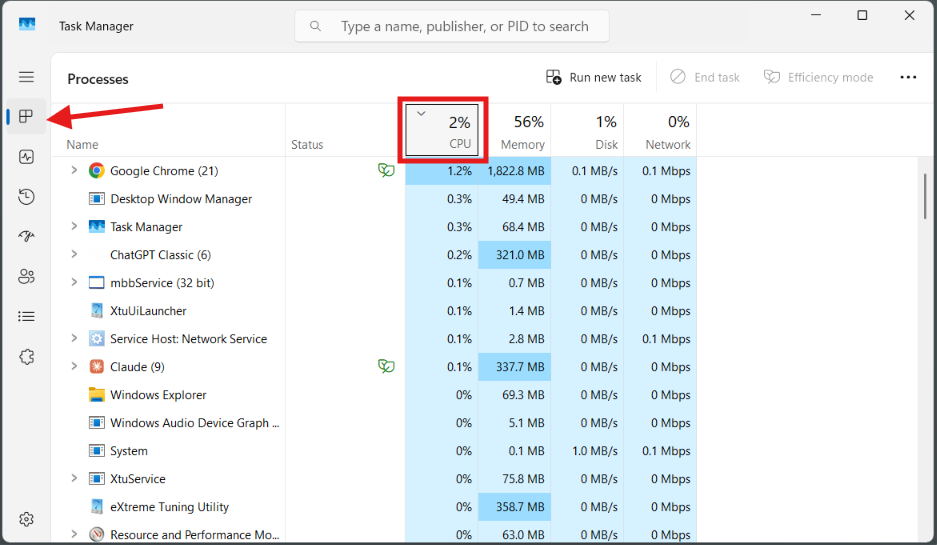
Inside the menu, make sure you are in the Processes menu. Then click the CPU option to sort the processes by their current CPU usage. This should sort the applications and services consuming the most CPU power to the least ones.
Windows Resource Monitor can also be utilized.
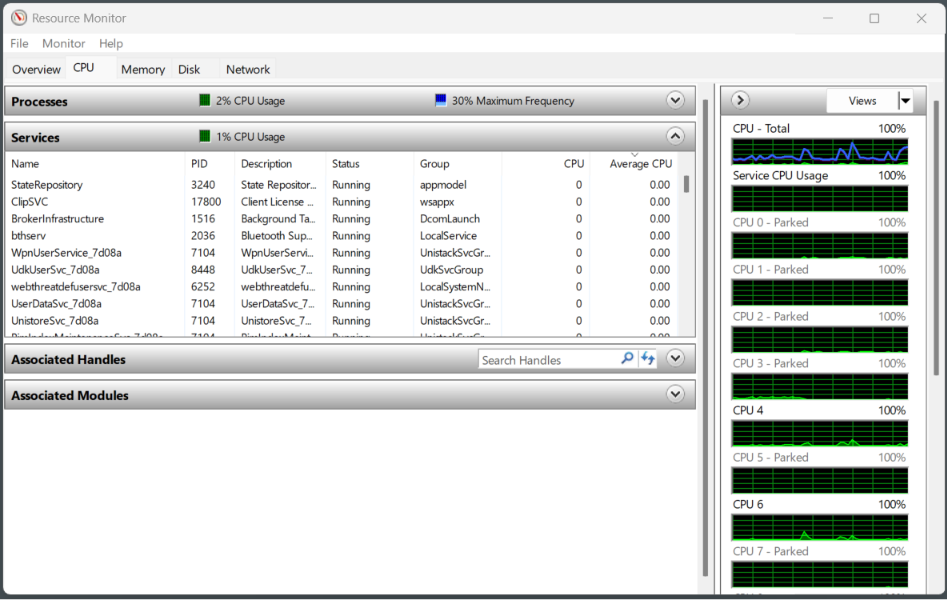
Try to find out if there is some visible culprit. A browser tab, game, video encoder, compiler, file compressor, or other demanding workload can legitimately reach very high CPU usage. In that case, close the application and see whether CPU utilization falls.
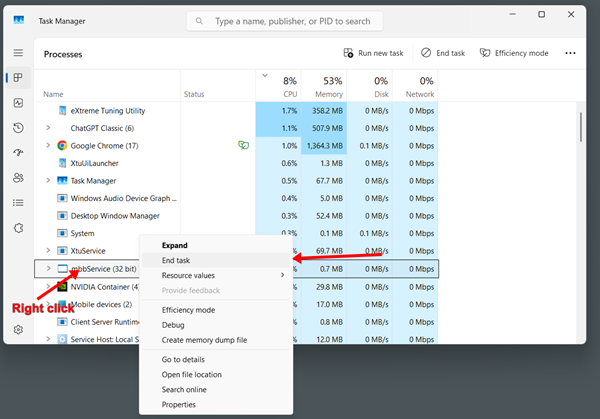
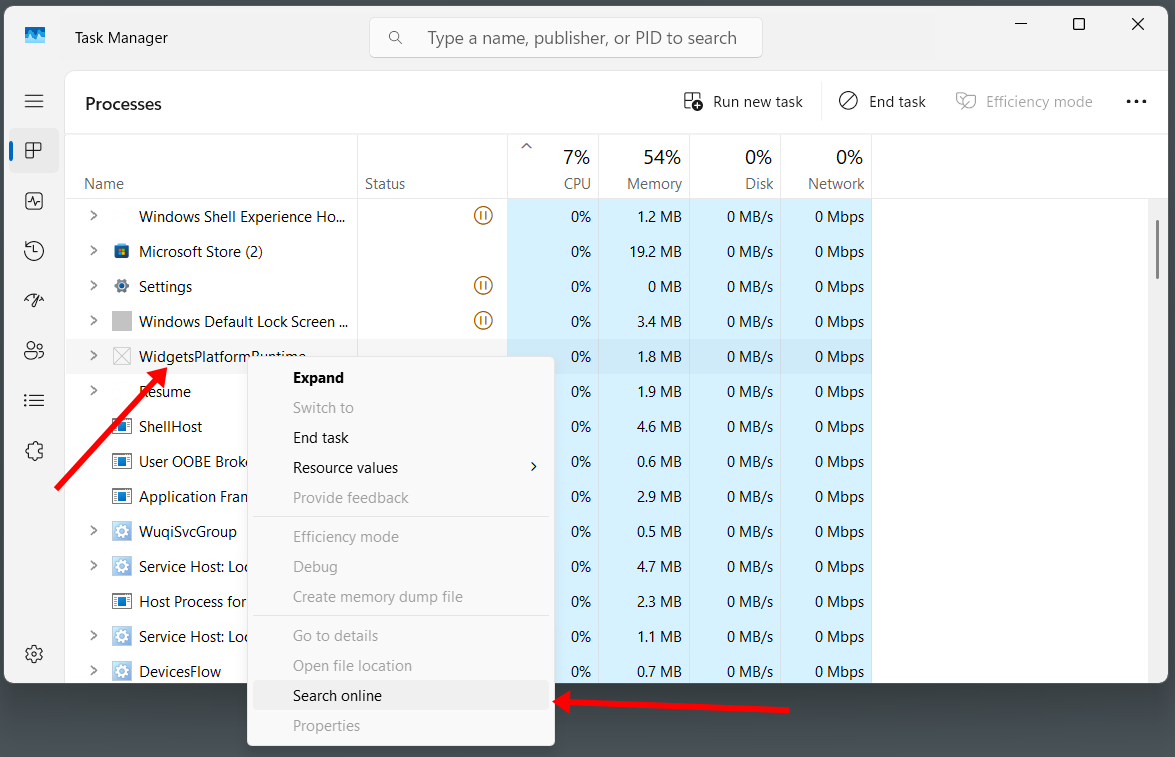
If I don’t recognize a specific process, what I do is right-click it and click search online. This searches for the process on the internet, and I get information on the application.
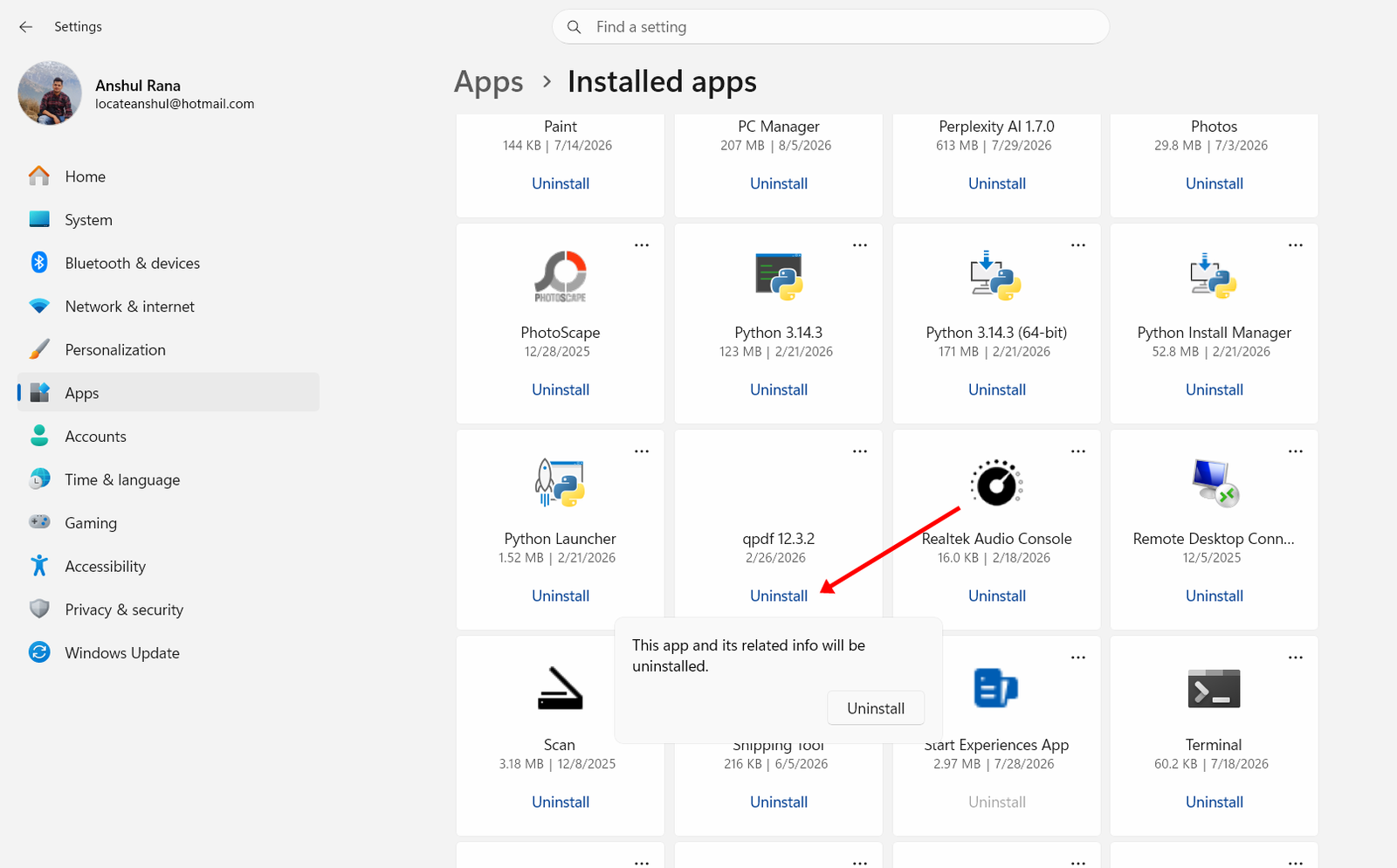
If you think something is unusual, try to find the actual software if it is installed on your computer. You can then proceed with the uninstall. If it is some sort of background process or malware, a full PC malware scan will be your next step.
2. Check whether the problem disappears in Safe Mode
Safe Mode is Windows’ inbuilt feature, which, when enabled, loads Windows with a much smaller set of drivers and services. This makes it useful as an isolation test rather than as a permanent solution. But it is a great tool to sort out the culprits. Let’s see how we do it.
How to run Windows in safe mode?
There are many ways to enable safe mode in Windows. I am going to tell you the easiest one.
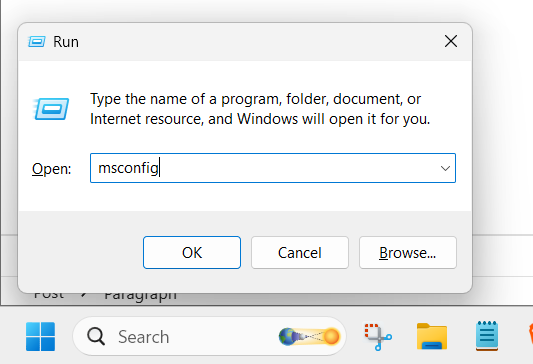
Press Windows + R to open the Run dialog box. Type in msconfig and hit Enter.
The System Configuration menu will open up.
Go to the Boot tab and check the Safe Boot box. Select the minimal option.
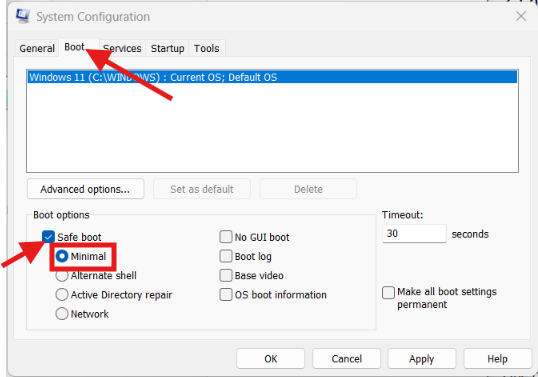
Click Ok and restart your computer.
Interpreting the Results
Once the system boots up, check CPU usage again. There can be two possible results.
CPU returns to normal in Safe Mode: It generally means the Windows installation is fine, while a third-party application, startup program, non-essential service, or driver loaded during normal startup is likely responsible.
CPU remains extremely high in Safe Mode: In this case, you’ll have to investigate Windows components, drivers that are still loaded, malware, corrupted system components, and hardware-related causes. If it feels safe, you will be good with a clean Windows reinstallation.
To revert Windows to normal settings, you can disable safe mode and restart the computer again.
3. Use a clean boot to isolate the offending software
A clean boot starts Windows with only the essential Windows services while disabling third-party services and even the startup applications. Microsoft itself recommends it to identify software conflicts.
Press the Windows + R key and type msconfig and hit enter.
This time, we go to the Services tab in the System Configuration menu.
Inside, check the box for Hide all Microsoft services and then click Disable all. This makes sure all the services not related to Windows get disabled.
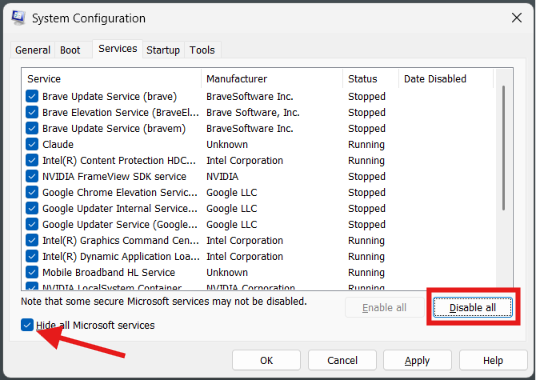
Hit Apply and restart the PC.
If CPU usage gets normal after the clean boot, you have successfully disabled something that was causing the trouble. However, you do not know it yet.
The next step is to enable the services systematically, preferably in groups. When the high CPU usage returns, divide that group again until you isolate the specific service or application.
Microsoft also recommends keeping track of the items you disable and restoring normal startup after testing. Once you have the culprit identified, you can safely uninstall it.
4. Investigate malware
Some malware can produce persistent CPU usage, especially if it is a cryptominer or program that rapidly launches background processes. Windows Security has become pretty powerful now, and you will be able to find any malware using a simple scan. If you want to use a third-party anti-malware software, you are free to do so.
To perform, go to Windows Security >> Virus & threat protection.
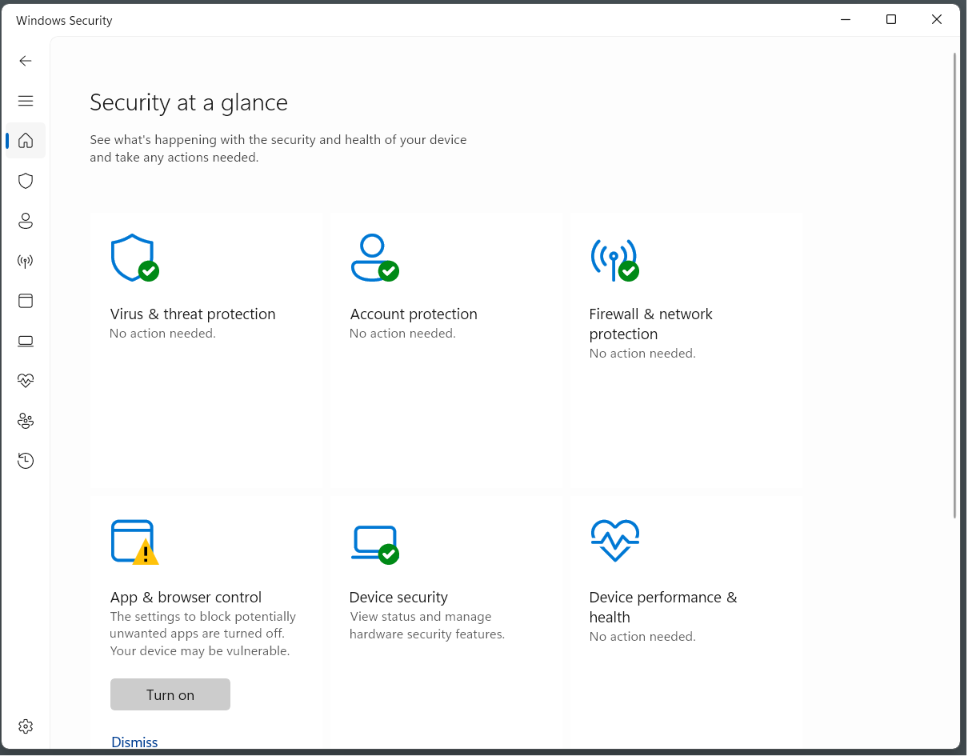
I would recommend going for the full scan rather than the quick scan.
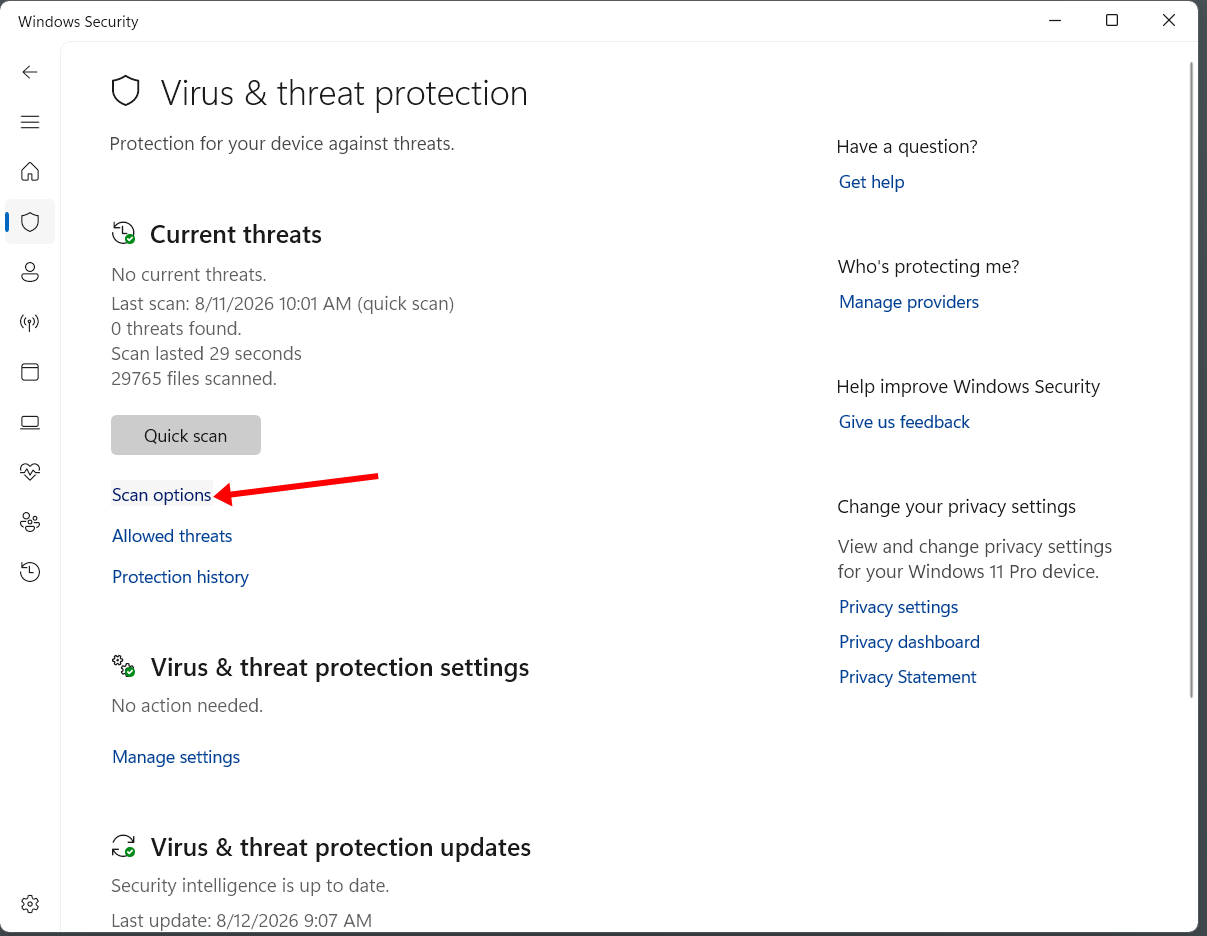
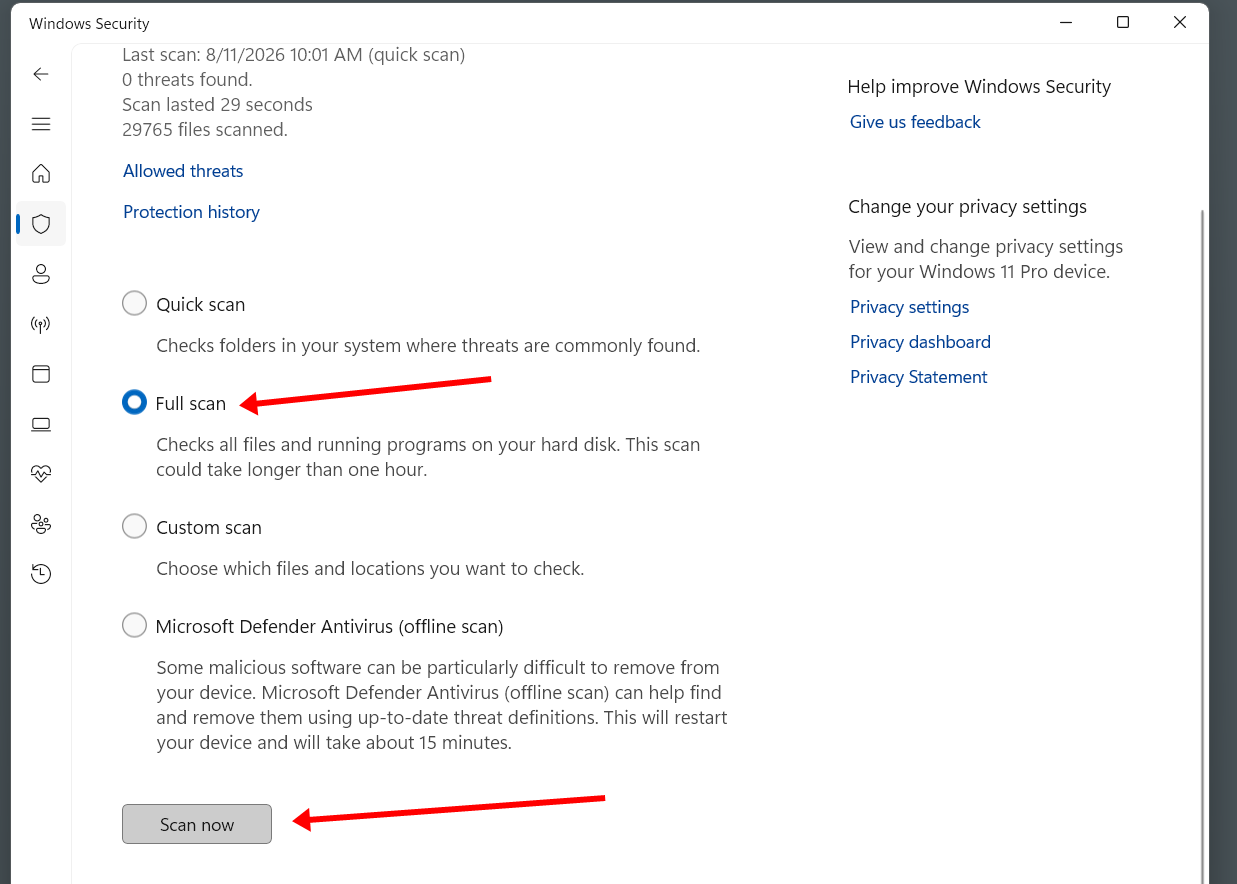
Wait for the scan to complete and results to show up. The system will show you the malware (if found). You can then proceed with their removal.
5. Check for drivers and hardware-related CPU activity
Look for the System Interrupts component in the Task Manager. Components like System and Windows Driver Foundation can highlight drivers and hardware-related high CPU utilization.
Think about what you have changed recently. Think about whether you have recently updated the GPU driver, Wi-Fi/Ethernet driver, audio driver, etc. A Windows update itself can be an issue sometimes.
For a recent driver update, rolling it back can be more useful rather than installing the latest version. Network, graphics, audio, storage and chipset drivers are worth checking because they interact heavily with the CPU and operating system.
6. Repair corrupted Windows components
There are some built-in Command Prompt tools offered by Windows for scanning and repairing important Windows components. Let’s see how you do it.
We are going to use DISM and SFC tools. DISM checks and repairs Windows component store while SFC checks protected Windows system files. If any issue is found, SFC can also replace corrupted files with the valid copies wherever possible. Microsoft itself recommends using these tools for repairing corrupted Windows components and system files.
Open Windows Terminal or Command Prompt as Administrator.
Run the DISM health scan command first of all.
DISM /Online /Cleanup-Image /ScanHealth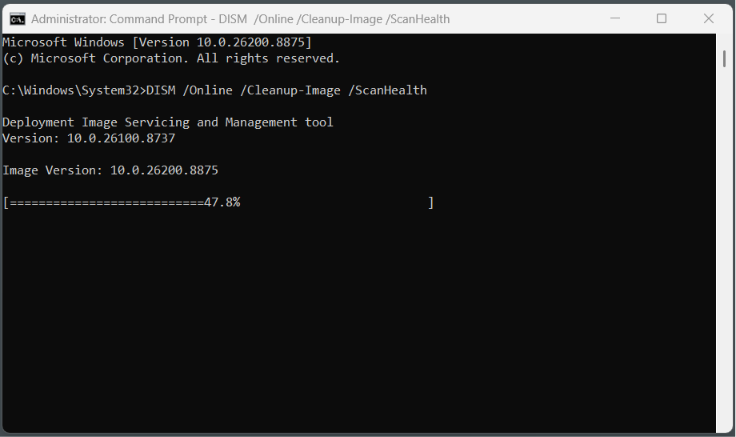
After that, run this one to restore health.
DISM /Online /Cleanup-Image /RestoreHealth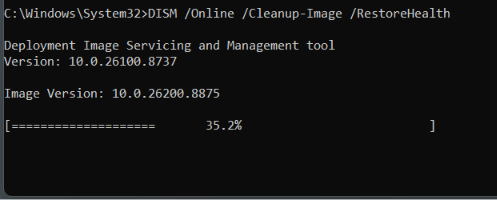
At last, run this command
sfc /scannowOnce these scans are completed, restart your PC and see if the issue is resolved.
7. Consider Windows reinstallation.
If none of the solutions above worked for you, maybe it’s the time for doing a clean Windows installation. This will remove all the installed programs, malware, background processes, and unnecessary junk from your computer. If you have important data, make sure you back it up before doing a clean install.
I would recommend the “Reset this PC” option. You can do it in Settings>System>Recovery menu.
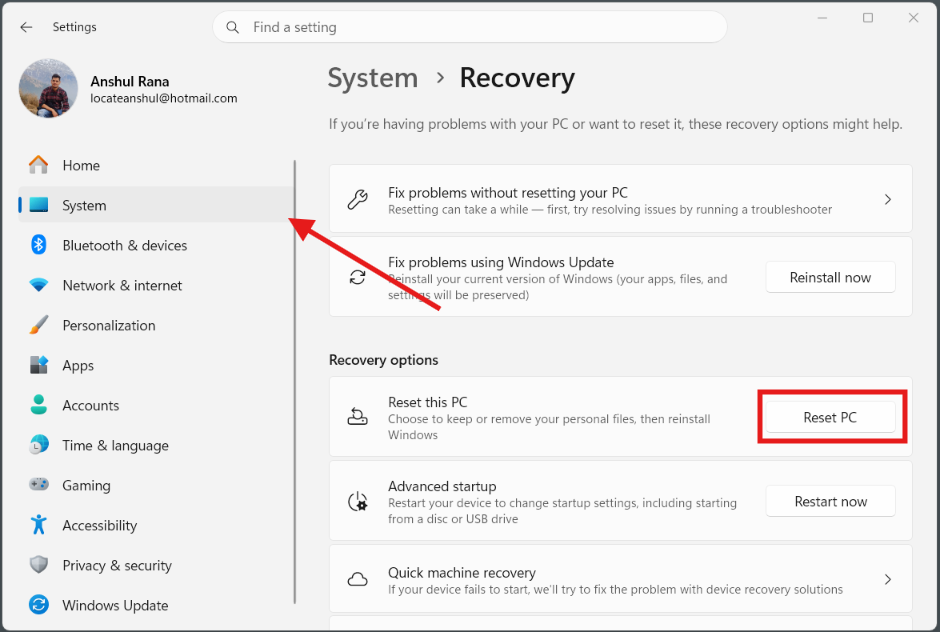
It asks you to either Keep your files or remove everything. Select the “Keep your files” option if you have some important data in your SSD or hard drive. Otherwise, you can go for the “Remove everything” option. Keep in mind that the data once deleted can not be recovered later on.
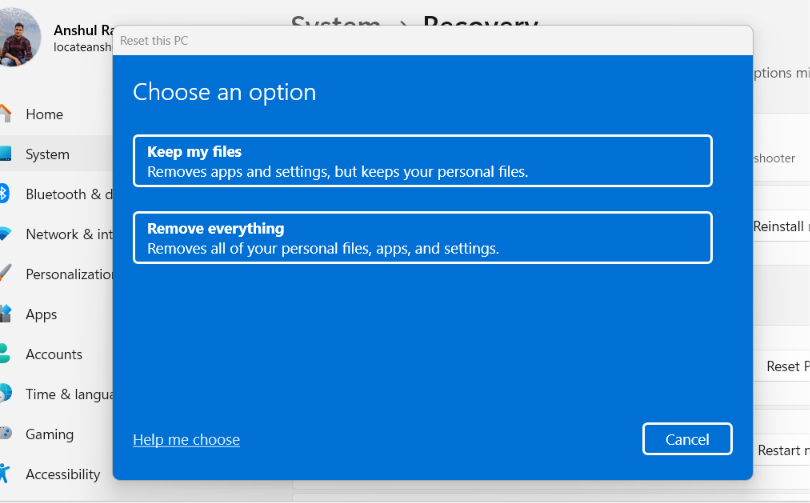
This should fix any possible issue related to the Windows, software, services, drivers, and background processes. Think of it like the last resort if the issue is software-related.
The hardware issue is rare in this case.
A genuinely defective CPU is not a common explanation for a computer showing 100% CPU usage. As discussed earlier, external devices and PC components like graphics cards and their drivers can wake up the CPU over and over again and result in constant high usage. But we have done everything to find and fix these problems.
The most relevant hardware issue that I have found while working with many computers is CPU overheating. If the CPU becomes too hot, the CPU will reduce its clock speed, which will then result in taking longer times to get the job done. Now, the CPU will remain busy for a longer duration, and the performance will fall.
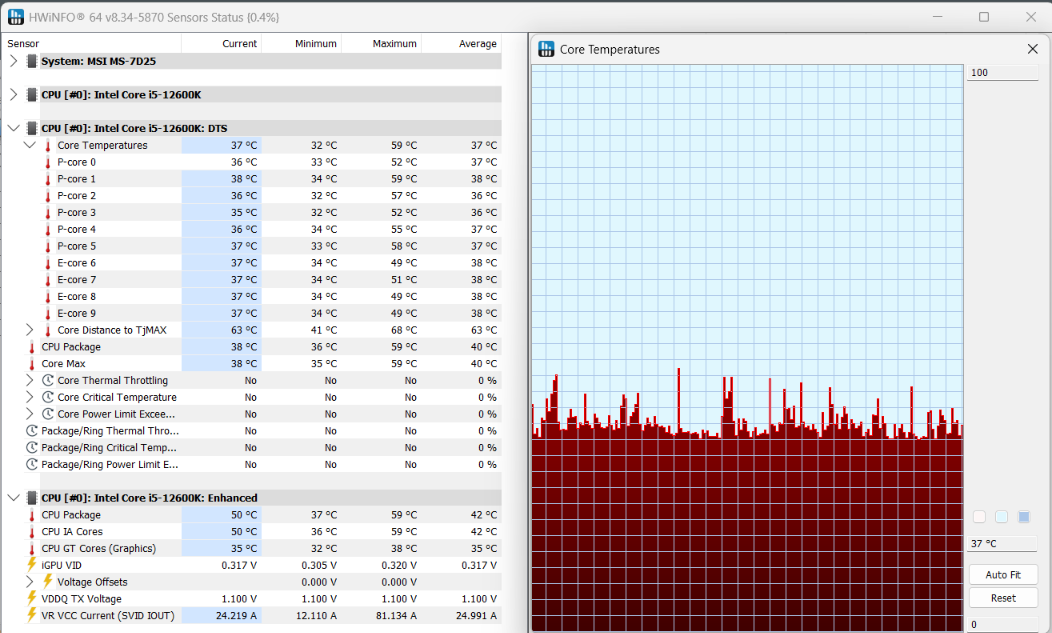
So, the symptom will be 90 to 100% CPU usage with unusually low clock speed with a high temperature. However, most of the times, due to ineffective CPU cooling, the CPU will resort to shutting down or reduce the performance rather than showing 100% usage.
In case there is a literal fault in the CPU, it is going to be hard to figure it out. A faulty CPU will hardly cause the high CPU usage. It will give you other symptoms like system freezes, frequent shutdowns, BSODs, or simply system not able to boot up. However, you can use Windows’ WHEA system to identify hardware errors, including processor, memory, and PCI Express.
You can check Event Viewer > Windows Log > System.
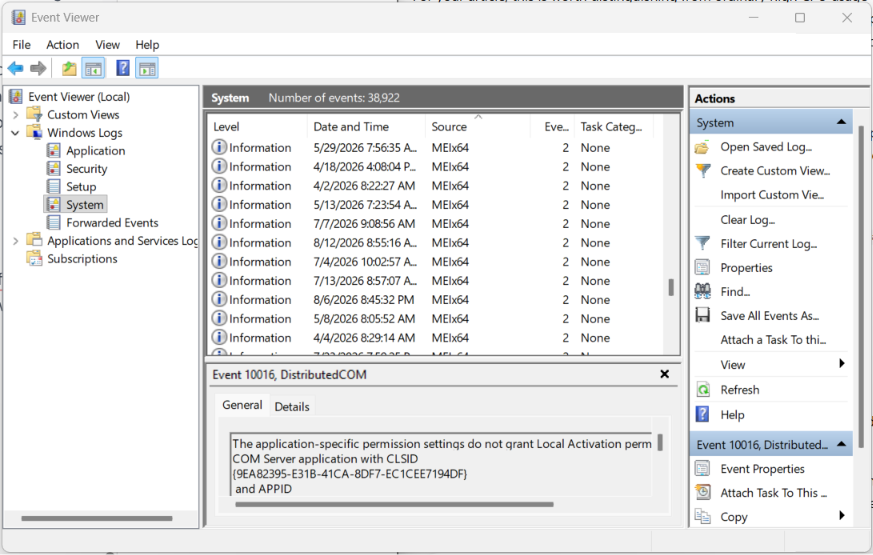
Look for events from Microsoft-Windows-WHEA-Logger. Microsoft has an official document utilizing WHEA-Logger as the record provider for various hardware error events.
Conclusion
CPU is a precious and the most important resource in your computer. Being responsible for handling active tasks and providing them computational power, its resource management is really an important job of the operating system. Most of the time, it is handled perfectly well by the task scheduler and other components. But, in rare cases, programs, services, drivers, etc., can interfere unnecessarily, and you may see a very high CPU usage without any significant work going on. I hope the solution that I have provided above will help you solve the problem.