

The CPU, or the processor, in your computer is not only for processing. It decides the motherboard chipset and socket type. It also decides the RAM type, the availability of integrated graphics, the cooling solution, upgradability path, and many other things.
There are two main brands in the CPU market, i.e., Intel and AMD. So you do not have much choice there. But, under these two brands, there are hundreds of different CPUs from different generations, variants, and names. It is very easy to get confused if you do not know how to navigate through all this.
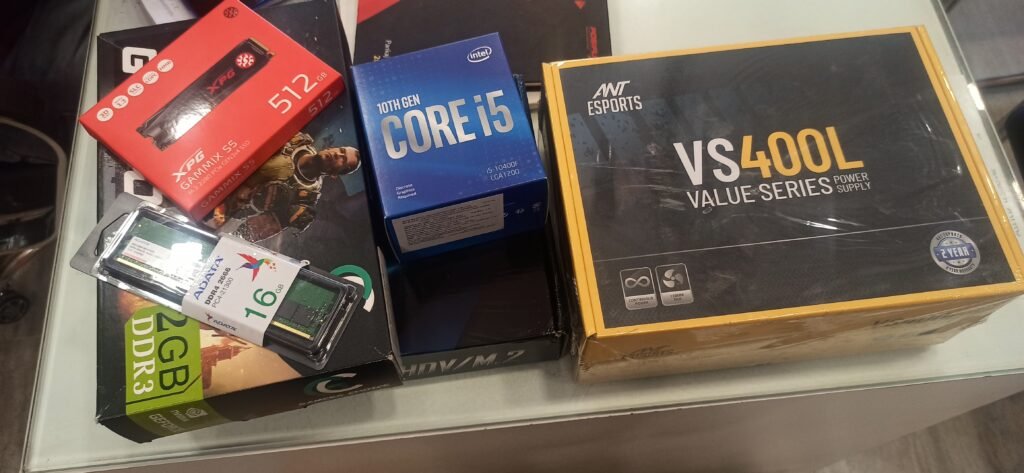
When I have to buy a new processor for me or someone else, I always try to figure out the usage before anything else.
For example, if I want a PC capable of running most modern AAA games, I know 6 to 8 cores are enough. The boost clock speed around the 5.5 to 5.5 GHz range is plenty. A large L3 cache matters more than the last few hundred MHz. PCIe 5.0 is needed to have future GPU and SSD upgrades. I would go with a CPU without integrated graphics if the money is limited and invest that extra amount in the GPU instead.
So, when you know your needs, it becomes easier to pick the right CPU because it is the first thing you are going to decide. In this article, I will tell you the methodology I follow to pick a CPU, and it has been working perfectly for me for the last decade. I am going to share all my knowledge and opinions in this guide. So, expect it to be a little longer.
Start with Yourself, Not the CPU.
Whenever someone asks me to suggest them a good CPU, I firstly ask for their use case and the total budget. I never assign a fix percentage for the processor because we have to select other components as well. However, this is what my normal price distribution looks like if someone gives me a budget of $1000 for a PC build.
GPU $350 · CPU $210 · board $140 · RAM $380 · SSD $110 · PSU $80 · case $65. If you want to save money, you can do that for the RAM because of the current price hikes.
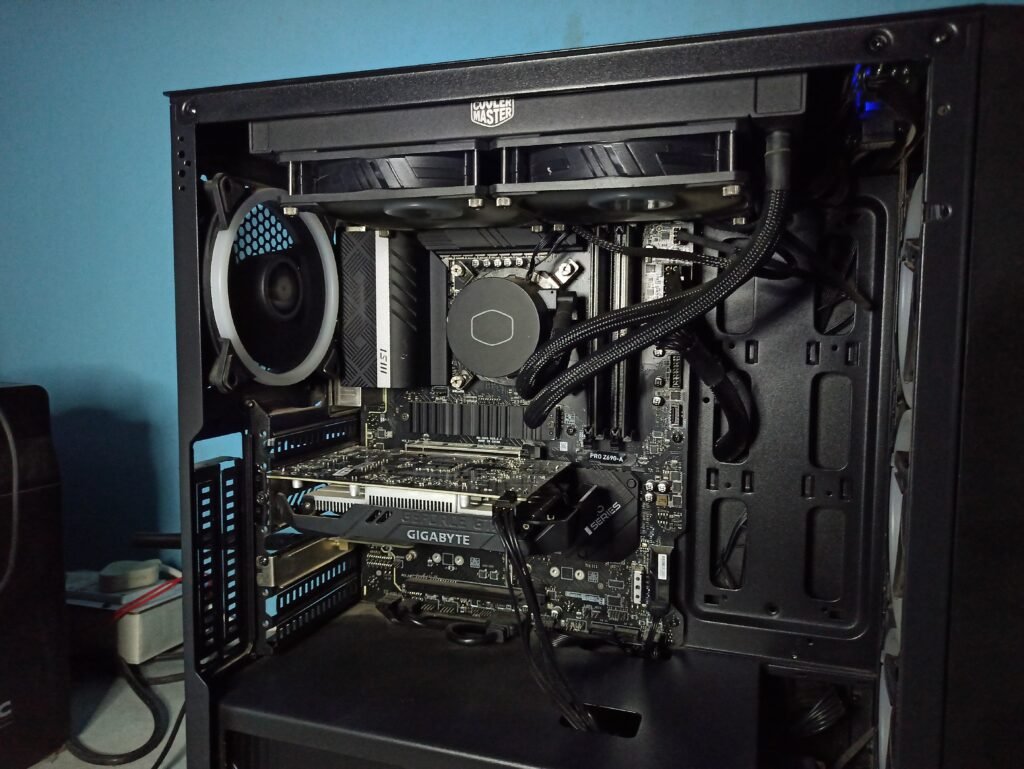
However, if there is no graphics card required for it, I would surely go for a higher-end CPU and increase the budget to $200 to $250.
The CPU is surely the primary component in your computer, but there are other things you have to decide, and it is good to understand your requirements first of all. For a gaming PC, a good graphics card is as important as the CPU. Also, there should be no bottleneck either from the CPU and GPU side.
Things like database processing, game logic, code compilation, office apps, operating systems, browsers, virtual machines, and single-thread applications require more CPU power. On the other hand, gaming, ray tracing, 3D animation rendering, AI model training, AI image generation, crypto mining, etc., require more GPU power.
So, based on your usage, you should smartly move your budget towards either the CPU or GPU side.
How much to spend on a CPU?
I generally set a budget first and then work backwards. If you know your price bracket, you can easily strip away all the options that are not suitable for you.
If you are planning a PC for gaming, always invest more in GPU than CPU. I would suggest this price table for different purposes.
| You mainly do this. | Spend this much on the CPU. | What to prioritize | Example chips (Aug 2026) |
|---|---|---|---|
| Browsing, office apps, email | $50–100 | Any modern budget CPU | Ryzen 5 5500, Core i3-14100F |
| Light/1080p gaming | $150–230 | Clock speed and cache over core count | Ryzen 5 9600X (~$229), Core Ultra 5 250K Plus (~$199) |
| 1440p/4K gaming, streaming on the side | $250–400 | Cache (X3D chips), 6–8 cores | Ryzen 7 9700X, Core Ultra 7 265K/270K Plus (~$299–350) |
| Video editing, 3D rendering, compiling code | $350–600+ | Core count above almost everything else | Ryzen 9 9900X3D, Ryzen 9 9950X, Core Ultra 9 285K |
| “I just want the best; budget isn’t the point.” | $500+ | Flagship | Ryzen 9 9950X3D (~$639), Ryzen 7 9800X3D (~$439) for gaming-only |
Understanding CPU Specifications
Whenever you look out to buy a CPU, you will see many specifications. So, it is important to understand them, at least in a broad way.
1. Core Count
A core is an independent processing unit capable of executing instructions. Historically, consumer CPUs had one or two cores, but modern CPUs are now coming with 4 to 24 cores and even more than that. More cores improve performance only when software can use them. Tasks like video rendering, code compilation, streaming while gaming, and running virtual machines can utilize many cores at once. In contrast, many everyday applications and older games cannot fully use a high number of cores.
However, more cores do not automatically mean a faster CPU. A newer 8-core processor can outperform an older 12-core processor because of microarchitectural improvements, higher IPC, larger cache, and faster boost clocks. So, while people pay a lot of attention to the core count, it is not the primary parameter while choosing a CPU.
As a rule, in my builds, I pick 4 to 6 cores for basic computers. For gaming builds, I never go above 8 cores. However, if you want to game and stream together, 8 to 12 cores are good. For video editing and professional rendering, 8 to 16 or more cores are good.
Single-Core vs. Multi-Core Performance
Single-core performance = how fast one core handles a task. Matters for anything that can’t be split across cores.
Multi-core performance = how well the chip handles many tasks/threads at once, using all cores together.
Single-core heavy tasks such as gaming, general OS responsiveness, browsing, everyday apps, and older or poorly optimized software.
Multi-core heavy tasks, on the other hand, are video editing, rendering, 3D rendering, running virtual machines, streaming while gaming, heavy multitasking, and AI/ML workloads.
Pure gamers prioritize a better single-core performance and do not overpay for 16 cores that they would never use. Content creators, developers, and multitaskers will always prioritize core count and multi-threaded performance.
2. Threads
So, if a core handles a specific process at a time, a thread helps it handle two instruction streams simultaneously through technologies like Intel Hyper-Threading and AMD’s Simultaneous Multithreading (SMT). In other words, an 8-core CPU with SMT typically appears as a 16-thread processor to the operating system.
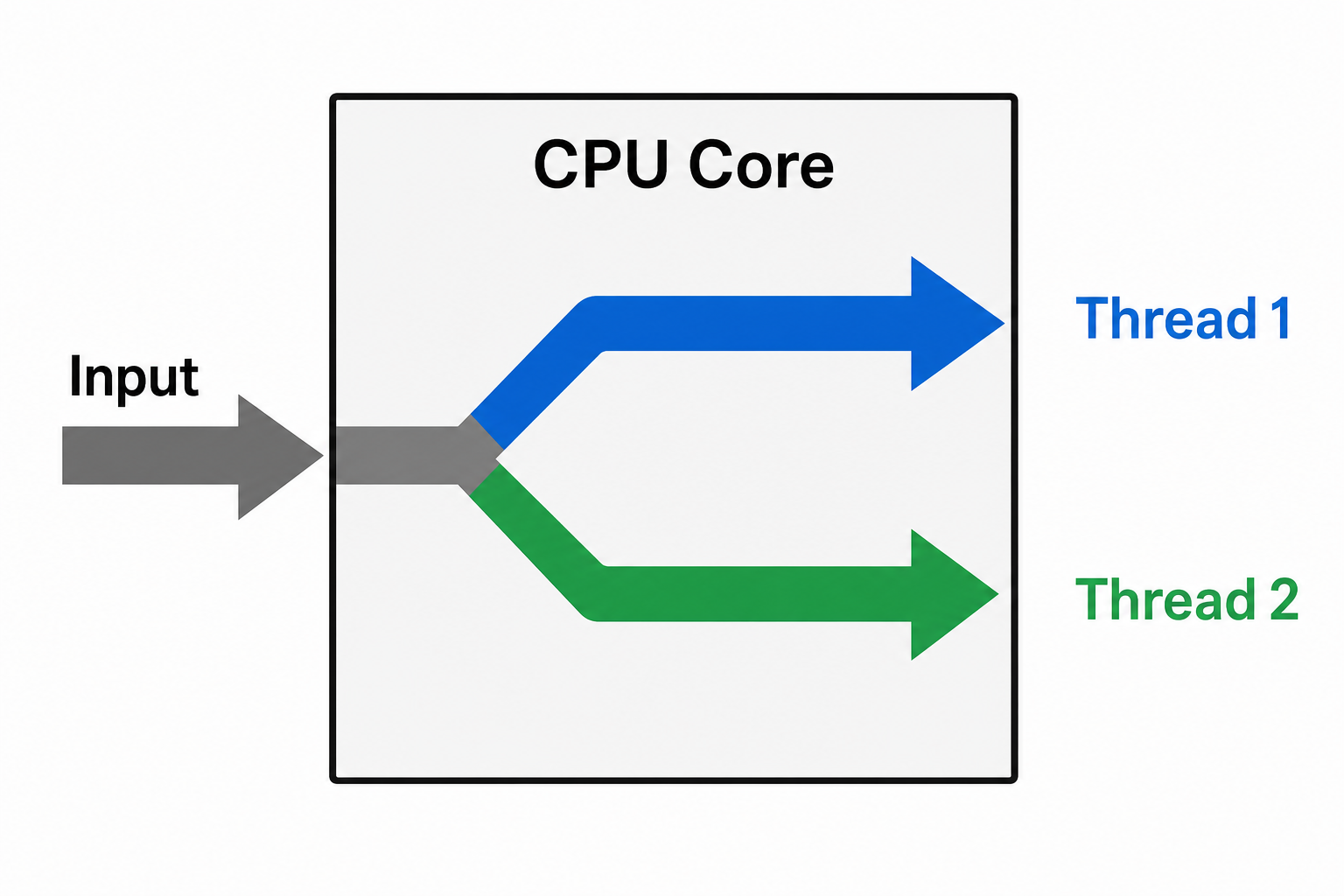
However, a thread is not physically similar to a core. It is a sort of virtual core that improves resource utilization within each core. It doesn’t double the performance in any way. If there is some performance gain offered by SMT, it will depend entirely on the workload.
Threads matter more in video rendering, software compilation, virtualization, scientific computing, etc. For gaming, more threads hardly give any performance gains.
3. Clock Speed
CPUs work in clock cycles. Older, simpler processors completed roughly one instruction per cycle, but modern ones handle several at once. The clock speed is measured in Hertz, but most modern CPUs can reach gigahertz. For example, a 5 GHz processor can reach five billion cycles per second.
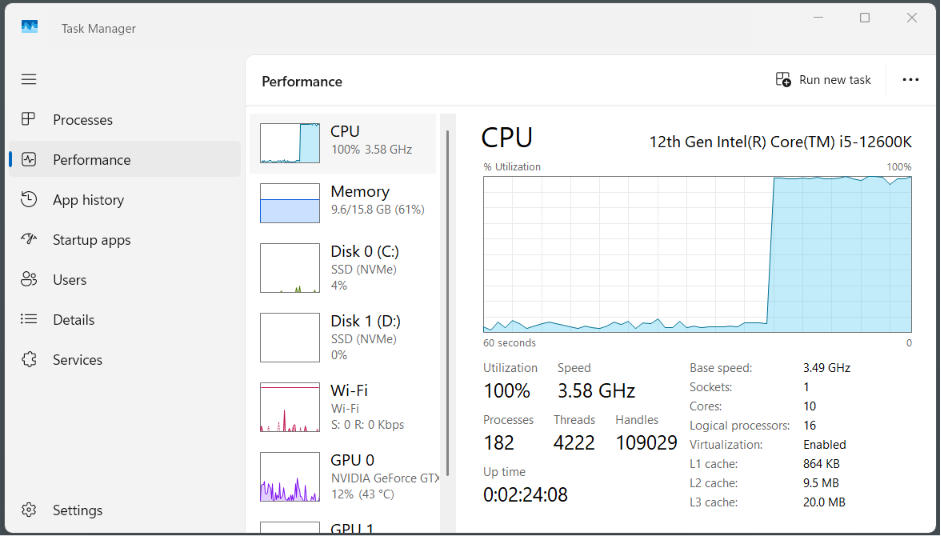
Most people think a higher gigahertz means a better performance, but this isn’t the only number. There are two clock speeds in a CPU, i.e., base clock and boost clock speed. The base clock is the guaranteed operating frequency under sustained workload within the processor’s power limits. However, the boost clock is the higher frequency a CPU can temporarily reach when the thermal and power conditions are right.
Modern CPUs constantly adjust frequencies depending on workload, temperature, and available power budget. But clock speed still remains one of the top criteria while picking a CPU.
4. IPC (Instructions Per Clock)
So, we discussed above that a single task can be performed in each clock cycle, and that is true if we look at the technology itself. But microarchitecture improvements increase IPC (Instructions Per Clock) through better branch prediction, wider execution pipelines, larger instruction windows, lower memory latency, and improved cache systems.
This is the reason why two CPUs running at the same frequency can perform very differently. Just look at this simple relationship between performance and IPC.
CPU Performance ≈ IPC × Clock Speed × Number of Active Cores
This is where CPU generations are important. A newer generation usually has higher IPC, so it does more work per clock. That doesn’t automatically make it faster overall. A newer low-tier chip can still lose to an older high-tier one with far more cores.
5. Cache
Your processor isn’t just responsible for calculations. It is integrated with an extremely fast memory even though it is in a very small amount. This memory is called a cache. It is used to store and access the data that is required frequently by the processor for any active tasks in hand.
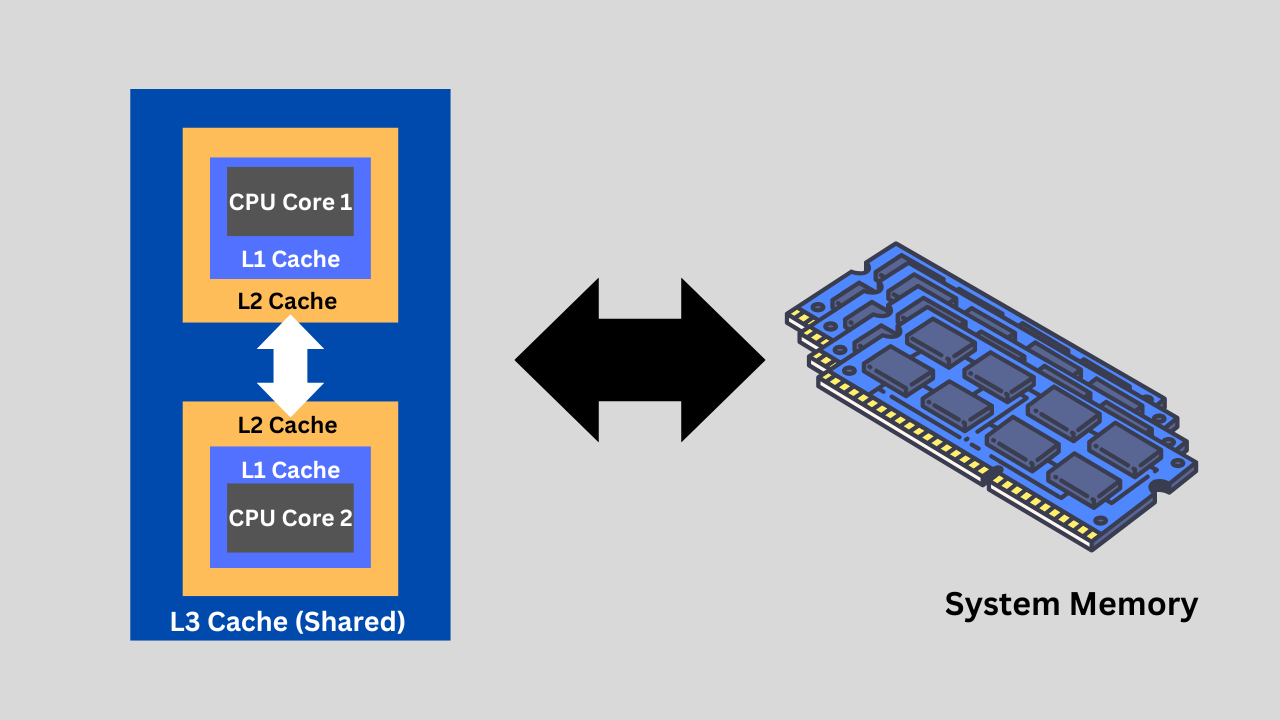
Processors have three cache levels.
L1 Cache
- Smallest and fastest
- Dedicated to each core
- Stores the most frequently accessed instructions and data
L2 Cache
- Larger than L1 but slightly slower
- Holds recently used data that no longer fits in L1
L3 Cache
- Much larger
- Usually shared among all CPU cores
- Helps reduce memory access delays during larger workloads
Many modern games repeatedly access the same world state, physics calculations, and other game data. A larger L3 cache can reduce expensive memory accesses, which is why processors with unusually large caches, such as AMD’s Ryzen X3D models, often deliver higher gaming frame rates even when clock speeds are similar.
For workloads like video rendering or encoding, cache still helps, but overall performance tends to scale more strongly with core count and CPU architecture.
6. Power Consumption (TDP)
TDP represents the amount of heat a cooling solution is designed to dissipate under specific operating conditions. Most people confuse it with the maximum amount of power a CPU consumes.
Modern CPUs can draw significantly more power than their advertised TDP during boost or turbo operations. The basic purpose of TDP is to give PC builders and cooler makers a target value so they can choose a fan or heatsink that keeps the chip from overheating. It is always better to go a little higher on the TDP number when choosing a cooler if your goal is to take your CPU to its limits.
7. Integrated GPU (iGPU)
Some CPUs include an integrated graphics processor. This allows them to display video without requiring a dedicated graphics card. However, if the CPU doesn’t have an iGPU, a dedicated graphics card will be required even to get the display output.
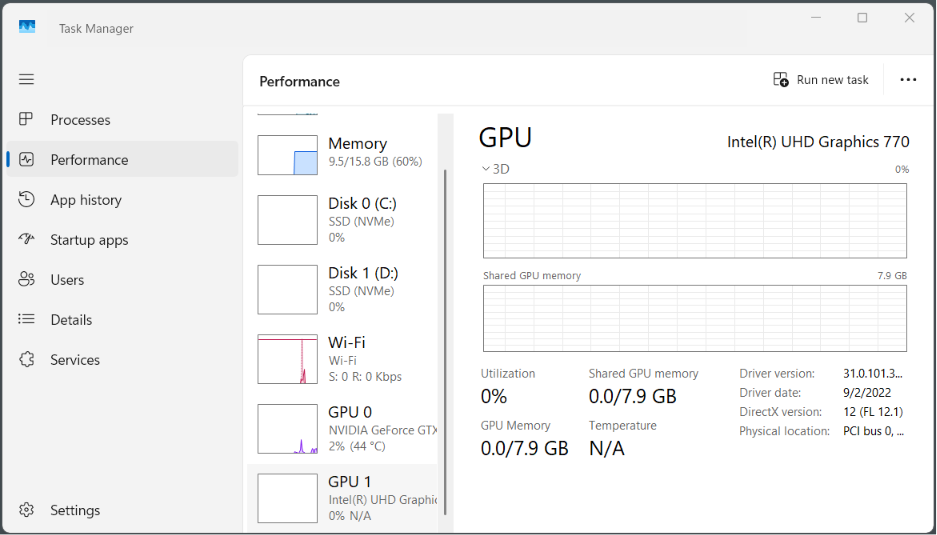
An integrated graphics card is beneficial in basic computers for office and productivity where you do not do any graphics-heavy operations like gaming, video editing, or other 3D work. These CPUs are also good for home theater systems and even budget gaming systems where you do not want to run high-end games at high settings.
Keep in mind that modern integrated GPUs have improved significantly and can even handle light gaming, but they remain much slower than dedicated graphics cards for demanding games or professional GPU workloads.
8. Node Size (nm)
Node size, or the manufacturing process, refers to the semiconductor fabrication technology used to build a processor. But these node names are largely marketing labels rather than directly comparable physical measurements across different foundries.
A newer process can surely have improved transistor density, power efficiency, and thermal characteristics, allowing manufacturers to fit more transistors in the same physical space. But node size alone doesn’t determine CPU performance.
Architecture, IPC, cache design, memory subsystem, and power management often have a much greater impact. As a result, a CPU built on an older process can still outperform one manufactured on a newer node if its overall design is superior.
Intel vs. AMD
Intel and AMD compete in almost every consumer PC segment. Neither company is consistently better. So, the right comparison is not about “Intel vs. AMD.” It is “this Intel CPU vs this AMD CPU at this price for this workload.”
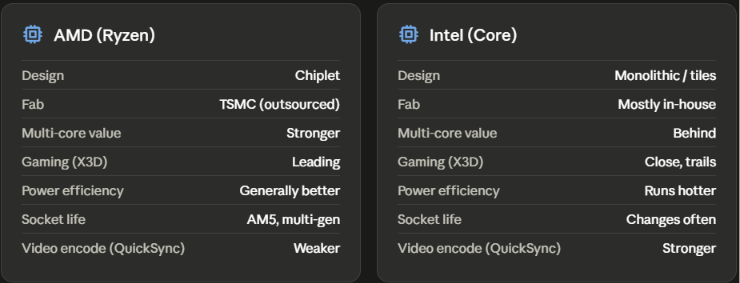
However, there are some architectural differences. AMD uses a chiplet design (separate CPU cores + I/O die glued together) on Ryzen/EPYC. On the other hand, Intel mostly uses monolithic dies, though they’re moving to tiles (Meteor Lake, Arrow Lake). Chiplets let AMD scale core counts cheaper but can add latency between cores.
They have different manufacturing strategies as well. AMD outsources to TSMC (currently ahead in process tech). Intel mostly makes its own chips and has struggled with node delays over the past several years. This is the single biggest reason AMD caught up and overtook Intel in efficiency and multi-core performance since Ryzen launched.
So, if we look at a general performance profile, AMD wins per dollar for multi-core and productivity-related tasks. The gaming performance profile is very close. But, we can say that AMD’s X3D chips (extra cache) are currently the gaming performance leader.
Intel remains competitive and mostly ahead in single-core and light workloads.
In the power efficiency domain, AMD has done a great job and offered a better performance-watt for the last few generations. Intel’s high-end chips run hotter and pull more power for similar performance.
My personal issue with Intel is the platform longevity. AMD keeps the same socket (AM4/AM5) for years, so you can upgrade the CPU without a new motherboard. Intel changes sockets almost every generation.
Right now, for most people, AMD is the better price-to-performance pick. Intel makes sense if you need Quick Sync, single-core-heavy workloads, or just already own an Intel-socket motherboard.
Match the CPU with Other Components
A CPU is never planned and bought in isolation. It has to go perfectly with other components, mainly the motherboard, graphics card, and memory. So, for example, if you have planned an RTX 4080 GPU, you should ideally aim for the Ryzen 7 7800X3D or Core i7-14700K. Pairing a high-end GPU with a budget CPU is the most common mistake first-time builders make.
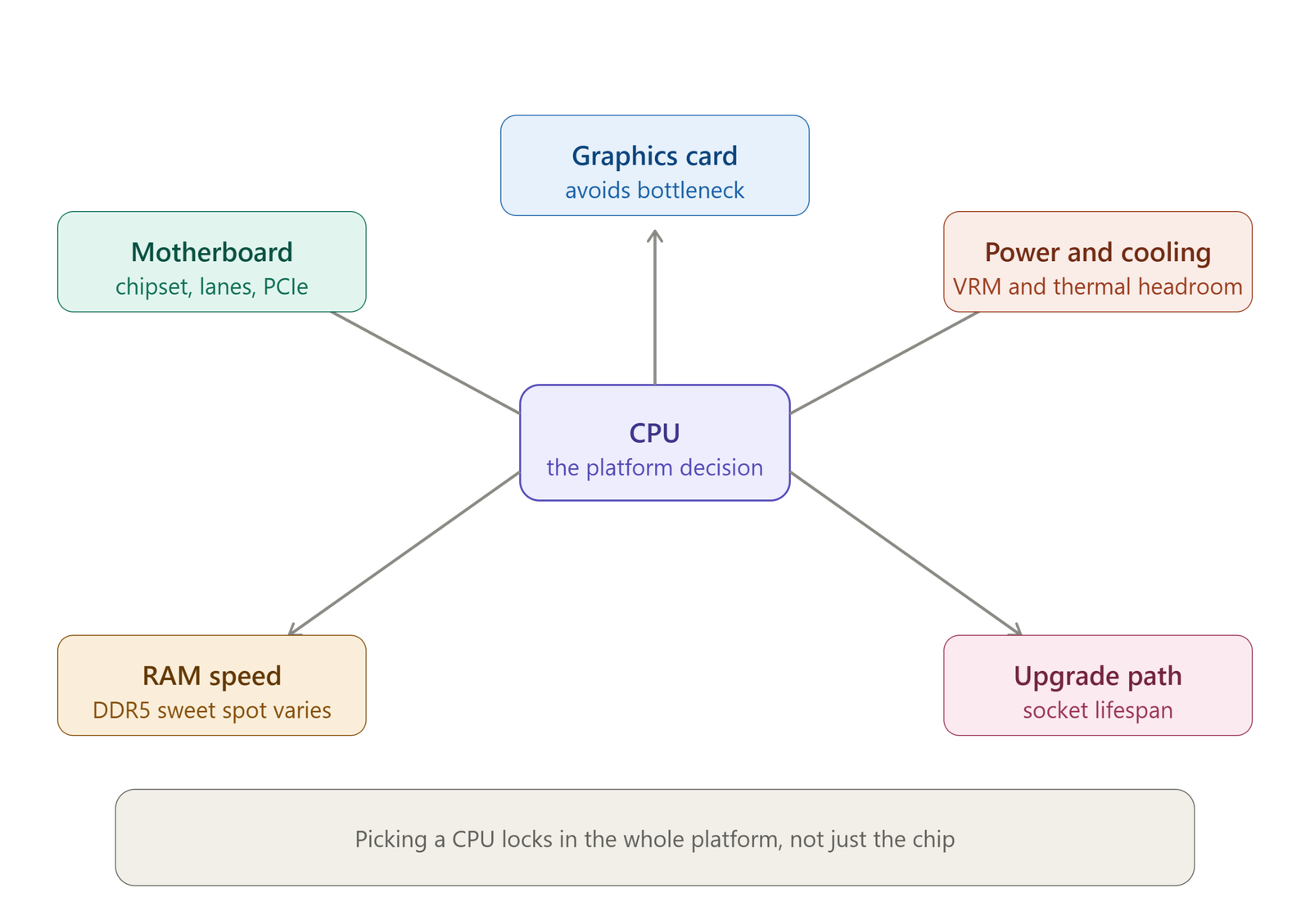
Or if you want a specific motherboard feature like a specific number of PCIe 5.0 lanes, Thunderbolt support, or a particular chipset’s overclocking headroom, that can quietly decide your CPU brand for you, since AMD and Intel don’t share sockets or chipsets.
AMD’s Ryzen platform (AM5) is tuned to run best around DDR5-6000; going much higher gives diminishing or even negative returns due to the Infinity Fabric clock ratio. Intel platforms are more forgiving and scale further with faster RAM. If you already own a high-speed DDR5 kit, check which platform actually uses it well before locking in a CPU.
A CPU will also decide the cooling solution. High-end Intel chips (i7/i9, especially K-series) pull significantly more power and need beefier VRMs and cooling than equivalent AMD chips. If you’re building a small form factor or budget-cool, that pushes you toward AMD.
Understand CPU Naming Schemes
Because of many different generations and various SKUs in both these brands, these naming schemes can easily become really confusing. But let me try to make it simpler for you.
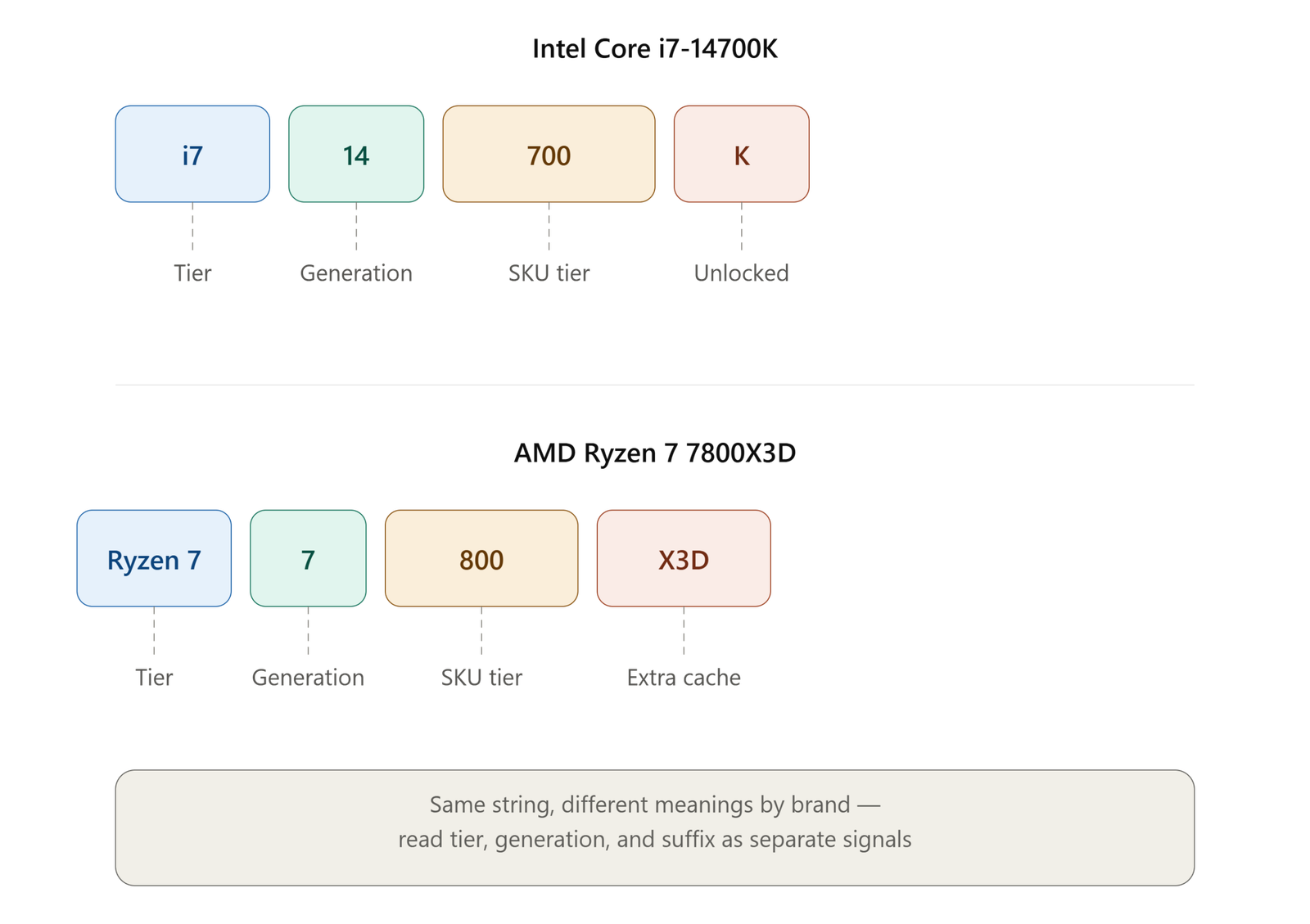
Intel naming (example: Core i7-14700K):
- Core i3/i5/i7/i9 (The Tier): i3 is entry-level, i5 is mainstream, i7 is high performance, and i9 is flagship.
- First 1-2 digits (14): The generation. Higher means newer.
- Remaining digits (700): The SKU/performance tier within that generation. “Higher” generally means more cores or higher clocks.
- Suffix letters: this is where people get tripped up:
- K = unlocked for overclocking
- F = no integrated graphics (cheaper, needs a discrete GPU)
- KF = unlocked and no integrated graphics
- T = power-optimized, lower TDP
- No suffix = locked, has integrated graphics, standard power
AMD naming (example: Ryzen 7 7800X3D):
- Ryzen 3/5/7/9: The tier. Same logic as Intel’s i3/i5/i7/i9.
- First digit (7): The generation/series.
- Remaining digits (800): performance tier within that generation.
- Suffix letters:
- X = higher clocked, performance variant
- X3D has a 3D V-Cache stacked on top. The gaming-focused chips with the extra cache
- G = has integrated graphics (AMD’s APUs)
- No suffix = standard base model
Keep in mind that generation number doesn’t automatically determine the performance. A last-gen i7 can beat a current-gen i5. Tier matters more than generation when they’re close.
Secondly, don’t assume a higher SKU number always means better in every category. Sometimes a lower-numbered SKU in a newer generation beats a higher-numbered SKU from an older one.
X3D is arguably the most important letter in AMD’s current lineup for gaming buyers, since it’s the extra cache that gives these chips their gaming lead. F-suffix Intel chips are a genuine money-saver if you already have a dedicated graphics card or are planning for one in your new PC build.
Choose a Compatible Motherboard
As we discussed above, AMD and Intel don’t share sockets. So this isn’t really a separate decision; it’s a direct consequence of the one you already made.
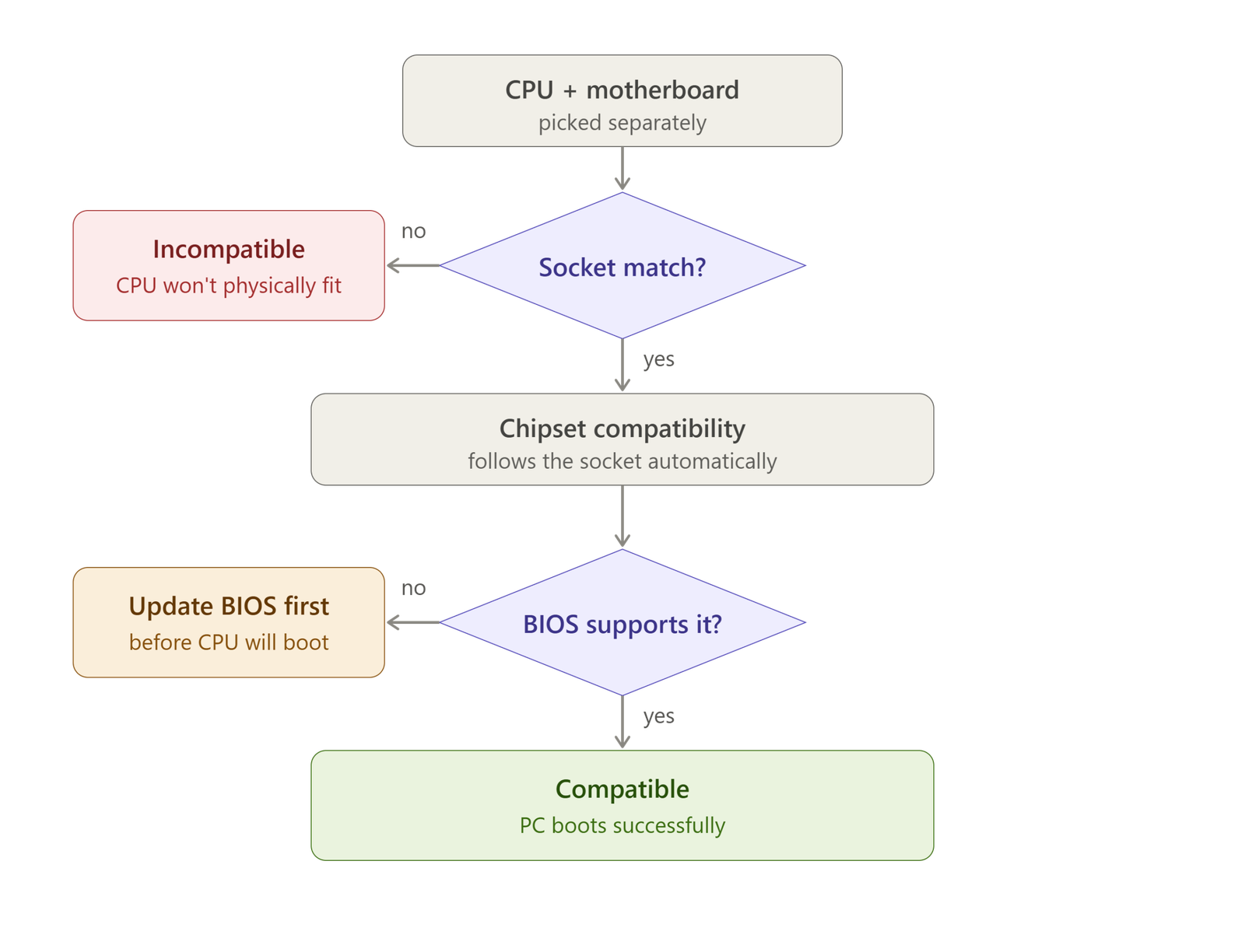
AMD’s current desktop chips are using the AM5 socket. Intel’s current chips use LGA1700 (older) or LGA1851 (newer generations). Buying a CPU and motherboard with mismatched sockets is the single most common beginner mistake. So, the first step is to match the socket of your desired CPU with the motherboard.
After that, pick the chipset tier. Within one socket, there are multiple chipsets that unlock different features.
AMD (AM5): B650/B650E for mainstream builds, X670/X670E for high-end with more PCIe lanes and overclocking headroom, and A620 for budget builds with fewer features.
Intel (LGA1700/1851): B760/B860 for mainstream, Z790/Z890 for overclocking and maximum PCIe/USB connectivity, and H610/H810 for budget, no-frills builds.
However, with the latest CPU releases, new chipsets are released, and some support the previous CPUs, and some don’t. So you will have to find that out from the CPU specification page before you make a purchase.
The socket type is the physical connector. It is the hard, non-negotiable aspect. Chipset is one specific IC tied to a particular socket generation. So chipsets aren’t independent of sockets. A B650 board is AM5-only, and a Z790 board is LGA1700-only. You can’t have “chipset support” without a socket match; they’re not separate checks; the chipset already implies the socket.
However, there is one caveat to it. Chipset families sometimes span multiple CPU generations on the same socket, and older boards need a BIOS update to support newer CPUs even though the socket and chipset are technically compatible.
| Brand | Socket | CPU Generations | Chipsets |
|---|---|---|---|
| AMD | AM4 | Ryzen 1000–5000 series | A320, B350, B450, B550, X370, X470, X570 |
| AMD | AM5 | Ryzen 7000, 8000G, 9000 series | A620, B650, B650E, X670, X670E, B850, X870, X870E |
| Intel | LGA1700 | 12th gen (Alder Lake), 13th gen (Raptor Lake), 14th gen (Raptor Lake Refresh) | H610, B660, H670, Z690, B760, H770, Z790 |
| Intel | LGA1851 | Core Ultra 200S (Arrow Lake) | H810, B860, Z890 |
In other words, if a motherboard’s socket matches your CPU, the chipset compatibility follows automatically. But always check the board’s CPU support list, since older boards sometimes need a BIOS update before a newer CPU will boot.
Choose Compatible RAM
RAM compatibility is less rigid than the motherboards. DDR generation is the hard requirement, the same as the socket.
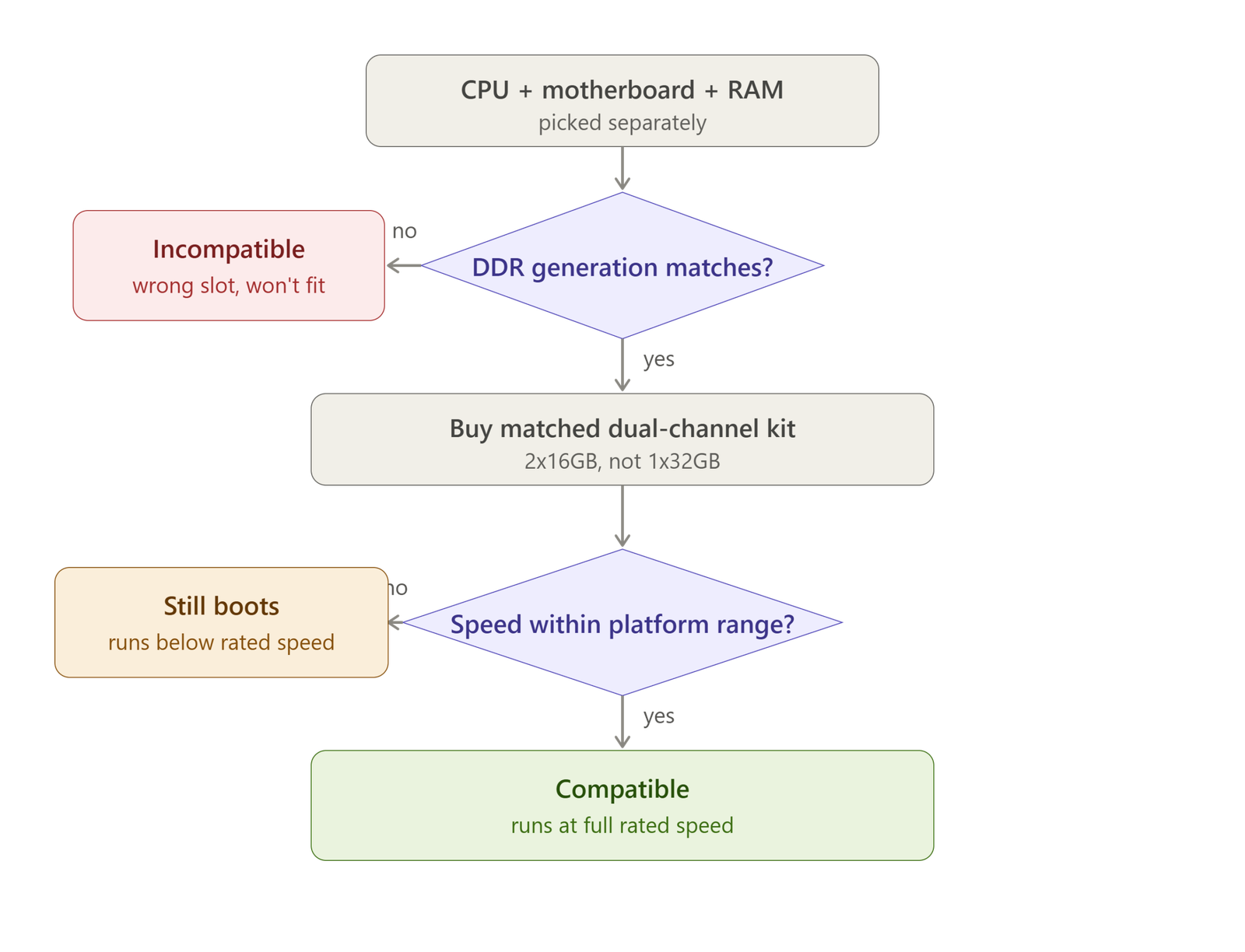
Current AMD (AM5) and Intel (LGA1700/1851) platforms both use DDR5. Older DDR4 kits are not backward or forward compatible, and DDR4/DDR5 don’t even share a physical slot shape, so this one’s not negotiable either. So, make sure to match the DDR version of the RAM, CPU, and motherboard as well.
Besides the compatibility, the platform-specific tuning also matters a lot. For AMD CPUs based on AM5 platforms, the best price-to-performance sweet spot is around DDR5-6000 CL30. AMD’s Infinity Fabric (the interconnect linking CPU chiplets) runs best at a 1:1 ratio with memory clock up to about 6000 MT/s.
Intel platform scale further with faster kits and don’t hit the same fabric ratio well. Its platforms scale further with faster kits like 6400MT/s, 7200MT/s, and even higher. So if you already own a very fast DDR5 kit, Intel will make better use of it out of the box.
Buy RAM in matched dual-channel kits.
For example, if you want 32 GB, buy a matched 2×16 GB kit rather than a single 32 GB module. Then you should install it in dual-channel configuration. Install it in alternating slots (usually A2 and B2).
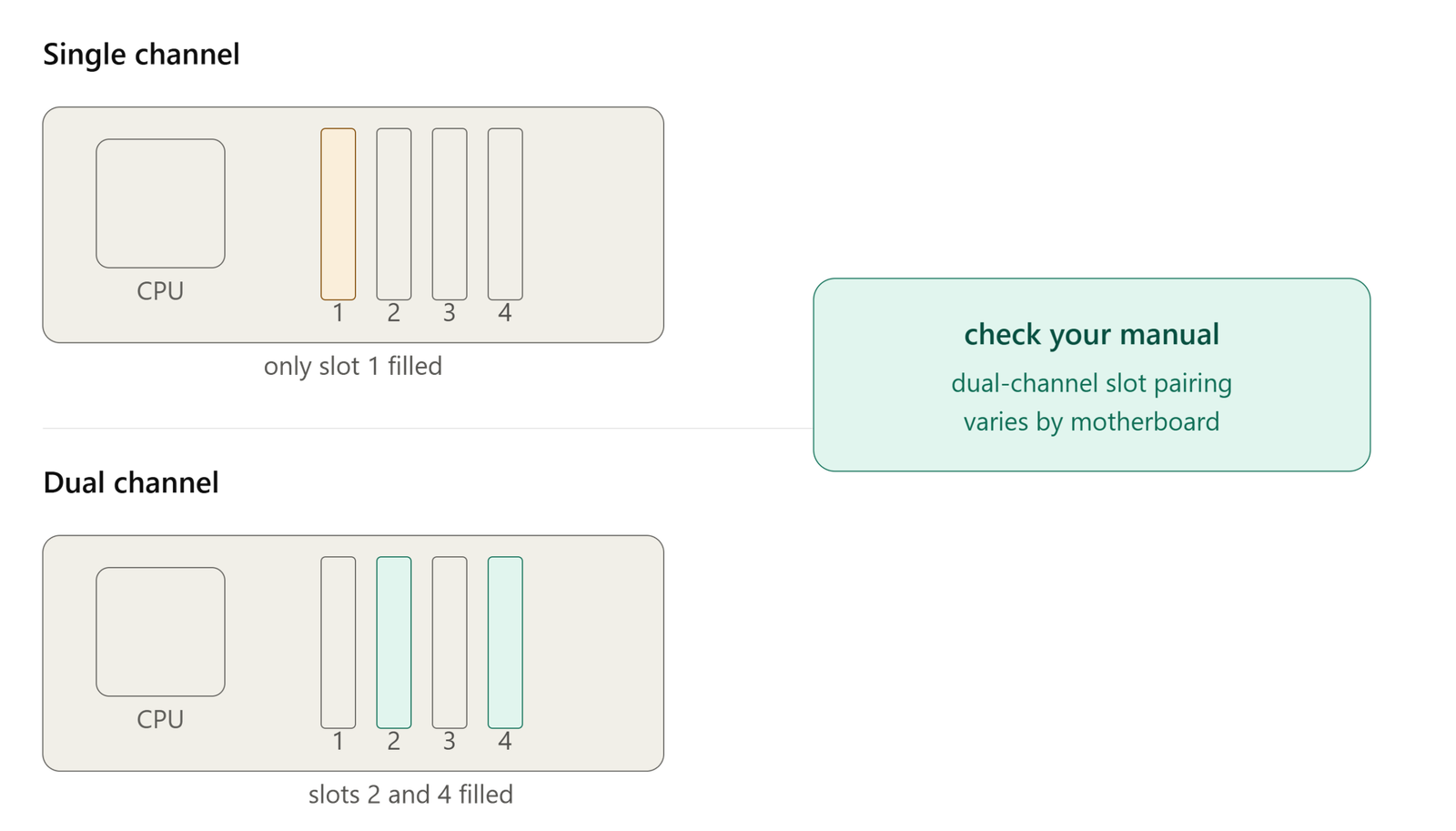
Since the RAM prices are very high these days, 16 GB of memory will be a good pick for most computers. But it can become a little tight with modern games and heavy multitasking. In that case, you may have to go for the 32GB. Make sure to leave two RAM slots free if you want to upgrade in the future.
You can consider previous-generation CPUs to save money.
Previous-gen flagship chips often beat current-gen mid-range at the same price. You can get them in sales whenever the retailers try to clear their inventories. A last-generation X3D or i7 can easily outperform the current generation i5 for almost the same price or even at a cheaper price.
AMD is safer in this aspect because AM4 and AM5 have long lifespans. A used Ryzen 5000-series chip can still work on the boards people are building today. So, in terms of building old computers, AMD can surely help you save a lot of money. Intel is riskier because of the socket-hopping problem
One place where I would recommend staying cautious is the second-hand CPU market. CPUs tend to degrade over time, especially if they are used under heavy workload and heat (overclocking makes it worse). There’s no real way to test a CPU before buying it the way you can inspect a used GPU or check a drive’s SMART data. You’re trusting the seller. So, instead, you can go for a previous generation CPU to save some money, but buying second-hand parts is always a risky task.
How to make a list of your top 5 CPU picks?
For the prices, I recommend going to PCPartPicker or Amazon/Newegg based on your location. Once you have your CPUs sorted by the pricing, you can go through the specs that we just discussed above, i.e., cores, generation, threads, clock speed, etc. It is better to go for better specifications overall than the generations only. This way, you will be able to find the 5 or maybe 10 best CPUs for you.
Check Benchmarks for Actual Performance Difference
Benchmarks are the actual real-time performance tests done by people, creators, or authors on the internet. I generally prefer checking Gamers Nexus or Hardware Unboxed for YouTube reviews of the CPUs. TechPowerUp’s CPU Database also has a huge back catalog, which is good to compare CPUs across generations.
Cinebench R23/2024 multi-core scores are the industry-standard shorthand for productivity comparisons. Every CPU review on the internet will have these scores published.
Conclusion
I hope this article will help you make a wise decision for your CPU. Although this guide was mainly for desktop computers, the specification part can be applied to the laptop CPUs as well. If you take one thing away from this guide, let it be this: start with yourself, not the CPU. Know your use case, set your budget, and let that narrow the field before you ever look at a spec sheet. Once you do that, the naming schemes stop being confusing, the Intel-vs-AMD debate stops mattering as much, and picking a chip becomes a fifteen-minute research task instead of a week of second-guessing.