

Okay, let me tell you a fact.
If you search Google for “how to fix stuttering on an Intel 12th gen or newer CPU,” someone will tell you to turn off the E-cores. Yeah, you can try it now. The advice sounds logical. We discussed in our P-Cores vs. E-Cores article that E-Cores are the slower ones, so removing them should leave only the fast ones for your game. Unfortunately, that is not how it works. The strongest source is here.
In short, you should not disable E-cores for gaming in most cases. On Windows 11, the average FPS stays almost the same either way. In return, you lose multi-core performance for everything else. Disable them only when one specific game stutters or crashes, and try the per-game methods first.
To understand why, we first have to see what happens inside the CPU when you disable E-cores. After that, I will cover when it actually helps, how to disable E-Cores for a specific game, and how to turn them off in BIOS. So, let’s get started.
What actually happens when you disable E-cores?
A P-Core is a big, power-hungry, and powerful core. An E-core is small in size. About four of them fit in the space of one P-core, and they use far less power. So, Intel considers them as helpers. They are there to take the background and light workloads so that the P-Cores stay free to handle the heavy work.
Your game falls into the category of the heavy work. Games generally have one or two heavy threads and many light ones. In other words, games utilize single-core performance more compared to multi-core performance. Windows 11, with Intel Thread Director, already puts the heavy threads on the P-cores first. So, when you disable the E-cores, you are not making P-Cores faster. You are just sending the helpers away.
This is what changes when E-Cores are gone.
1. Background work moves to the P-cores
Earlier, with everything normal, your browser, Discord, Windows services, or maybe the antivirus were mostly running on the E-Cores. They do not stop. Windows services just can’t stop. So, they start using the same P-core resources your game is using. Now, if you have enough P-Cores to handle things, everything is fine. Otherwise, the game and the background work compete for the same cores.
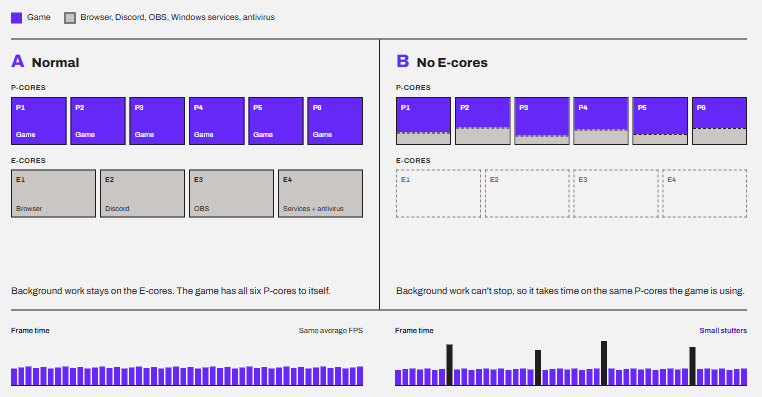
On a six-core P-core chip like i5-12600K, that can show up as small stutters, even when the average FPS looks the same.
2. Extra threads land on hyper-threading.
Windows is smart in handling E-cores and can send some threads directly to E-cores even when the P-core is free. These are generally the ones an app marks as low-priority background work. But heavy threads, like the ones from your game, follow a different order. P-cores first, then E-cores, and only then the second thread of each P-core.
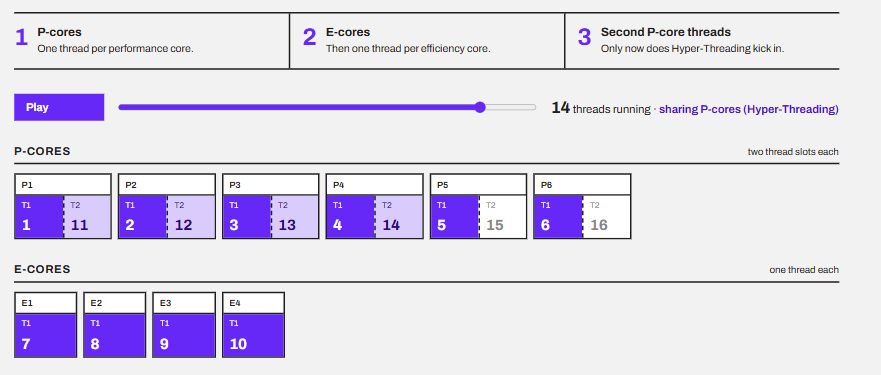
So, hyper-threading comes at the very last for a reason. Mainly because it doesn’t add a physical core. It lets two threads share one P-core, so each of them gets less than a full core. So, when a game needs more threads than you have P-cores, the extra threads normally get an E-core of their own.
With E-cores off, they have to share a P-core with a thread that is already running there, and both slow down.
3. You lose threads for everything else
E-cores might be small and less powerful than P-cores, but they still do real work. Tasks that use every core, like rendering, compiling, and video encoding, get slower without them. And the more E-cores your chip has, the bigger that loss is.
4. The cache gets a little faster on 12th gen
Cache speed is the only thing that improves when you disable E-Cores. But only on 12th-generation processors and only the L3 cache. The L3 cache is a small, very fast memory that all cores share. They reach it through an internal path called the ring. If the ring is fast, the core gets the data faster and vice versa.
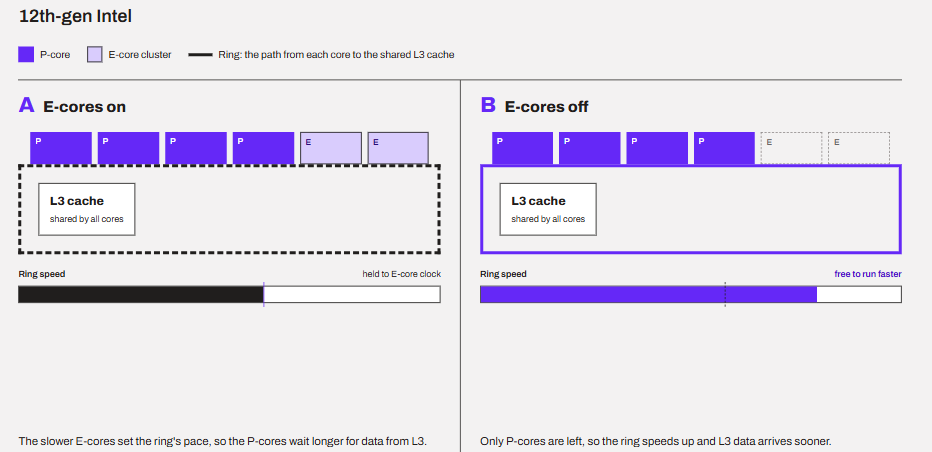
On 12th gen, the ring’s speed depends on the E-cores because the ring cannot run faster than the slowest active core. So, because E-cores run at a lower clock speed, the P-cores have to wait for the data whenever the E-core is active.

The issue is that the game read data very frequently from the L3 cache. But, in 13th and 14th-gen processors, Intel raised this ring speed, and now the cache benefits from disabling E-cores are minimal. So, if you have a Gen 12th, the only thing you get back is a slightly faster cache and nothing else. Will it help a lot in gaming? I don’t think so.
When should you disable E-cores?
I have found three cases when disabling E-cores can be beneficial for you.
1. One specific game stutters or crashes
Some older games and DRM systems do not handle hybrid cores that well. Intel itself confirmed this for 12th-gen CPUs. What happens is that DRM reads the E-cores as a different system and crashes the game.
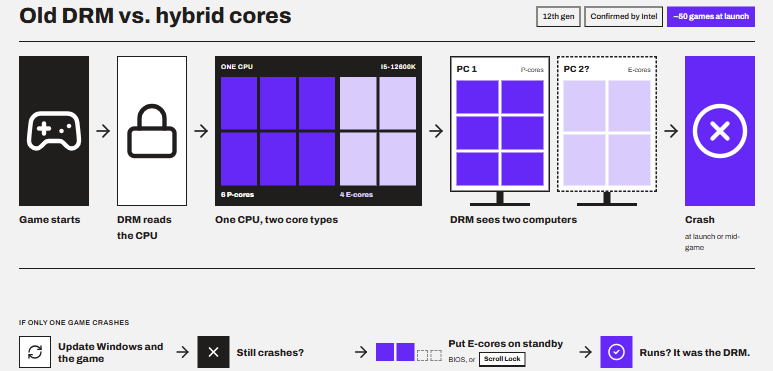
If the problem shows up in one game only, this might be the case, and you can check if disabling E-cores fixes this. The process is discussed below to disable E-cores for specific games.
2. You are still on Windows 10.
Remember the scheduling order we discussed above? Windows 10 isn’t fully optimized for Intel Thread Director. So it does not follow that order properly. It is possible that your heavy game threads land on E-cores, which will make it run really bad. Windows 11 follows this hybrid core ordering properly as suggested by Intel.
Upgrading your operating system is the real fix. If you can’t, disabling E-cores is reasonable.
3. You want more P-core overclocking headroom.
The biggest limitation of an overclock is the heat. Because all the cores sit inside a single CPU, the heat generated by the E-cores can take away the thermal headroom that the P-cores could use. A higher voltage makes this even worse. On 12th to 14th-gen Intel, both cores run from the same voltage supply. Now, you might think of setting the E-core’s voltage lower with XTU. But it does not help here. In reality, the chip gives all active cores the highest voltage that any of them asks for.
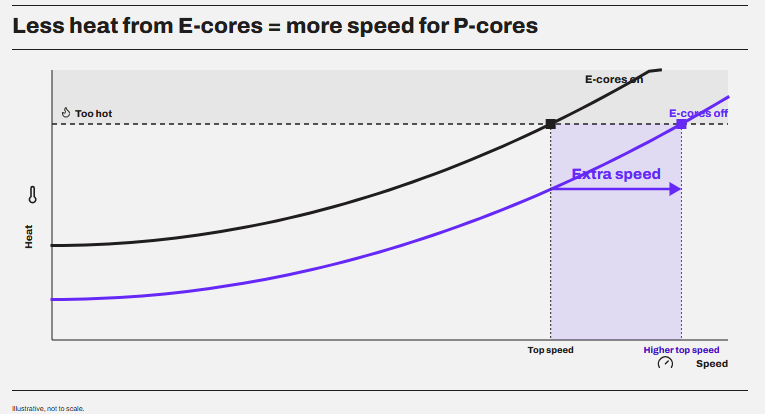
However, with the E-cores turned off, that heat is gone, and it will eventually result in P-cores holding a slightly higher frequency. What goes along with the heat is the multi-core performance. So, you might win in benchmark scores but not in the real-world tasks.
How to disable E-cores in Windows 11 without BIOS?
Windows has no switch that turns E-cores off. What you can do is keep one game off them. And, I think this is a better fix because with this method your game will only use the P-cores, while the E-cores will be available for other background tasks.
1. Set CPU affinity in Task Manager.
- Start the game.
- Open Task Manager (Ctrl + Shift + Esc) > Details.
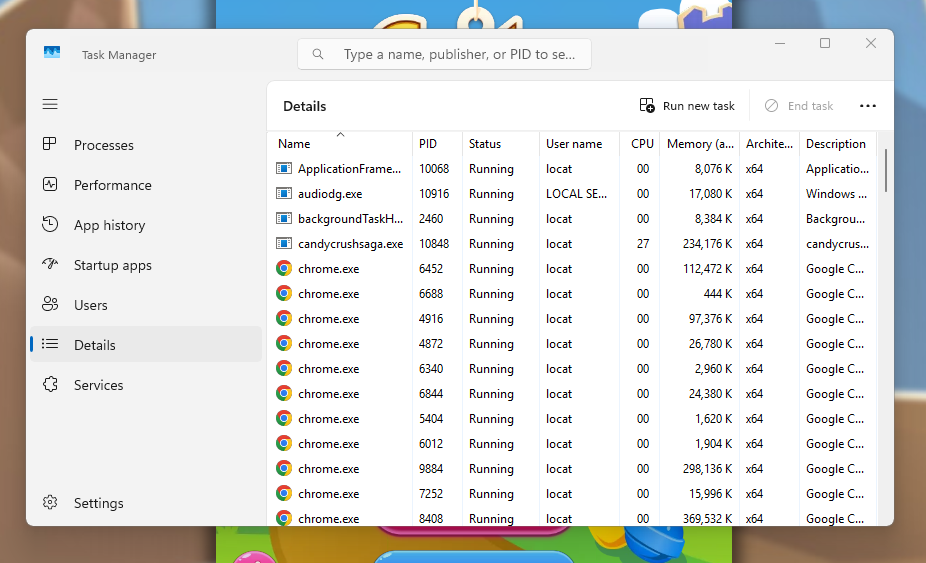
- Right-click the game’s .exe and click Set affinity.
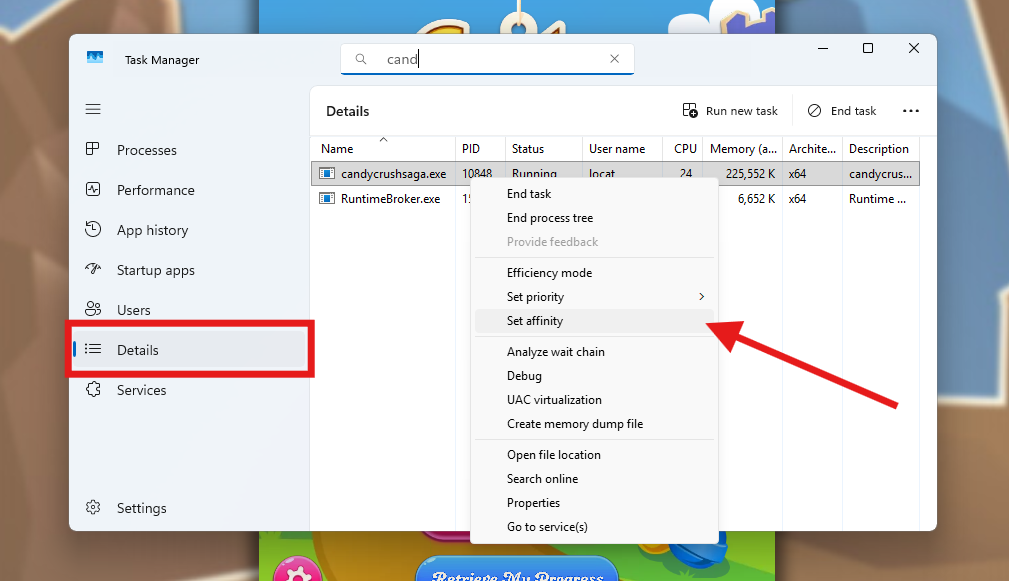
- Untick the E-cores and click OK.
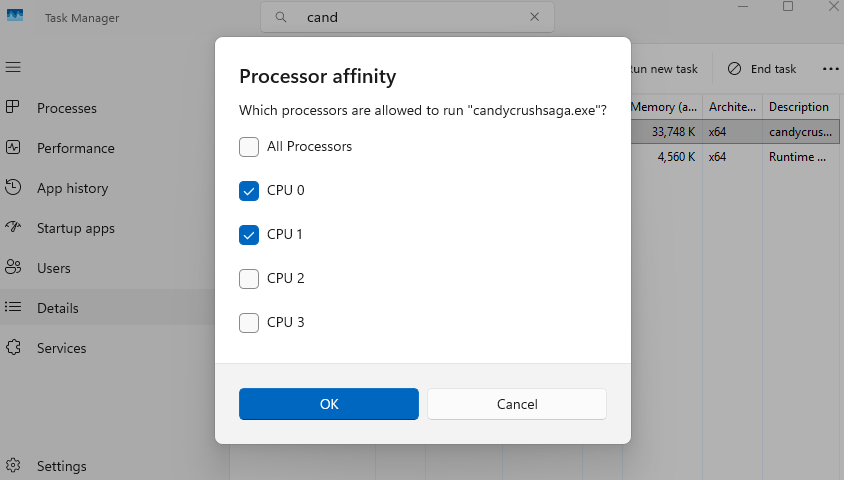
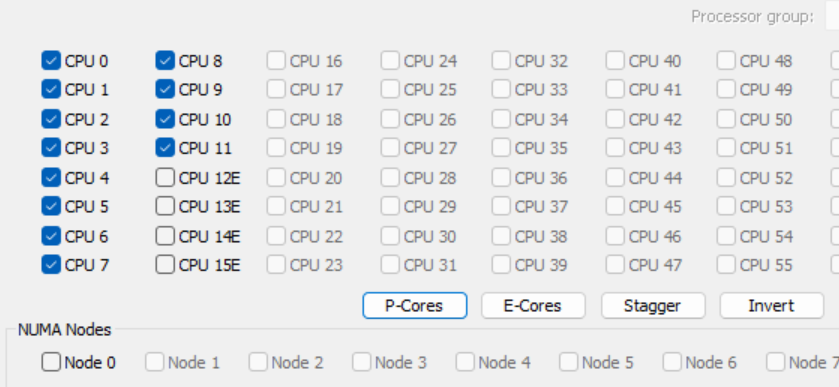
Now, which boxes are the E-cores? On the 12th to 14th gen, the P-core threads come first in the list. On my i5-12600K, CPUs 0 to 11 are the six P-cores with Hyper-Threading, and CPUs 12 to 15 are the four E-cores.
But the issue is that Task Manager forgets this when you close the game. So, you will have to set it manually every time you play the game. But, there is a way around it.
2. Make it permanent with Process Lasso
Process Lasso can save the same setting as a rule and load them at every boot. Process Lasso has a free version and is enough for this purpose. Also, it is very easy to use. Here is the process.
- Download, install, and open Process Lasso on your computer.
- Right-click the game in Process Lasso and select CPU Affinity > Always > Select CPU Affinity.
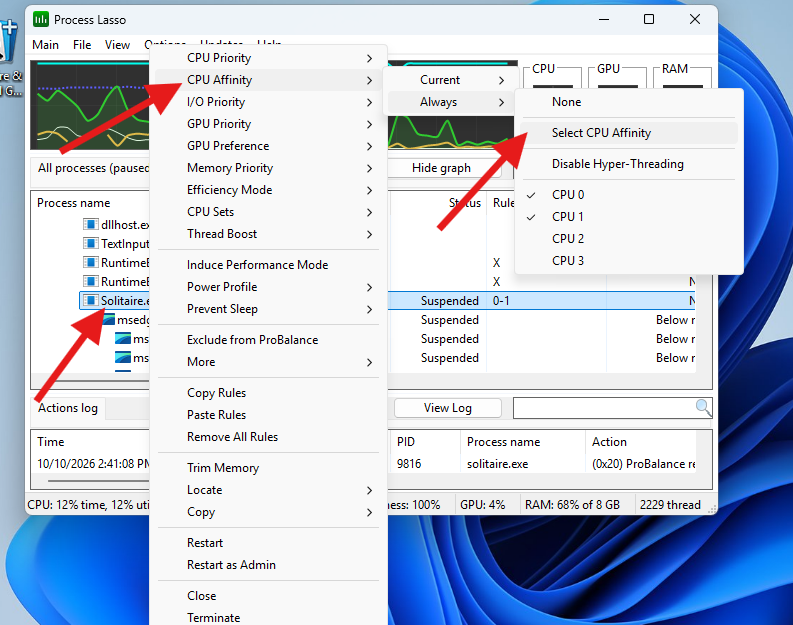
- Untick the cores marked with an “E”. The rule now applies every time the game starts.
4. Try Intel APO for supported games
Check this list if your game is in it. If you find it, you do not have to remove the E-cores at all. Intel Application Optimization fixes the scheduling for a short list of games. It needs the Intel DTT driver from your motherboard’s support page and the Intel APO app.
How to disable E-cores in BIOS?
I would recommend this step only if the per-game affinity didn’t work for you or if you have a specific need to disable E-cores completely. Keep in mind that it affects the whole system until you turn it back. Also, the process may vary based on the motherboard and its UEFI/BIOS type. I am going to discuss the process for my computer (with MSI board) here, but I will give you the links to the guides from other popular board brands.
- Restart and press Delete to enter BIOS.
- Inside the BIOS, switch to Advanced mode (F7 on MSI)
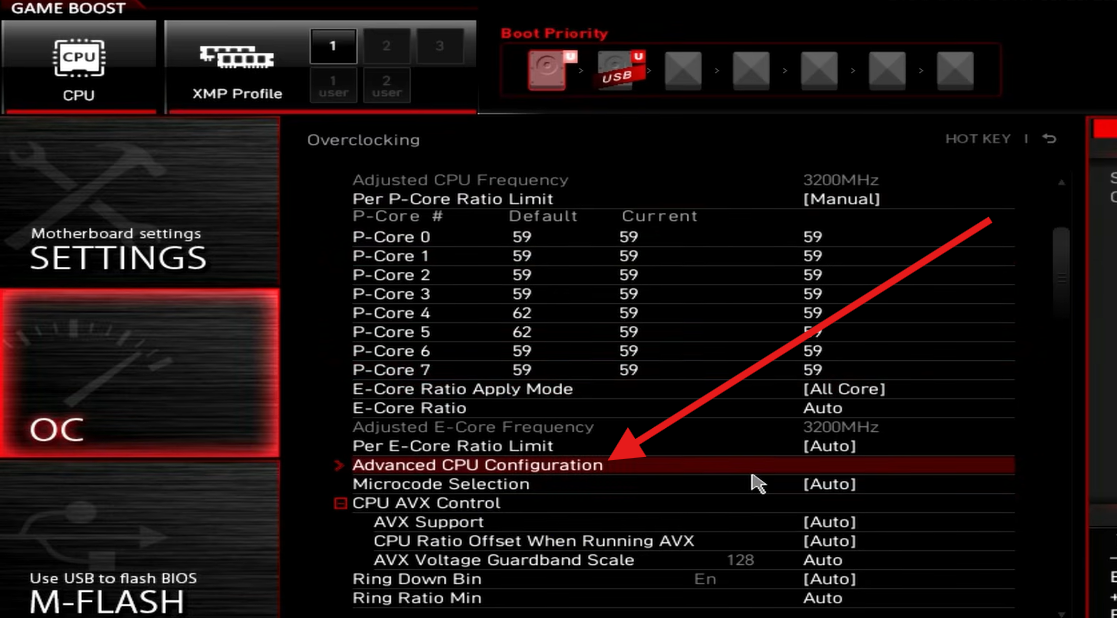
- Click the OC tab in the main menu.
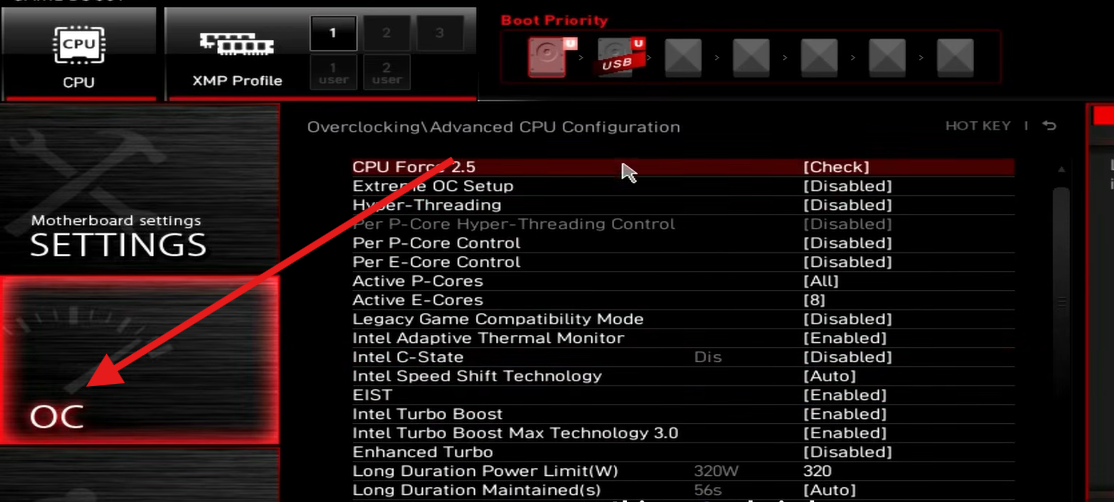
- Click the option Advanced CPU Configuration.
4. Set Per E-Core control to enabled and click Active E-Cores. Set this option to 0 to disable them completely. You can select other numbers as well.
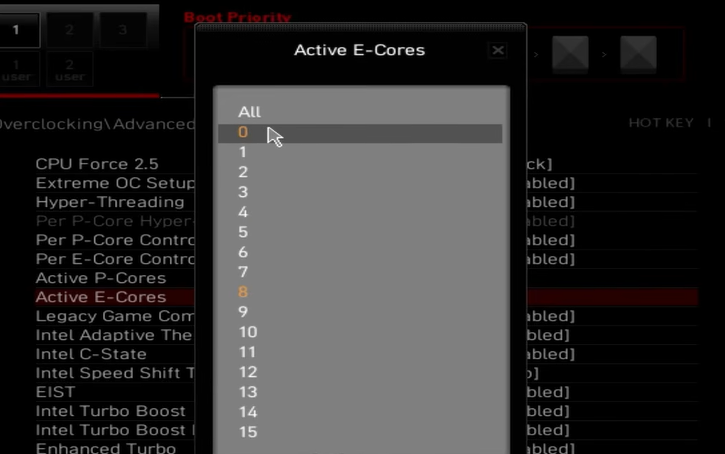
I have found that halving the number of E-cores provides good results in terms of heat reduction while keeping some E-cores available for background. This should reduce the load from your P-cores if you have just 6 P-cores like my 12600K. But, if you want to disable them completely, I have given you the process.
Here is how you disable E-cores in Asus, ASRock, and Gigabyte BIOS. Again, the settings may vary depending on different variants of boards within the same manufacturer. But, you will generally find it in Per E-Core Control in Advanced CPU configuration.
How to check if E-cores are off?
Open Task Manager > Performance > CPU and look at Cores and Logical processors.
My i5-12600K shows 10 cores and 16 logical processors by default. 6 (P-Cores) x 2 Threads each + 4 E-Cores = 16 logical processors.
With E-cores off, it shows 6 cores and 12 logical processors, ignoring all 4 E-cores.
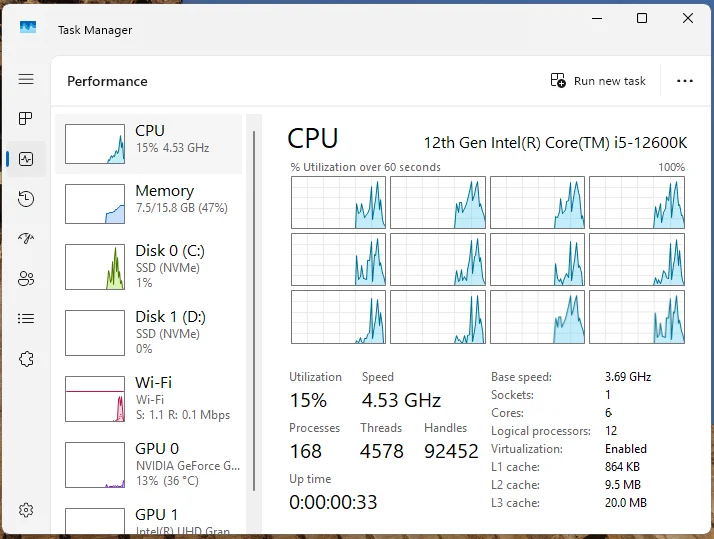
To undo it, set the same BIOS option back to Auto.
Conclusion
If you have Windows 11, my suggestion is to keep E-cores enabled even if you mostly game. Set affinity manually for a given game to see if it is really the E-cores causing your problem. BIOS should be your last option, not the first one. The only time I would turn them off completely is on Windows 10 or for a P-core overclocking run.
Frequency Asked Questions
Is disabling E-cores safe?
Yes. It is a normal BIOS setting, not an overclock, nor an underclock. But, it can surely result in poor performance.
Does disabling E-cores reduce temperature or save power?
Not really. In fact, in some cases, it may increase the heat because the P-cores have to take over the work that the E-cores would have done much more efficiently.
Can you disable the P-cores instead?
At least one P-core has to stay on, and game performance drops a lot when you do it.
Can I disable E-cores on a laptop?
Most laptop won’t show you the option in the BIOS. But, if you still want to do it, use Affinity option in Task Manager or Process Lasso.
Should I disable E-cores for Fortnite, Valorant, or Counter-Strike?
Competitive games often run at very high frame rates and lean on one or two threads. So, they can gain a few percent with E-cores off, mostly on 12th gen. Others run better with them on. So, set the game’s affinity to the P-cores with Process Lasso and keep whichever is faster.