

If you ever open Task Manager and check your CPU’s clock speed and wonder why it never reaches the highest boost clock that was promised, you are not alone. Many people who don’t know how CPUs operate wonder this.
But is there something wrong?
In most cases, nothing is wrong with your CPU. The advertised boost clock is a ceiling, not a promise. It is usually reached only on one or two of the best cores, under light or single-threaded load, and only when temperature, power, and current allow it. Missing it by a little is often normal. Modern CPUs come with sophisticated Boost algorithms, which decide when and how much to boost the clock frequency.
If you have read my base clock vs. boost clock article, you already know the basics of clock frequency. In this article, we will look at how to check whether you actually have a problem, the normal reasons you don’t see max boost, and the settings that can sometimes hold it back. So, let’s get started.
What Does “Max Boost Clock” Actually Mean?
AMD says outright that “maximum boost clock is the peak frequency achievable by a single core on the processor running a bursty single-threaded workload.” It also adds that max boost “will vary based on several factors, including, but not limited to, thermal paste, system cooling, motherboard design and BIOS, the latest AMD chipset driver, and the latest OS updates.”
In simple words, it is one core for short bursts in good conditions.
Intel has almost the same statement on this on its specific product pages. I have given it below. However, they also say that this boost in clock speed can vary depending on the workload and available temperature headroom.”
For example, Intel’s ARK spec page for the Core i7-14700K lists a 3.4 GHz P-core base clock, a 5.5 GHz P-core max turbo, and a 5.6 GHz Turbo Boost Max 3.0 frequency, and it says, “Max Turbo Frequency refers to the maximum single-core processor frequency that can be achieved with Intel® Turbo Boost Technology.” So, this 5.6 GHz is only for the favored cores.
AMD’s product page lists the Ryzen 7 9800X3D at a 4.7 GHz base and “up to 5.2 GHz” max boost. But they also state that only bursty, single-threaded workloads will trigger this boost clock.
Think of it like sprinting. You can sprint at your top speed for a short distance on a cool day. You cannot sprint a marathon, and you cannot sprint in the heat. Your CPU is the same.
So, the number on the box is the best case for one core, not what all cores run at all the time.
What Actually Triggers the Real Boost/Turbo Behavior in a CPU?
Basically, there are certain conditions that decide whether a processor will hit its maximum clock speed. These are set by the manufacturers themselves. Mostly, they are there to keep CPUs working for longer in good health, heat being the top reason stopping the CPUs from keeping running at the highest frequencies all the time. At the end of the day, CPUs are electronic devices bound by the laws of physics. Boost or turbo clock speeds require huge amounts of power to get some type of work done faster. And this high power consumption creates high heat as well. We can’t keep something running at very high load and high temperatures permanently.
Boost is not a switch that stays on. Your CPU decides its clock speed on its own, many times every second. There are some specific situations when the CPU boost or turbo clock is triggered. Here is a list of top things that can make your CPU reach the boost clocks. But more on this later in this article. First, let’s see how you confirm if there is actually a problem.
- Opening apps and booting Windows.
- Loading web pages
- Gaming. Especially esports titles at high FPS
- Single-threaded productivity work like Excel or photo editing
- Many emulators
- Single-core benchmarks
How Do We Confirm There Is Actually a Problem?
Before you change anything, it is important to confirm that there is actually a problem. Task Manager is good but not enough. It is not a diagnostic tool. So, I would recommend a real tool like HWiNFO.
Use HWiNFO and Watch Per-Core Clocks.
I would recommend HWiNFO in “Sensors only” mode. You will see two kinds of clocks per core. The normal “Core Clock” and the “Core Effective Clock.” The effective clock value is the average clock measured internally by the CPU across the polling interval set in HWiNFO.
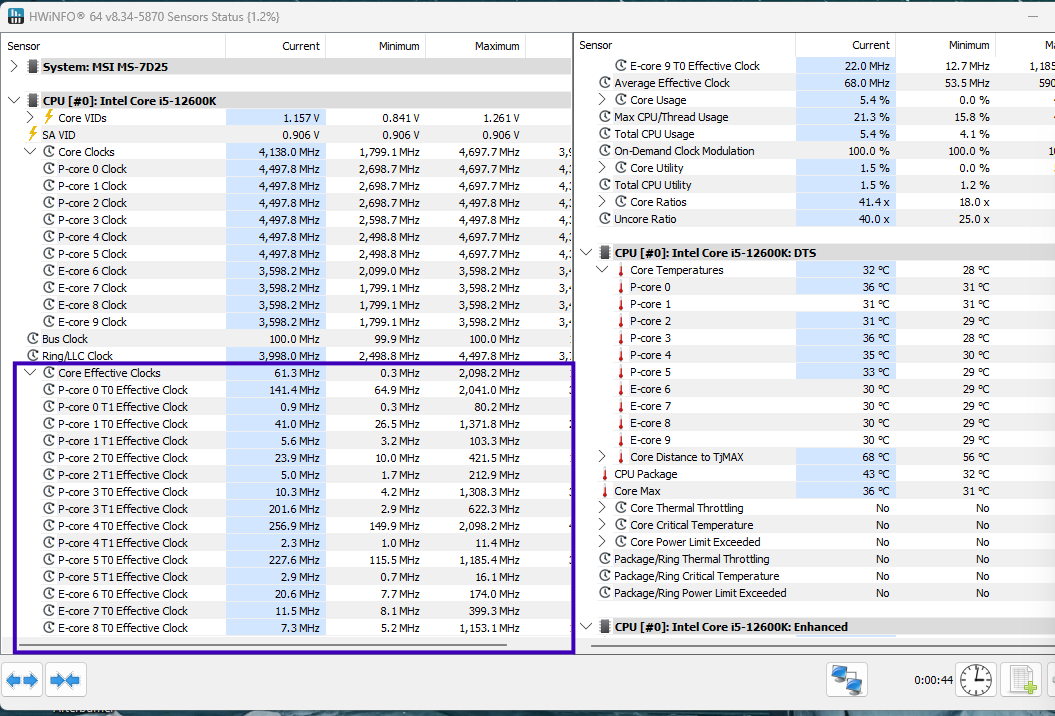
Effective clock includes the tiny moments when the core is asleep. So, it will almost always read lower than the advertised boost on a mostly idle core.
Run a Single-Threaded Test
This test is to give the CPU the kind of load where max boost is supposed to show up.
- Close games, browsers, and launchers. Background load keeps more cores busy, and that lowers the peak.
- Open HWiNFO and reset the counters (the clock icon at the bottom).
- Run Cinebench > Single Core (or “CPU (Single Core)” in newer versions) for a few minutes.
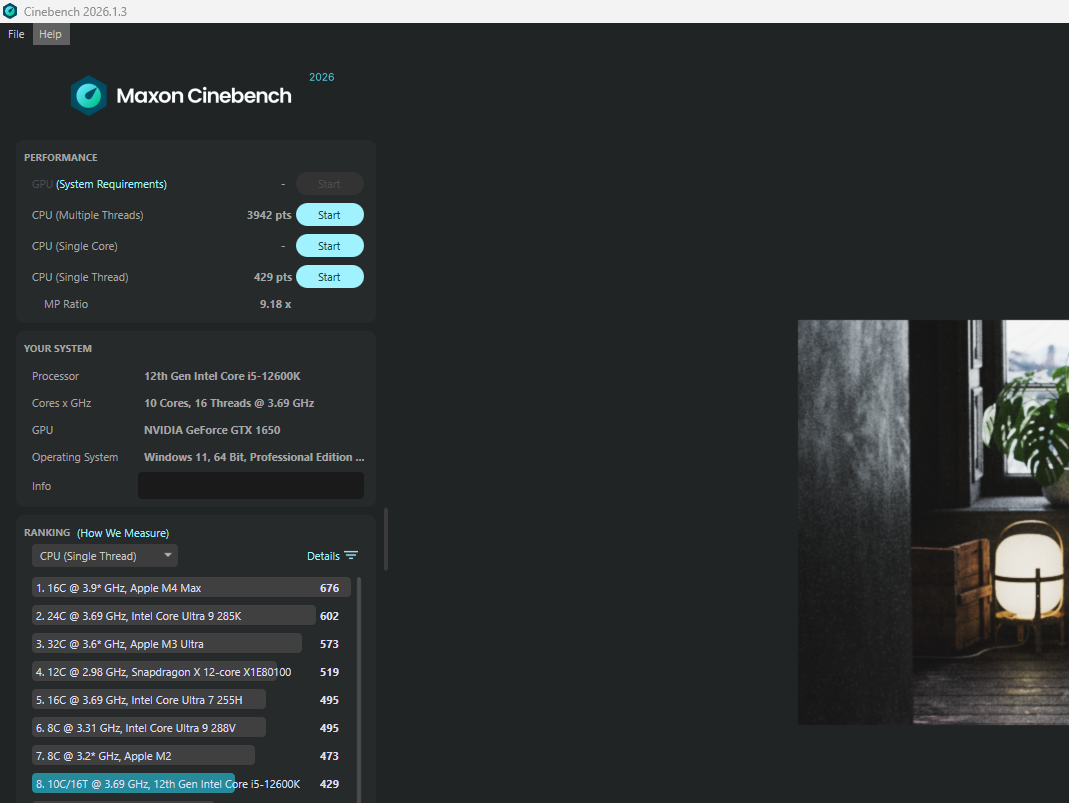
- Check the Maximum column for each core’s clock. During the single-thread Cinebench test, my 12600K’s P-core 1’s thread 0 stayed near the maximum possible boost clock. It stayed there all the time because I have equipped my CPU with a good AIO unit. In case your CPU reach near the throttling temperatures, you will also see the core clock dropping in HWiNFO.
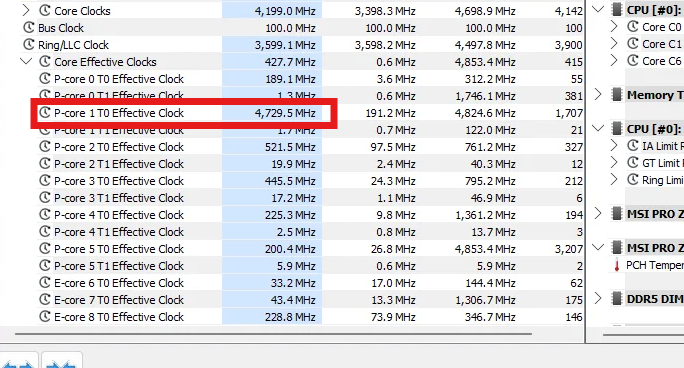
Keep in mind that only one or two cores should get close to the advertised number. The others will sit lower. That is the design.
Check the Limit Flags
HWiNFO also shows Yes/No flags such as Thermal Throttling and Power Limit Exceeded for Intel CPUs. On AMD, look at the PPT, TDC, and EDC limit percentages. If one sits near 100%, that is your limiter.
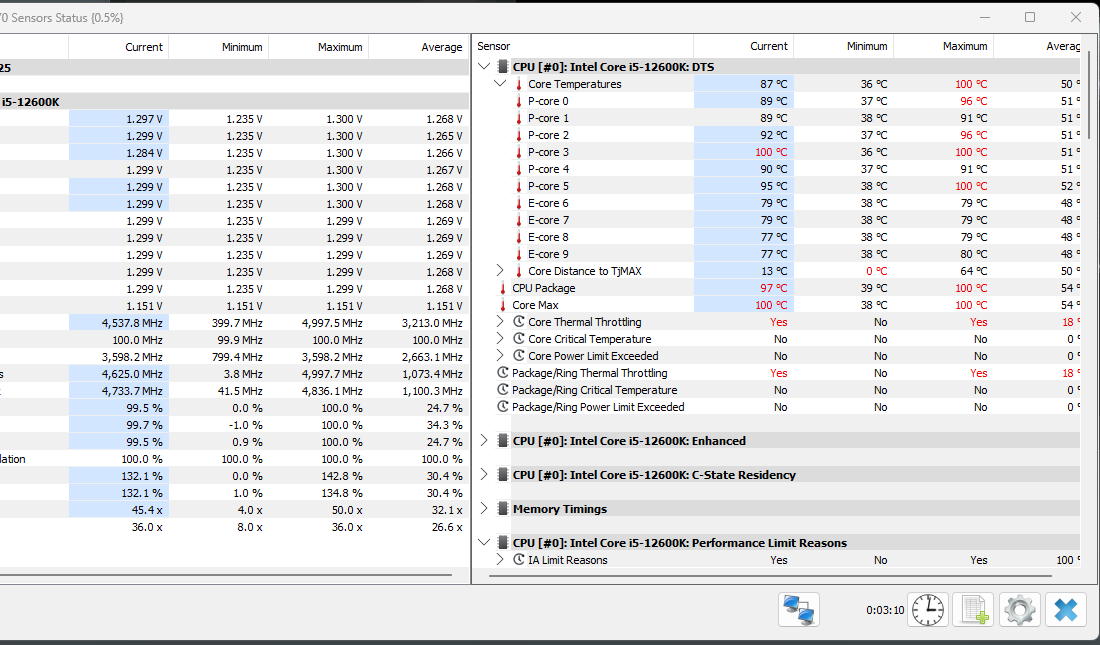
One thing to note is that a “Yes” on a power limit flag is not automatically bad. Modern CPUs can pretty well handle their highest power consumption limits and the temperatures that come along with that. However, a good cooler is always important when you plan to take your CPU to its limit. Otherwise, temperature becomes your first obstacle way before you hit the power, voltage, or current limits.
The Next Step
In my case, my CPU hit the maximum boost pretty well because there is surely no issue with it. But you can find out the CPU lacking by any frequency level. This is that path I would generally take based on the difference.
| Gap from advertised boost | What it means | Next step |
|---|---|---|
| 0 to 100 MHz | Normal | Nothing |
| 100 to 300 MHz | Mild limit | Quick checks |
| 300 to 700 MHz | Something is holding it back. | Check the limiters. |
| 1000 MHz or more | Boost isn’t working properly. | Check settings, then support |
If you are in the 0 to 100 MHz range, you do not have to worry unless you are an enthusiast trying to hit the highest or higher than the limits. A 100 MHz gap on a 5.2 GHz chip is under 2%. That comes from silicon variation, sensor polling, and small temperature differences. Basically, it is better to keep your mind free from the stress.
The 100 to 300 MHz is probably happening due to the heat of the background load. Just close everything, including launchers and RGB software, and test again. Check that your best core stays well below its temperature limit during the test. Update the BIOS, set everything to default, and see if there is any software that can play with the power numbers. If the gap shrinks to under 100 MHz, you are done. If not, it is still not a real problem.
At 300 to 700 MHz, I would definitely say there is something really limiting your CPU. Go back to HWiNFO and check the limit flags during the test. If thermal throttling is happening, your cooler is definitely the problem. Check for overclocking controls and reset them before your test. If there are no flags, check the BIOS for disabled turbo controller, undervolting, or a manual power cap.
If your boost clock is lacking by 1000 MHz or higher, your boost clock is definitely being blocked by something. It could be a faulty AIO or air cooler. Check the maximum processor state and set it at the highest. The process for it is explained below. This type of abnormality will generally happen due to a power limit, motherboard issues, problems with heat dissipation, or an actual problem with your CPU.
The Normal Reasons You Don’t See Max Boost
There are some possible reasons why you are not seeing the max boost. These are the reasons you do not have to worry about. Later, we will look at some possible problems as well.
1. Max Boost Is Per-Core and Only on the Best Cores
Not all cores on a chip are equal. Intel itself says that “due to production differences, processor cores vary in maximum potential frequency” and that “identifies up to two of the fastest cores on your CPU, known as ‘favored cores.'” “AMD does something similar with preferred cores.
The workload decides how many cores will be utilized to get the work done. Some tasks inherently demand single-core performance, and this is when the CPU will hit the boost clock easily. On modern chips, the CPU handles much of this itself through Intel Speed Shift and AMD CPPC. That is why clocks jump within milliseconds of a load arriving. But not every workload triggers a boost the same way. These are some of the workloads that can actually push your CPU towards its maximum clock speed.
- Code compiling and file compression in short bursts. They start high, then settle once more cores join in.
- Opening apps and loading web pages. Short, bursty work on one or two cores. This is the textbook case of max-boost behavior.
- Gaming. Most games load a few cores heavily and the rest lightly. So, your best cores get close to max boost. Again, this doesn’t happen for long.
- Single-threaded tasks. Excel recalculations, many Photoshop filters, older software, and Cinebench single-core can also trigger turbo-boost clock.
2. More Active Cores Means Lower Clocks
AMD’s Precision Boost 2 article lists “number of active cores” and “type of workload” as boost factors. It also says that “light workloads experience the highest boost frequencies, while heavier multi-core and/or sustained workloads are more likely to encounter a limit and receive less boost.”
So, during a game or a render, your all-core clock will be lower than the single-core max. If this is confusing, this article covers it.
But, the explain it here, the CPU has one shared budget for power and heat. Whether one core uses all that power or all of it, the CPU will generate a similar amount of it. It’s just that the spread of heat increases when multiple cores are indulged. When only one core is busy, that core gets most of the budget, so it can run at the max boost. When eight cores are busy, they split the budget. So, each one runs lower.
3. Thermal Velocity Boost Needs a Cool Chip
Some Intel chips, mainly Core i9 models, have an extra layer called Thermal Velocity Boost. Intel’s own explainer says it “opportunistically increases clock frequency by up to 100 MHz” and is “available if the CPU’s within temperature limits (70°C for desktops, 65°C for mobile).”
So, if your i9 is above 70°C, you lose that last bit of boost. That’s it. Nothing is broken.
Basically, a few hundred MHz below the max on a busy or warm chip is normal, and you will rarely notice it in real use. If you want to know why clock speed is not the whole story, read Clock Speed vs. IPC.
Simply put, a cooler chip boosts higher. Most people think boost only drops at the thermal limit, but it actually starts falling gradually well before that. For example, AMD’s Ryzen 7000 and 9000 chips are designed to run up to 95°C, but they give up boost bit by bit as they heat up. Intel’s Thermal Velocity Boost disappears completely above 70°C on desktop chips.
The limits that can actually hold Boost back and how to fix
Above were the rules. But, there can be some real problem actually holding your CPU from reaching the boost. Let’s discuss them one by one.
1. Thermal Throttling
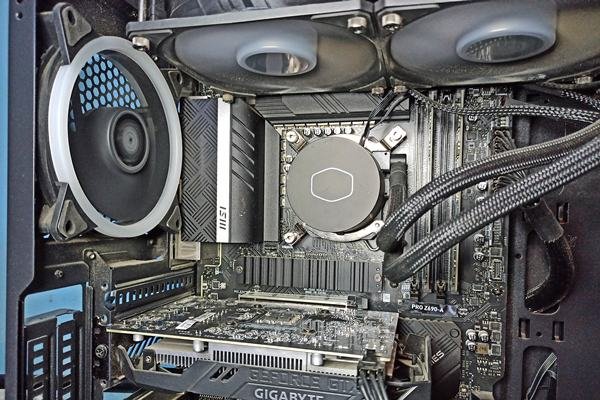
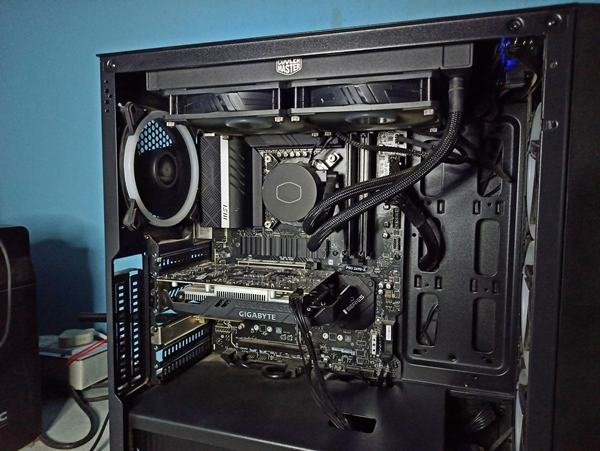
People often reuse old thermal paste, mount the cooler unevenly, or run a case with poor airflow. In these cases, even a high-end CPU will struggle to reach the boost clock or stay there for long. For safe temperature ranges, see my detailed CPU temperature guide. So, how do you know heat is the reason?
Run the single-core test again and watch your best core’s temperature in HWiNFO. If it touches 100°C on most Intel desktop chips or 95°C on Ryzen 7000 and 9000 chips (89°C on the 7000X3D models), or the Thermal Throttling flag says Yes, heat is your culprit.
Single-core load generate a lot less heat as compared to a multi-threaded task such as rendering. So, if your CPU throttles here, the main problems are almost always the mount, the paste, or the pump.
This is the order I would follow the check things properly.
- Check the pump and fans. In HWiNFO, look for the pump RPM under your motherboard’s sensors. If it reads 0 or is missing, the pump is dead or plugged into the wrong header.
- Check the mount. The cooler should not twist or rock when you push it gently. Tighten the screws evenly in a cross pattern.
- Repaste. Remove the cooler, clean both surfaces with isopropyl alcohol, and apply a pea-sized dot of fresh paste. Also check that the plastic film on the cold plate was peeled off. Follow YouTube tutorial or contact a professional if you are not sure about opening things up.
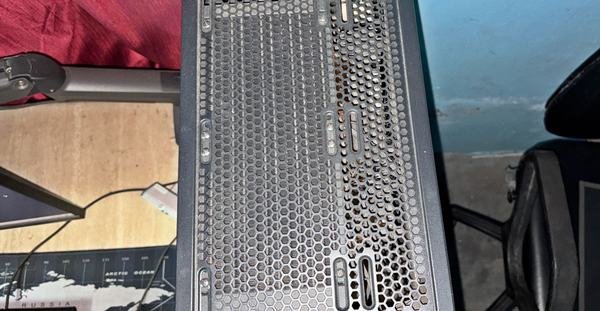
- Clean the dust. Radiator fins, heatsink fins, and case filters.
- Test the airflow. Run the test again with the side panel off. If the temperature drops by 5°C or more, your case airflow is the problem, not the cooler.
2. Power and Current Limits
This is where PL1, PL2, and Tau on Intel and PPT on AMD come in. The CPU can draw extra power for a short burst, then has to settle down.
For example, the Core i7-14700K has a 125W base power and a 253W maximum turbo power. That is why clocks look great for the first few seconds of a render and then drop. I should also mention current headroom here. The motherboard can deliver a limited amount of current. A weak motherboard VRM can cap the boost even if the temperature is fine.
Checking this is also very simple. You’ll have to run Cinebench again but now in multi-core with HWiNFO open.
- On Intel, look at PL1 Power Limit and PL2 Power Limit and compare them with the base power and maximum turbo power on your chip’s Intel ARK page.
- On AMD, look at CPU PPT Limit, CPU TDC Limit, and CPU EDC Limit. The one sitting at 100% is the limit you are hitting.
What to do
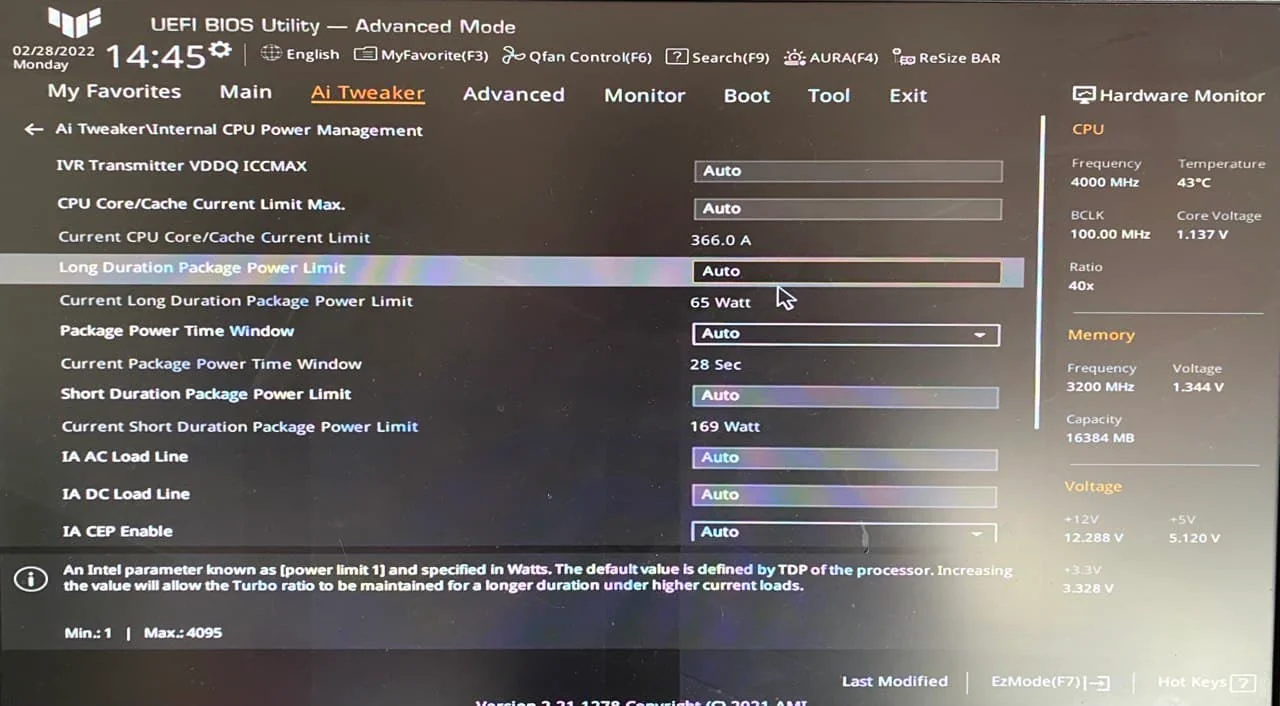
- On Intel, open the BIOS and find the Long Duration Power Limit (PL1) and Short Duration Power Limit (PL2). The names vary a little by board. If they are below Intel’s numbers, set them to Auto or load the Intel Default Settings profile.
- On AMD, open the Precision Boost Overdrive menu. PPT, TDC, and EDC should be on Auto, and Eco Mode should be Disabled. At stock, a 65W chip gets 88W PPT, a 105W chip gets 142W, a 120W chip gets 162W, and a 170W chip gets 230W.
- Check the VRM temperature in HWiNFO (usually shown as VRM or MOS). If it climbs past 100°C during the test, the motherboard is the one pulling the CPU back. Add some airflow over the VRM heatsinks.
3. Laptops, Small Builds, and Weak Motherboards
Laptops and small form factor PCs have small coolers and tight power budgets. So, they hit limits much sooner than a big desktop. Another common problem with laptops is an unrecognized charger. ThrottleStop’s author explained that many Dell laptops trigger BD PROCHOT throttling with a charger the BIOS doesn’t recognize. This can happen even with the genuine chargers. So, this is what I would do if the issue is on a laptop or a low-power device.
- Plug it in. Most laptops cut the boost on battery. Power is the key requirement for the boost. If the laptop doesn’t have enough, it will restrict it.
- Use the original charger or one with the same wattage. A 65W USB-C charger on a laptop that shipped with a 180W brick will cap the CPU.
- Set the maker’s performance mode. Armoury Crate, Lenovo Vantage, MSI Center, OMEN Gaming Hub, or whatever your brand uses, make sure you haven’t enabled anything that can restrict the performance. Silent and balanced modes lower the power limits a lot.
- Clean the vents and fans, and keep the laptop on a hard, flat surface.
- Check BD PROCHOT. Open ThrottleStop and look at the Limit Reasons window. If PROCHOT is lit while the temperatures are fine, something outside the CPU is asking it to slow down. It is often the charger.
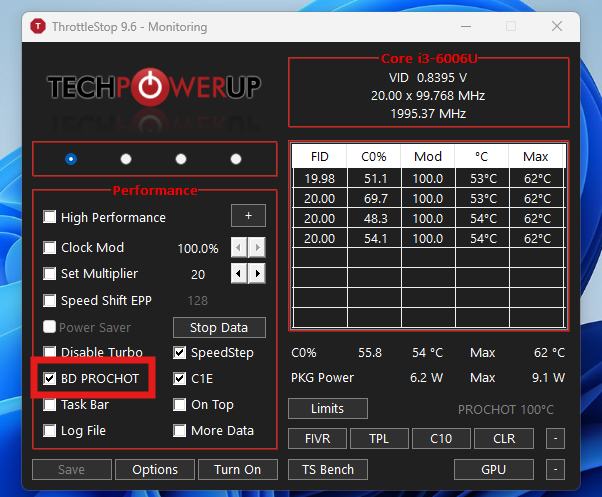
BD PROCHOT or bi-direction Processor Hot is a safety signal sent to your Intel CPU from external hardware components (like the motherboard or power supply) telling it to slow down immediately.
You can untick BD PROCHOT in ThrottleStop as a test. If the clocks come back, you have found the cause. But I would not leave it off without fixing the charger or the sensor behind it, because it is a safety signal.
4. Windows Power Plan and Maximum Processor State
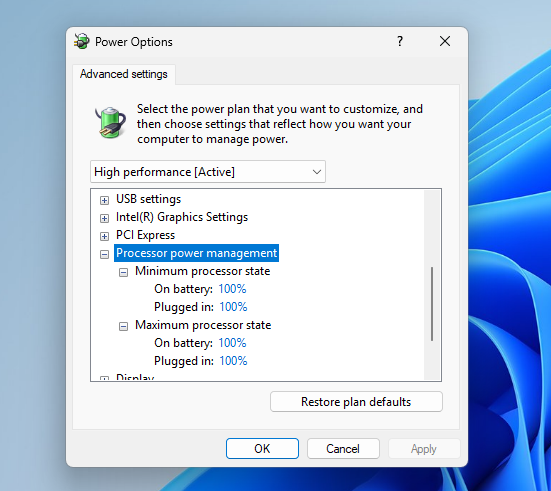
I have seen people suggesting and applying set the maximum processor state to 99% or lower as a cooling trick. Microsoft Learn says this setting “specifies the maximum processor performance state, which is specified as a percentage of maximum processor performance,”. So, anything below 100% caps your CPU.
What to do instead:
- Open Control Panel > Hardware and Sound > Power Options.
- Click Change plan settings > Change advanced power settings.
- Expand Processor power management > Maximum processor state.
- Set Plugged in to 100%.
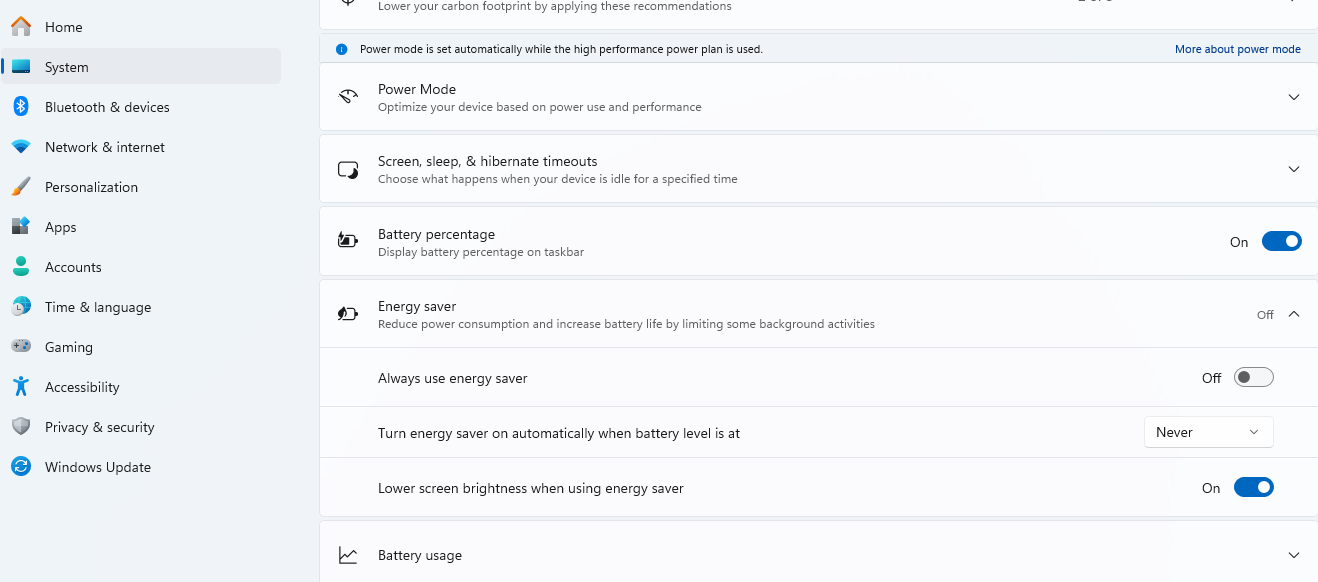
Also check Settings > System > Power & battery > Power mode and turn off Battery Saver.
5. BIOS Settings/Outdated BIOS
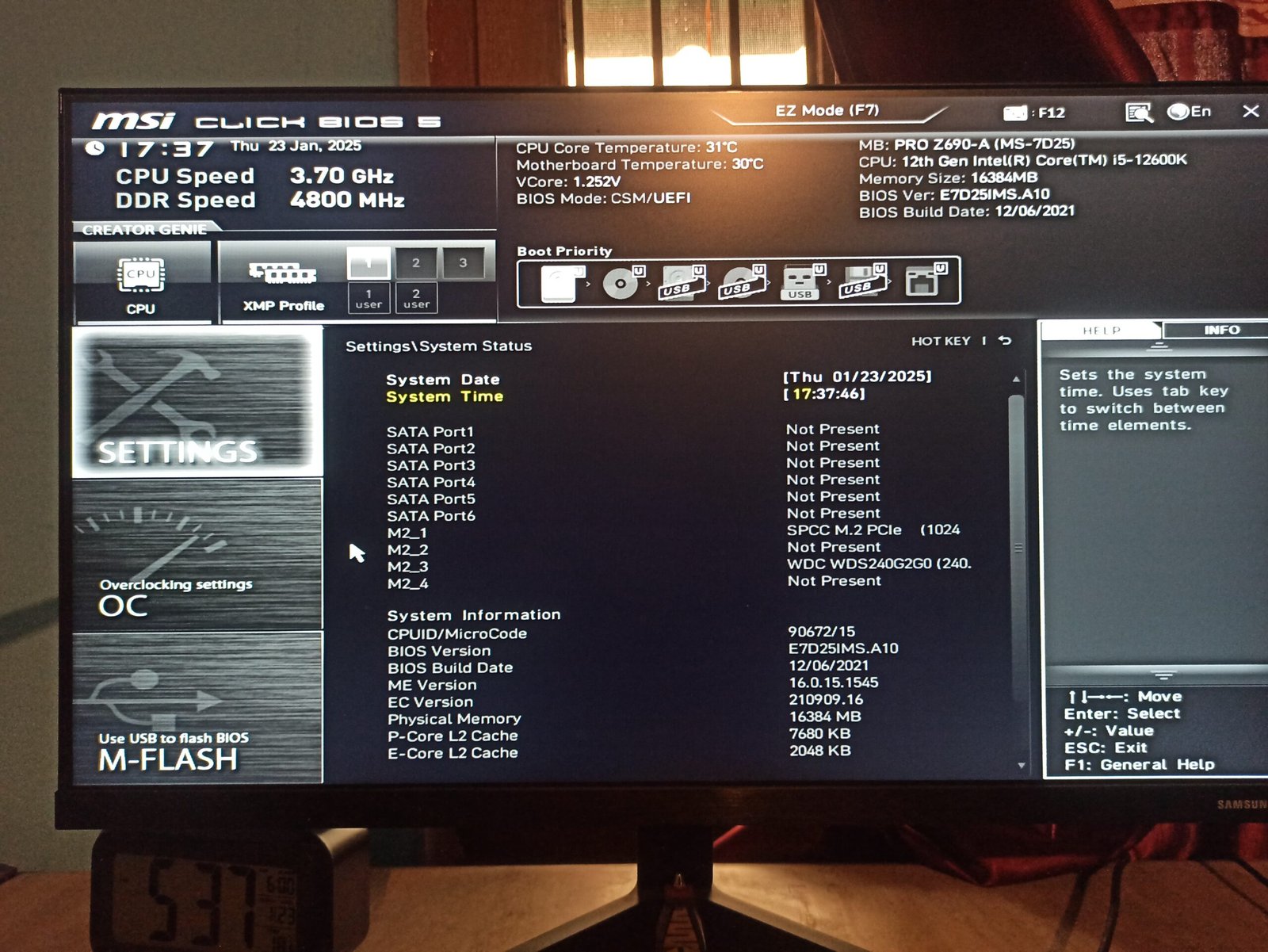
Reach your BIOS and make sure Turbo Boost and Precision Boost are turned On. In Ryzen Master, there is a support for 105W Eco Mode on the systems using AMD Ryzen™ 9000 Series 65W and 120W desktop processors. So, with this an X3D chip can easily be capped without you knowing.
The best way is to load the BIOS default first of all. Update the BIOS from your motherboard maker. Update the chipset driver as well. Here is how you do it:
- Load the BIOS defaults. Usually F5 or Load Optimized Defaults on the exit page. You will have to turn XMP or EXPO back on after this.
- On Intel, check that Intel Turbo Boost Technology (some boards call it Turbo Mode), Turbo Boost Max 3.0, and Intel Speed Shift are Enabled.
- On AMD, check that Core Performance Boost is on Auto or Enabled. This is the actual name of the boost switch in most AMD BIOSes. Also keep CPPC and CPPC Preferred Cores on Auto or Enabled.
- Check Eco Mode. It lowers the power limit below stock. If it was turned on in the BIOS or Ryzen Master and forgotten, your chip is capped without you knowing. It mostly hurts multi-core clocks.
- Reset any undervolt. If you set Curve Optimizer or a voltage offset earlier, put it back to Auto. In HWiNFO, if Core Clock reads high but Effective Clock stays clearly lower under full load, the undervolt has gone too far.
- Update the BIOS and the chipset driver. On AMD, the chipset driver is what tells Windows which cores are the preferred ones.
Also check the software side. Ryzen Master, Intel XTU, ThrottleStop, and motherboard apps can apply a profile every time Windows starts.
6. Intel 13th and 14th Gen Microcode Updates
If you have a 13th or 14th Gen desktop chip, newer BIOS versions may boost slightly differently. Intel traced an instability problem in these CPUs. The problem was that the clock tree circuit within the IA core was vulnerable to reliability aging under elevated voltage and temperature. So, to fix it, they released microcode 0x12B.
Intel also recommends “Intel Default Settings,” which bring power limits back to Intel’s guidance.
7. When Should You Contact the Manufacturer?
If your best core can’t get anywhere near the advertised boost in a single-threaded test, with good temperatures, no limit flags, BIOS defaults, and the latest BIOS, it’s possible that something is wrong. At that point, contact AMD or Intel support, or your laptop or PC maker.
If you are off by 50 to 100 MHz, I would not worry. If you are off by 500 MHz or more on every core with no limits hit, that is worth a support ticket.
Conclusion
At the end of the day, max boost is the best-case number and that too of the best core. It is never a promise for every core. In my experience, most CPU not reaching boost clock problems are a wrong power setting, inefficient cooler, or simply looking at the wrong reading. Also, sometimes people judge a CPU by a single boost number and not by the overall performance. I hope this helps.
Is it bad if my CPU never reaches its boost clock?
Not usually. If it gets close on one or two cores in a single-threaded test, it is working as designed.
Why is my all-core clock lower than the boost clock?
Because more active cores use more power and make more heat. So, the CPU lowers clocks to stay within its limits.
Does a few hundred MHz make a real difference?
In terms of measurements, yes. However, you will hardly notice in daily usage, gaming, of doing almost everything.
Should I enable PBO to reach the advertised boost?
PBO is overclocking and is different from the boost clock. You should reach near the boost clock without any overclocking settings. Overclocking is about going beyond those set limits.