

It is very possible that you equip your system with a powerful 240 or 360 mm AIO or a tower cooler, and still, the CPU hits throttling. You know that you have matched the TDP of both and have a general sense that the work you are doing should not throttle the CPU.
So, what is going on? It can be a little complex because PCs themselves are complex, but there is a structure that can be followed to find the root cause and then fix it. We will be discussing all of that in this article.
Throttling is when a limit (temperature, power, current, or the motherboard’s VRMs) forces the clock below what the CPU would otherwise run. In other words, a good cooler only fixes one type of throttling, i.e., temperature-related. Your CPU can also slow down because it hits a power limit, a current limit, or a motherboard VRM limit. And yes, sometimes the cooler is fine, but it isn’t installed or set up correctly.
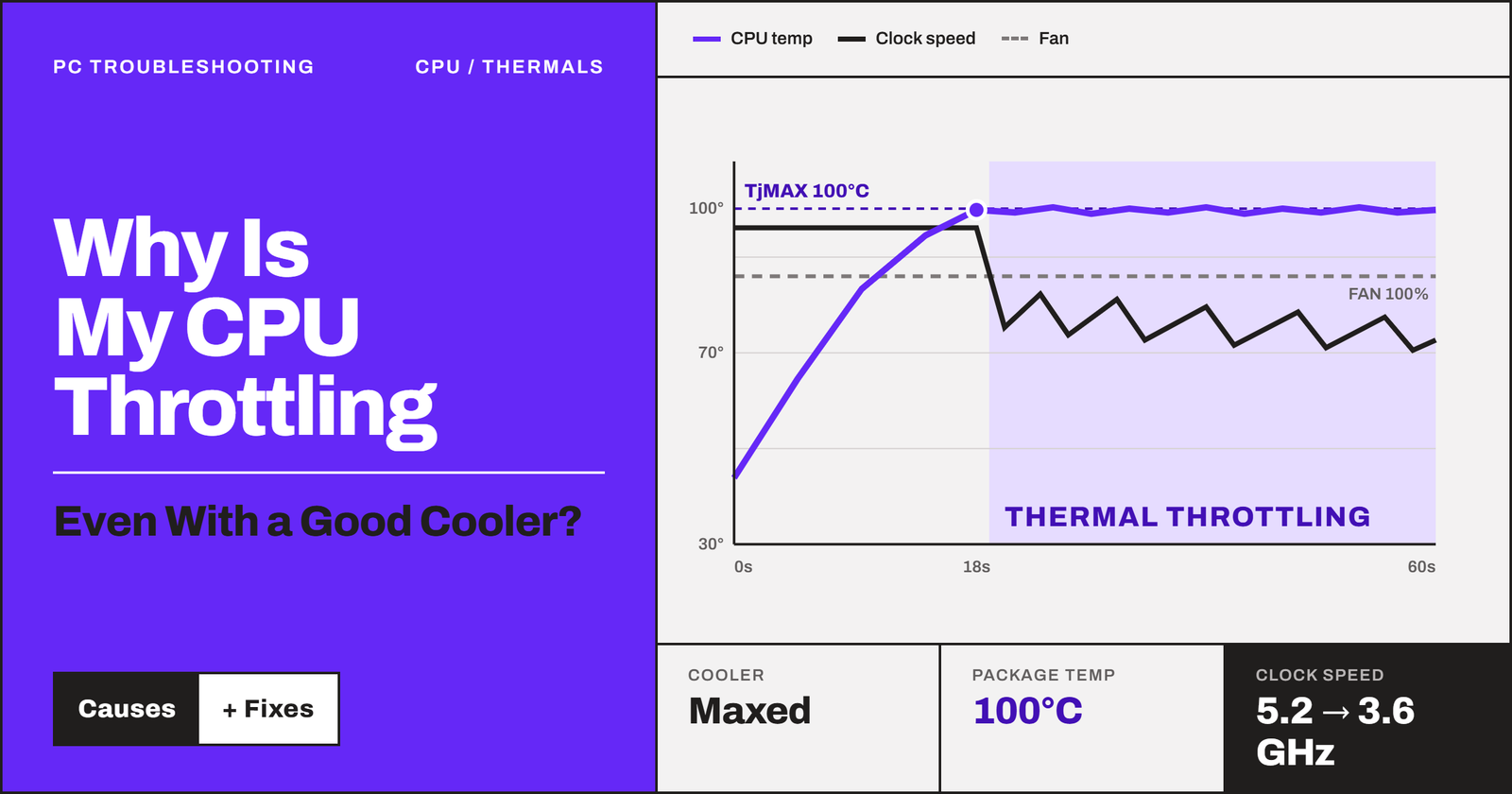
The temperature might look fine at idle, but as you put some workload on the system, clocks drop below the advertised boost. But, before you get confused, keep in mind that throttling is different from the CPU not reaching its maximum boost clock. The boost number on the box is a ceiling, usually for one or two cores under a light load. It is an internal and essential behavior of the CPU.
In my CPU overheating article, I have already covered the general overheating causes like dust and old paste in depth. Also, the laptops are out of scope in this article. Here, I have discussed only CPU throttling, its reasons, popular patterns, and the ways to fix it.
What is CPU throttling? (and why it isn’t the same as overheating)
If you are fully confident that your CPU is throttling, you can skip this section and jump to the next one. But, for those who don’t know, throttling is when the CPU lowers its clock speed (and voltage) to stay inside a limit. Overheating is one of those limits. We discussed the other three above. Four of these things are trying to protect your CPU from something.
| Limit | What it protects | Intel name | AMD name |
|---|---|---|---|
| Temperature | The silicon | TjMax / PROCHOT | Tjmax (Tctl) |
| Power | Cooler and board | PL1, PL2 | PPT |
| Current | Power delivery | IccMax | TDC, EDC |
| Motherboard VRM | The board’s VRMs | VR thermal / VR current | Same, reported by the board |
How to check if your CPU is throttling (and which limit it’s hitting)
It is important to confirm the problem before you fix it. Treat it as a “CPU Throttling Test.” Most people think that if the CPU is not hitting 100°C, it isn’t throttling. They mostly watch the temperature number. So, they go for a bigger cooler, and it does nothing. So, here is how we find the root cause of the problem with a simple method.
1. Run a sustained load
Download Cinebench 2026 and run a multi-core benchmark with the minimum test duration of 10 minutes. At least 10 minutes is important because a short run will stay inside PL2 or the boost window and hide the problem.
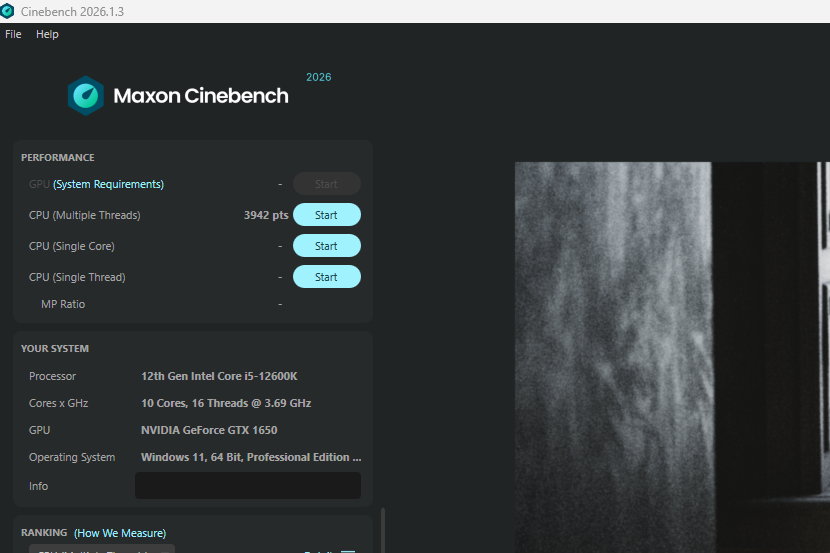
2. Read the limit flags in HWiNFO64
Download, install, and run HWiNFO64. It is free software and will do all the monitoring work for you.
Open Sensors-only mode and scroll to the CPU section.
- Intel: Look for Thermal Throttling, Power Limit Exceeded, and IA Limit Reasons rows. “Yes” in the Max column means it happened during the run.
- AMD: Look at CPU PPT Limit, TDC Limit, and EDC Limit as percentages. Near 100% means that limit is in control. Also check Thermal Throttling (HTC).
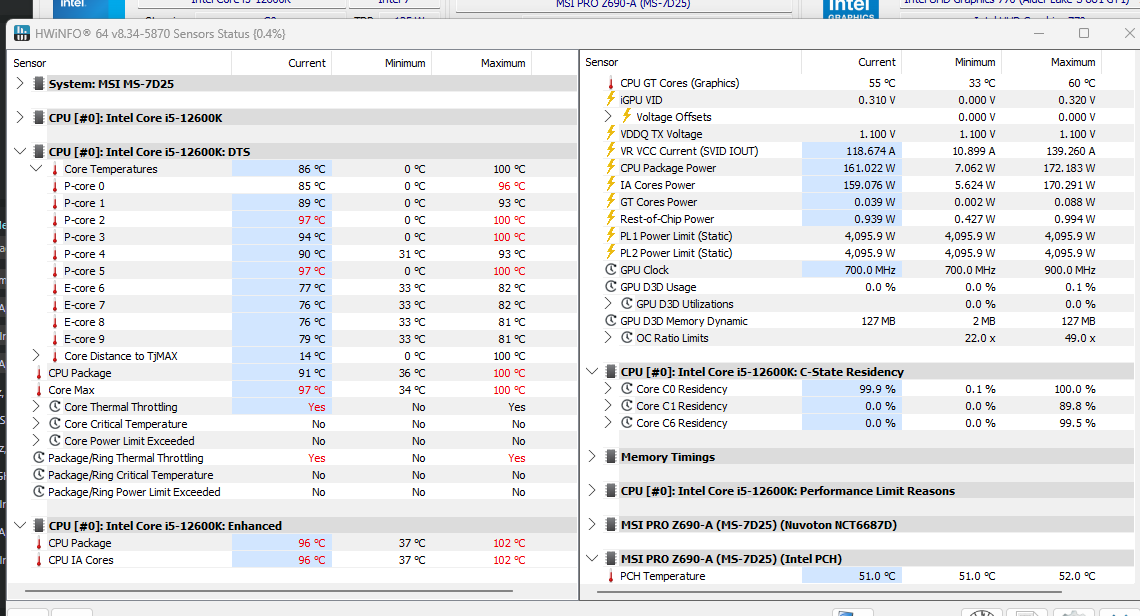
- Check the motherboard VR VCC temperature row if your board reports it.
3. Intel only: ThrottleStop Limit Reasons
Download and install ThrottleStop on your Intel system. Again, it is a free program.
- Click Limits in ThrottleStop. Red boxes = limit hit now, grey = hit earlier.
- Columns for IA (cores), GT (iGPU), and RING. Rows like PROCHOT, THERMAL, PL1, PL2, and EDP OTHER.


4. AMD only: Ryzen Master
- Shows PPT, TDC, and EDC as current value vs. limit. Faster to read than HWiNFO for beginners.
Reading the Results
In this test, you can come across different scenarios, and they actually tell you what is holding your CPU back. I had to make a table for all the possible results and what they mean. It’s like this.
| What you see | What’s happening | Go to |
|---|---|---|
| No limit flags, all-core clock below the advertised boost | Normal boost behaviour | Nowhere |
| Intel: clocks and power drop after about a minute, then stay flat | PL2 boost window ended, CPU settled to PL1 | Nowhere |
| Power limit at 100% at stock settings, temperature below the max | CPU working within its power limit | Normal (Fix 7 only if you want more headroom) |
| Temperature hits the max, very high package power (common on i7/i9 and Ryzen 9) | Board has removed power limits | Fix 1 |
| Pump RPM zero or low, gurgling, or low clocks even under light load | Basic setup problem | Fix 2 |
| Temperature jumps to the max within seconds, power is moderate | Heat can’t reach the cooler | Fix 3 |
| Temperature climbs slowly over several minutes, then throttles | Radiator or coolant can’t keep up | Fix 4, then Fix 7 |
| VR thermal flag or very hot VR temperature | Motherboard VRMs overheating | Fix 5 |
| Current limit (IccMax, TDC, or EDC) flag, temperature and power fine | Current limit | Fix 6 |
The causes and their solutions are discussed in the next section.
The speed of the temperature rise is the most useful clue. A spike in seconds means the heat is stuck between the die and the cold plate. In this case, there is definitely an issue with the mounting, contact, or thermal paste. On the other hand, if the heat is rising slowly, it generally means the cooler is doing its work but either not enough or not able to dissipate the heat properly.
At the end of the day, find which limit is at 100% while your clocks drop. That is your cause. Everything else is a symptom.“
How to Fix CPU Throttling Even with a Good Cooler.
If you have a mid-range CPU, like a Core i5 or Ryzen 5, start with Fix 2. These chips draw far less power, so a 240mm AIO should handle them easily. Throttling there points more to a setup or mounting problem.
However, if your CPU is like a Core i7 or i9 K-series, a Core Ultra 7 or 9 K-series, or a Ryzen 9, start with Fix 1. These chips are built to pull a lot of power. But many Z-series and X-series motherboards go further and remove the limits completely. So, let’s get started.
Fix 1. Restore stock power limits
As discussed, many Z-series and X-series boards ship with power limits removed. Also, they have settings like multi-core enhancement already enabled. The BIOS often labels this “Auto,” so people assume it’s the default. But, without a power cap, CPU can often consume way more watts than what your cooler can take out. So, it basically heats up until it hits the TjMax. Then, the temperature limit throttles the CPU to pull the CPU clocks down.
Don’t think that you are going to restrict your CPU’s power below specs and this will choke your system’s performance. We are simply going to put the CPU back to how Intel or AMD designed it.
Fix on Intel:
- Update the BIOS. On 13th and 14th gen, newer versions carry Intel’s microcode fixes for the instability issue, and most add Intel’s default power profiles.
- Find the Intel Default Settings or Intel power profile option (name varies by board maker) and choose the profile Intel recommends for your chip.
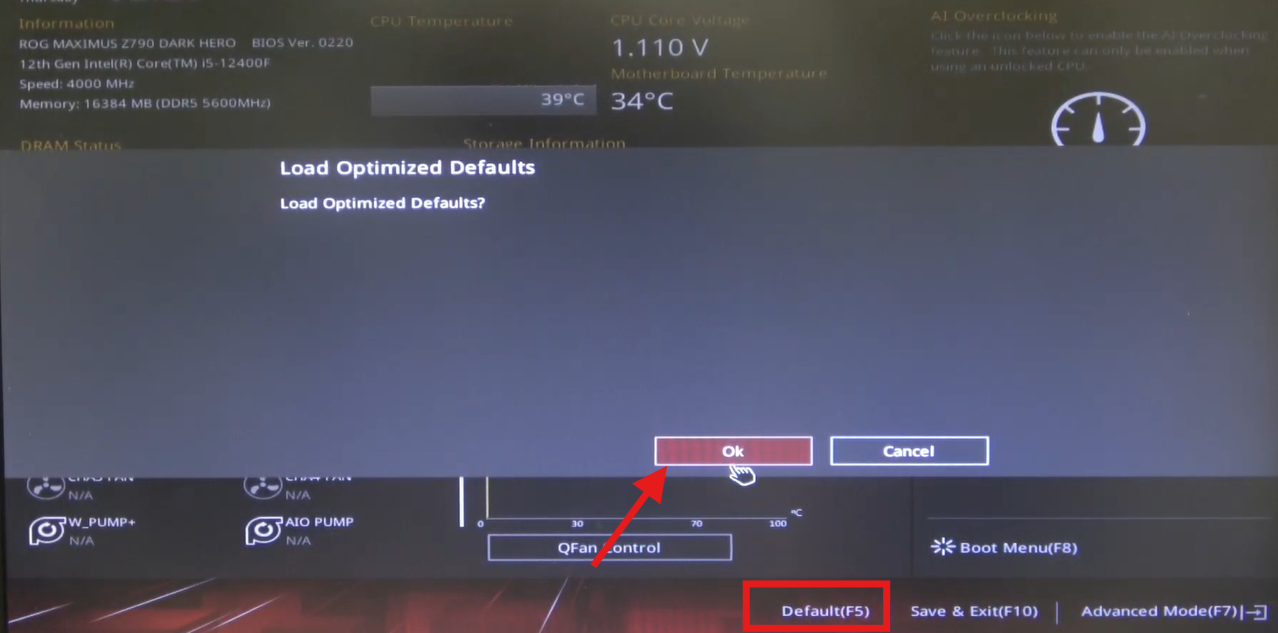
- Turn off Multi-Core Enhancement or similar “enhanced turbo” options.
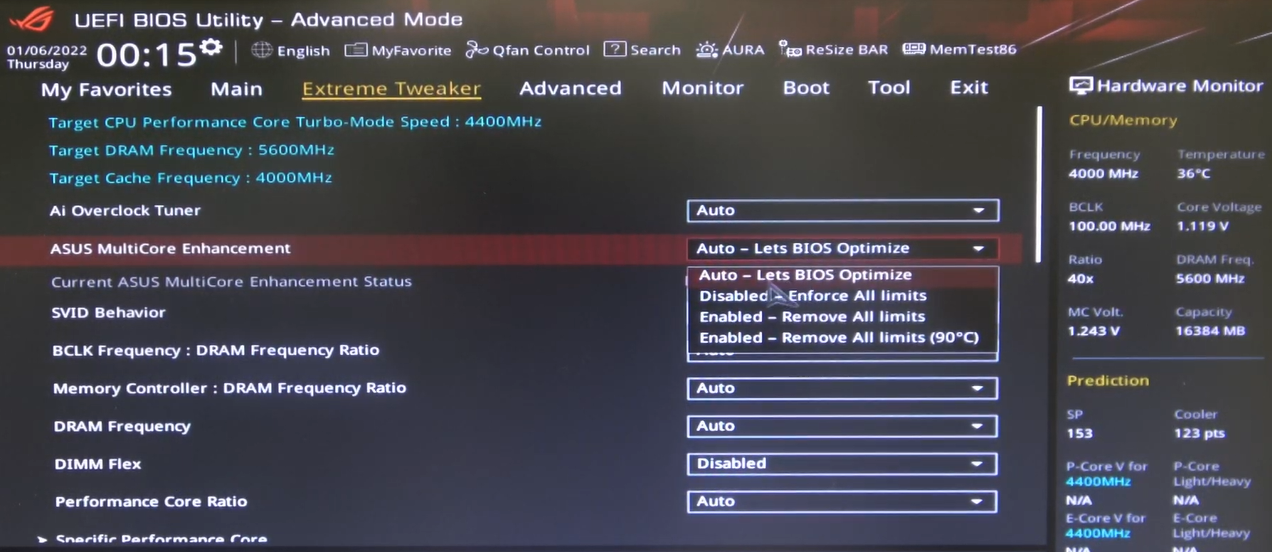
- Or set PL1 and PL2 by hand to the values Intel lists for your chip.
Fix on AMD:
- Update the BIOS.
- Set PBO to Auto or Disabled, and remove any board “performance” preset.
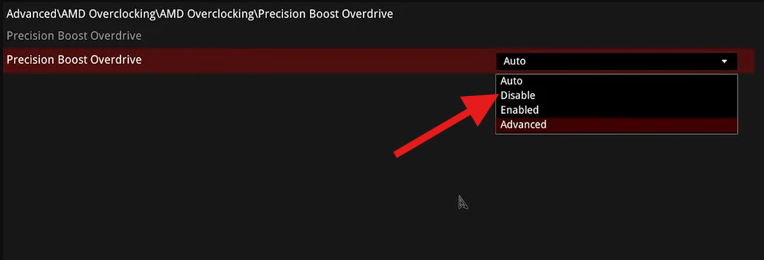
After you do these steps, check if the package power stays at or below spec. If the throttle flags are gone, you’re done. If not, continue with Fix 2.
The trade-off isn’t very big when you restrict these motherboard power numbers. It will be a small score drop for a big drop in watts and temperature.
Fix 2. One-minute checks (mid-range CPUs: start here)
This is a simple check before you open your case. It is better to do these before you jump to repasting or buying a new cooler.
- Pump speed: check the pump RPM in HWiNFO. Zero or very low RPM means it isn’t plugged in correctly, is set to a slow curve, or has failed. Go to Fix 4.
- Noise: Gurgling or grinding from the pump usually means air in the pump. Go to Fix 4.
- Fan direction: check the arrows on the radiator fan frames. Fans blowing the wrong way move far less air through the radiator.
- Windows power plan: Settings > System > Power & battery > Power mode, set to Balanced or Best performance. In Control Panel > Power Options > Change advanced power settings > Processor power management, maximum processor state should be 100%.
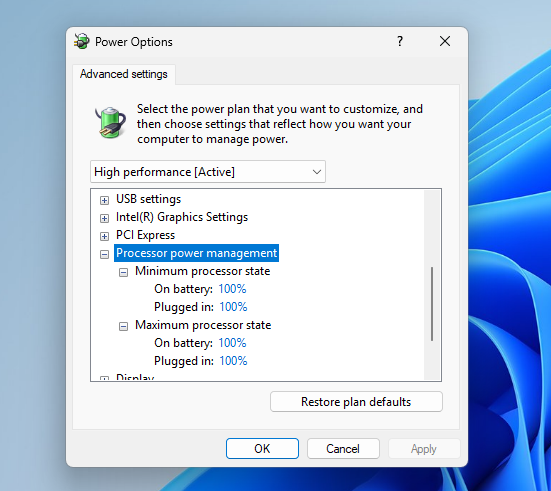
- Ryzen only: install the latest AMD chipset driver. It matters even more on dual-CCD X3D chips.
Rerun the test. If all of these checks are fine, you are good to proceed to the next fix.
Fix 3. Check the mounting and contact
The CPU heat has to cross the IHS (Integrated Heat Spreader), the paste, and the cold plate before the AIO can start to dissipate it in the air. A bad contact traps the heat at the CPU, no matter how big the radiator is. The easiest way to spot the mounting or contact problem is to see if the temperature hits the limit within seconds but the liquid temperature (or the radiator) is barely warm.
- Remove the cooler and check the cold plate. A leftover plastic film is more common than people admit.
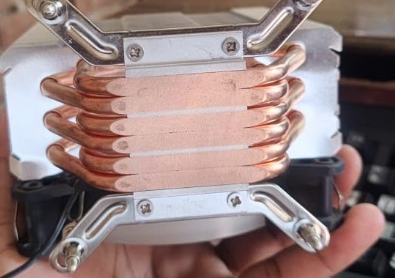
- Look at the past print. Bare patches on the IHS mean poor contact or too little paste.
- Clean both surfaces with isopropyl alcohol (90% or higher) and a lint-free cloth.
- Apply fresh paste. Any common method (pea, X, or spread) works if it covers the IHS.
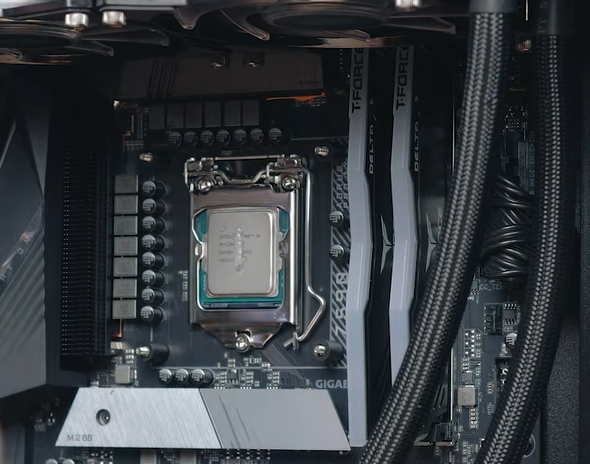
- Check you’re using the correct bracket and standoffs for your socket.
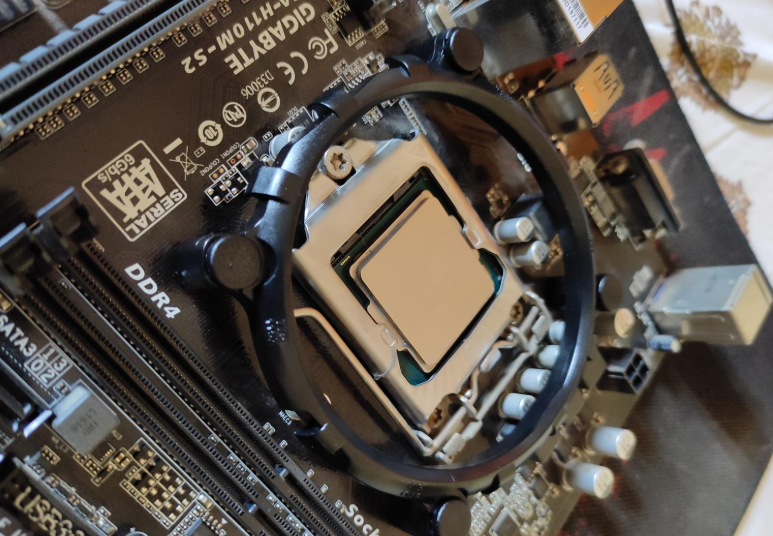
- Tighten the screws diagonally, a few turns at a time, until they stop. This keeps the pressure even.
Check if the temperature is now increasing gradually instead of spiking at once. If it still spikes, go to the next step.
Fix 4. Fix the AIO installation (or replace an old one)
In this step, we will fix the problem of the AIO setup because it is the next probable reason why your CPU is still throttling. The possibilities are your Pump is plugged into a fan header with a quiet curve, the radiator is mounted with the pump as the highest point, so air collects in the pump. Or it could be that the radiator is pulling the hot air.
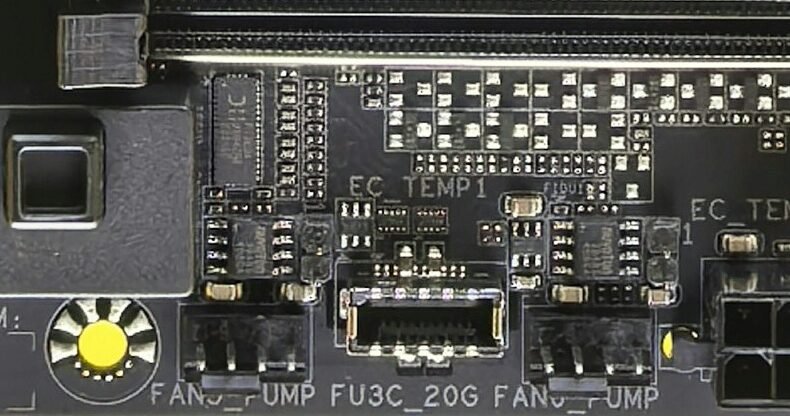
- Move the pump cable to the AIO_PUMP or PUMP_FAN header, or set its header to full speed in BIOS. Most AIO pumps are meant to run at a constant high speed.
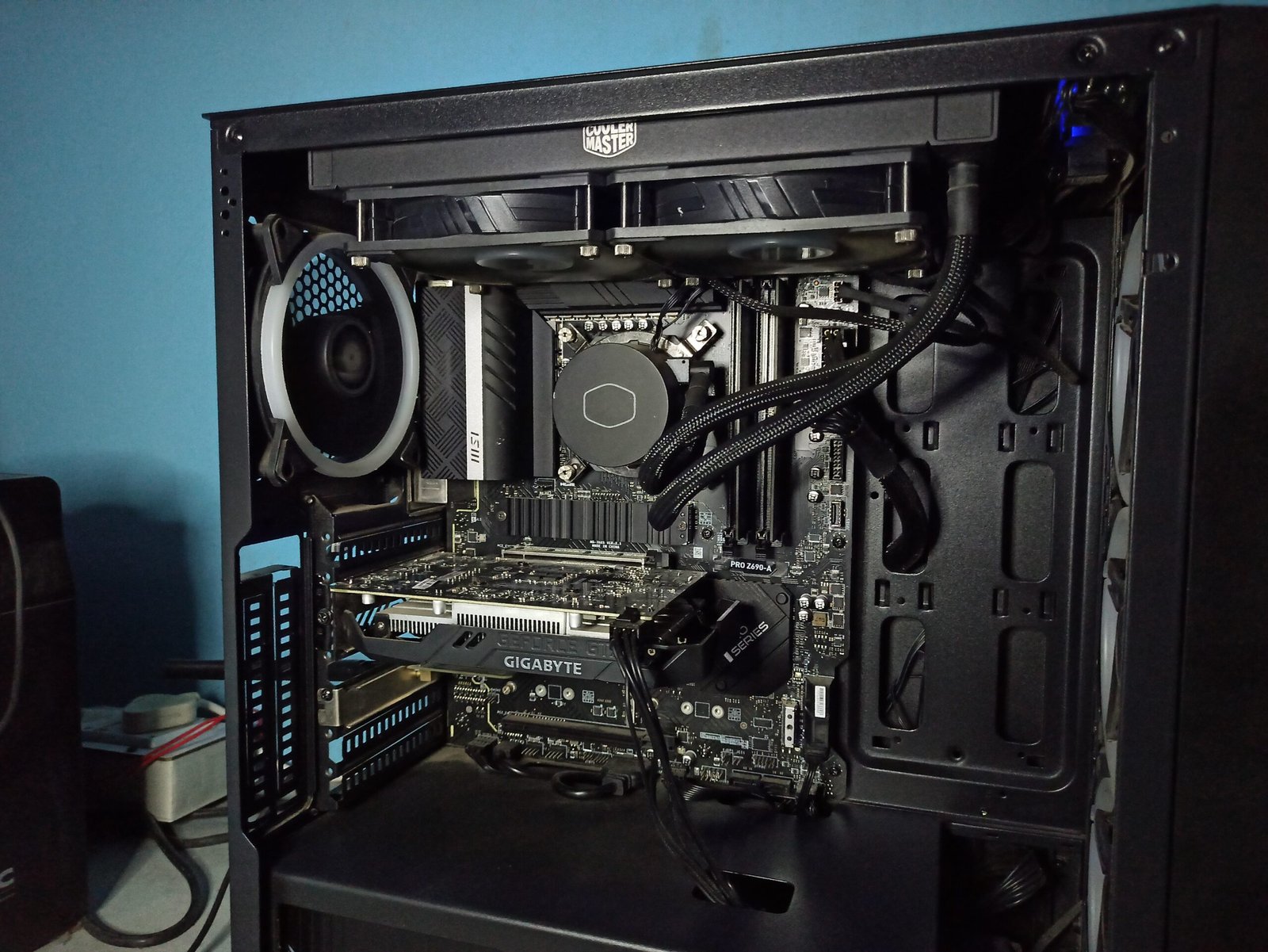
- Check the radiator orientation: the top of the radiator must sit higher than the pump. A top mount is ideal. A front mount works if the tubes are at the bottom.
- Set the radiator fan curve against liquid temperature if your board or AIO software supports it. CPU temperature jumps around too much to control radiator fans well.
- Clean dust from the radiator fins.
- For an AIO that’s several years old: coolant slowly evaporates through the tubes over time. If temperatures have crept up over the years and nothing else fixes it, replacement is the honest answer.
Check for any gurgling now and if the slow climp has leveled off lower.
Fix 5. Cool the motherboard VRMs
This happens when you install a high-end CPU on a cheap board. It can become serious when you have a an AIO which offers no air-flow to the VRM. A tower cooler’s fan pushes air over the VRM heatsinks and helps cool them. As discussed above, the best way to spot this specific issue is to check if the VR temperature very high, or a VR thermal flag set, while the CPU temperature is fine.
- Add airflow over the VRMs: a rear or top exhaust fan near the socket, or a small fan pointed at the VRM heatsink.
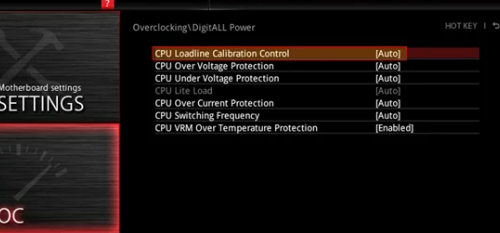
- Check Load-Line Calibration in BIOS. Very aggressive LLC settings add VRM load.
- Lower the power limit below stock (Fix 7). Less CPU power means less VRM heat.
- If none of that is enough, the board is the bottleneck.
By doing this, you should see VR temperature dropping and the VR flag stops appearing.
Fix 6. Deal with current limits
So, this is the best fix if you are seeing clocks dropping even though the temperature and power figures are fine. There are current limits on the CPUs (IccMax on Intel, TDC or EDC on AMD). Heavy AVX workloads and high voltage both push current up. The fix is to undervolt your CPU so that the current also drops. The undervolting steps are in the next step.
Fix 7. Lower power, undervolt, or install a bigger cooler
Lower PL1 (Intel) or PPT (AMD) in 10-20W steps until temperatures stay comfortably below TjMax. On Intel, this can be done with the Extreme Tuning Utility. For AMD, Ryzen Master is your tool.
Undervolting can also be done and I have already published guides for both Intel and AMD. You can check them out as well.
Undervolting can result in crashes, WHEA errors, and other stability issues, although it has nothing to do with the performance. I recommend doing a proper system stability test after you undervolt.
Conclusion
If you have done everything that is discussed in this article, maybe it’s time to upgrade to a 280mm or 360mm AIO. Basically improving the cooler. But, first make sure to fix the case airflow first. At stock limits, a 240mm AIO is fine for most CPUs and nearly all gaming. So, from all this, I can conclude that your workload is heavy like rendering, compiling, encoding etc. If that is not the case, the the problem can be much deeper.
Your AIO pump could be failing, even if it still shows RPM. Your motherboard BIOS could also be applying odd settings. Or, in rare cases, the CPU or board itself could be faulty. At the end of the day, a bigger cooler should be your last step, not your first.
Modern CPUs boost opportunistically. Clock lowering downs by few hundred MHz are normal. So, throttling is only a problem when it drops clocks below base clock, or when your sustained performance is clearly lower than reviews of the same chip.
I hope this helps.
Freuently Asked Questions
Is CPU throttling bad for my CPU?
No. It is a protection mechanism offered by the manufacturer itself. The problem is the performance loss.
Can I disable CPU throttling?
Windows allow you to disable power-stopping CPU throttling but the real thermal throttling or heat protection can’t be stopped. There are thermal limits after which the CPU can’t work at it’s full limits.
Does undervolting stop throttling?
Yes, undervolting can stop CPU throttling but only when power limits, VRM, or cooling issues aren’t the underlying causes.
Is a 360mm AIO better than a 240mm for throttling?
Yes. But, only if the CPU is throttling because of the high heat that can’t be dissipated by a weak cooler. It can’t fix power limits, current limits, VRM throttling, or a bad mount.
Why does my CPU throttle at 70 or 80°C?
At 70 or 80°C, your CPU is well below its TjMax. So, it is probably the power limit, a current limit (IccMax on Intel, TDC or EDC on AMD), or your motherboard’s VRMs causing the issue.