

From its name, Enhanced Multicore performance surely sounds like a very important setting. And when you see this feature along with the option to turn it on or off in your BIOS/UEFI, it is normal to get curious.
So, should you touch it? The answer is simple and pretty straightforward.
In short, turn Enhanced Multi-Core Performance off if you have a 13th- or 14th-gen Intel CPU, a mid-range cooler, or a PC you mainly game on. Turn it on only if you have an unlocked K-series chip, a 360 mm AIO or better, and long all-core workloads like rendering, where it can give you a few percent more performance for a lot more heat and power.
This is the whole answer, but I am sure you also want to know the reasons behind it. And the reason matters a lot because the setting does different things for different generations. For example, on an old Core i7-3770K, it changes the turbo ratios. On a Core i9-14900K, the ratios are not touched, and it is the power and current limits that get removed.
I will not cover manual overclocking here. This setting is an automatic preset, and manual tuning is a different job. I have a separate overclocking series on HexHardware for that.
So, let’s get started.
What is enhanced multi-core performance?
On the basis of the number of cores, CPU performance can be categorized in two ways, i.e., single-core performance and multi-core performance. A CPU does not treat both the same way. With all cores loaded, Intel holds them back a little. It does that by lowering turbo speeds and power limits. The goal is to keep heat and power under control. Enhanced Multi-Core Performance is a setting that removes those restrictions to raise the second one, i.e., multi-core performance.
This name comes from a BIOS feature from Gigabyte. The purpose is to run an Intel CPU outside Intel’s turbo and power specification. To be clear, Intel doesn’t make this feature. Motherboard manufacturers do it. In our CPU throttling article, we covered this a little bit. But we didn’t discuss the reason behind this feature.
So, you might have read motherboard reviewers sometime in your life. If not, just know that reviewers benchmark motherboards against each other. A board that runs the CPU faster than Intel’s spec wins the charts. So every brand built its own version for this “performance enhancement,” and, for years, most of them left it on by default. They give different names to the same thing. The goal was to give the best CPU scores so that they stay at the top in benchmarks.
| Motherboard brand | What the setting is called |
|---|---|
| Gigabyte / AORUS | Enhanced Multi-Core Performance |
| ASUS / ROG | ASUS MultiCore Enhancement (MCE) |
| ASRock | Multi-Core Enhancement |
| MSI | Enhanced Turbo on older boards. Newer boards fold it into CPU cooler tuning |
So, all of these are basically the same thing. In fact, Intel itself treats the Gigabyte and ASUS versions as the same thing. But the important thing is that its support article on high temperatures tells ASUS owners to disable MultiCore Enhancement. Also, they treat Enhanced Multi-Core Performance on Gigabyte and MultiCore Enhancement by Asus the same thing. More on the enabling and disabling part later.
You will generally find it on retail Intel boards from the four brands above, and most reliably on Z-series boards. On B-series and H-series boards, it varies from model to model. Prebuilt PCs from Dell, HP, or Lenovo and laptops generally do not show it at all. Their BIOS keeps the power limits locked.
One more thing. On newer BIOS versions for 13th and 14th Gen, the option may be greyed out or replaced by a power profile menu once Intel Default Settings is selected.
The Purpose of Enhanced Multi-Core Performance
As discussed above, this feature overrides the limits Intel puts on Turbo Boost. There are three of them, and which one gets overridden depends on how old your platform is. So, before we discuss the setting, we must know a little about the limits themselves. This will help you understand what you get and what you lose when you play with this setting.

1. Changing Turbo Ratio Limits
Intel CPUs don’t come with a single turbo speed. If many cores are active, the maximum ratio generally lowers down compared to when one or two cores are active.
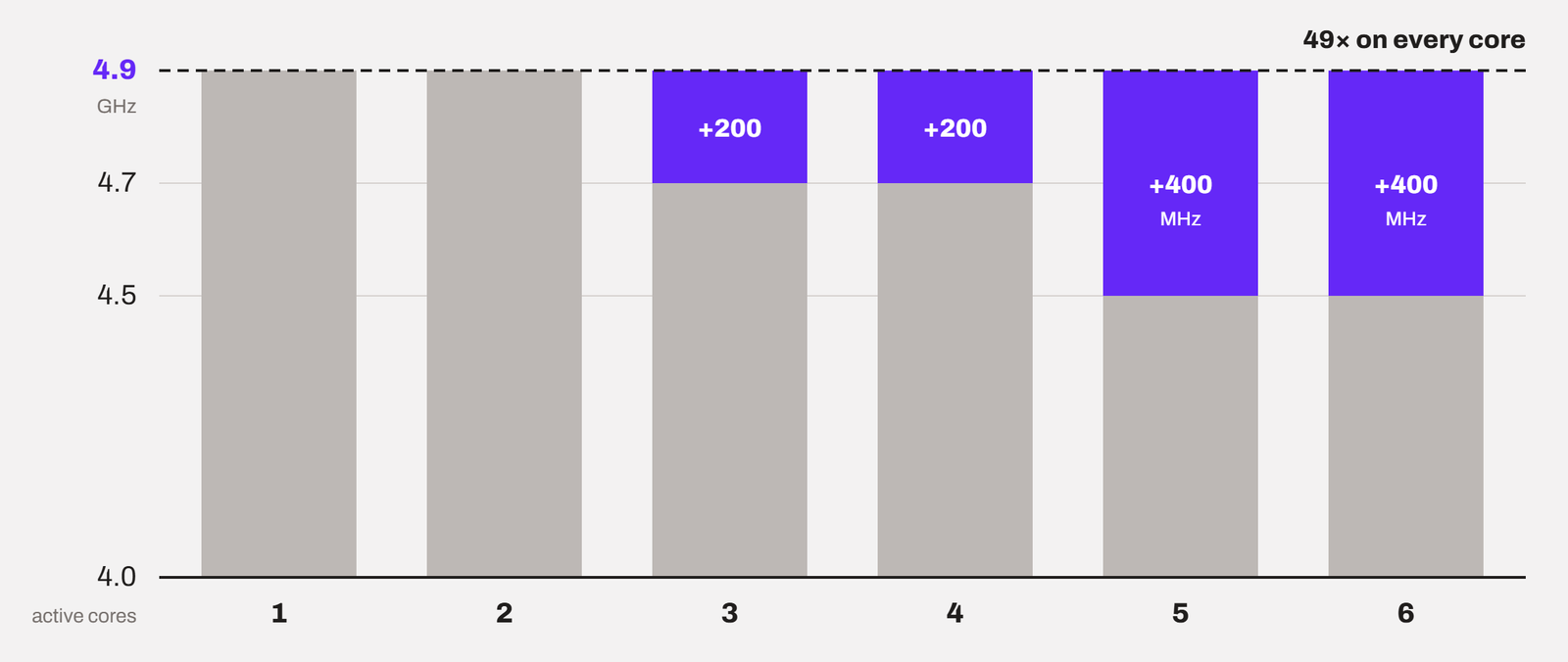
Let me take the example of my own processor, i.e., the Intel Core i5 12600K. With one P-core active, it runs a 49x ratio. With all six active, it drops to 45x. The four E-cores follow the same idea, with a top ratio of 36x. So, how does it look in practice?
100 MHz BCLK × 45 ratio = 4.5 GHz on all six P-cores.
Now, my motherboard has the option to enable multi-core enhancement or turbo enhancement. Turning it on applied the single-core ratio to every core. On a 12600K, it looks like this.
100 MHz BCLK × 49 ratio = 4.9 GHz on all six P-cores. That is 400 MHz more per P-core in any multi-threaded load, without touching a single overclocking setting.
My chip sits on an MSI Pro Z690-A, and MSI splits this feature in two. Enhanced Turbo, under Advanced CPU Configuration, is the ratio part. CPU Cooler Tuning is the power-limit part, which we discuss next.
2. Changing power limits (PL1, PL2, and Tau)
Newer Intel chips already have a high all-core ratio. What holds them back is power. PL2 is the short-term power limit. PL1 is the long-term one. Tau is how long the CPU is allowed to stay at PL2 before it has to fall back to PL1. If you want to understand these power limits in detail, I have covered them in this article.
Take the Core i9-10900K. Its all-core turbo is already 4.9 GHz. With Intel’s limits enforced, it holds 4.9 GHz for 56 seconds and then drops to around 4.1 to 4.2 GHz. With the limits removed, it stays at 4.9 GHz for as long as the cooler can handle it.
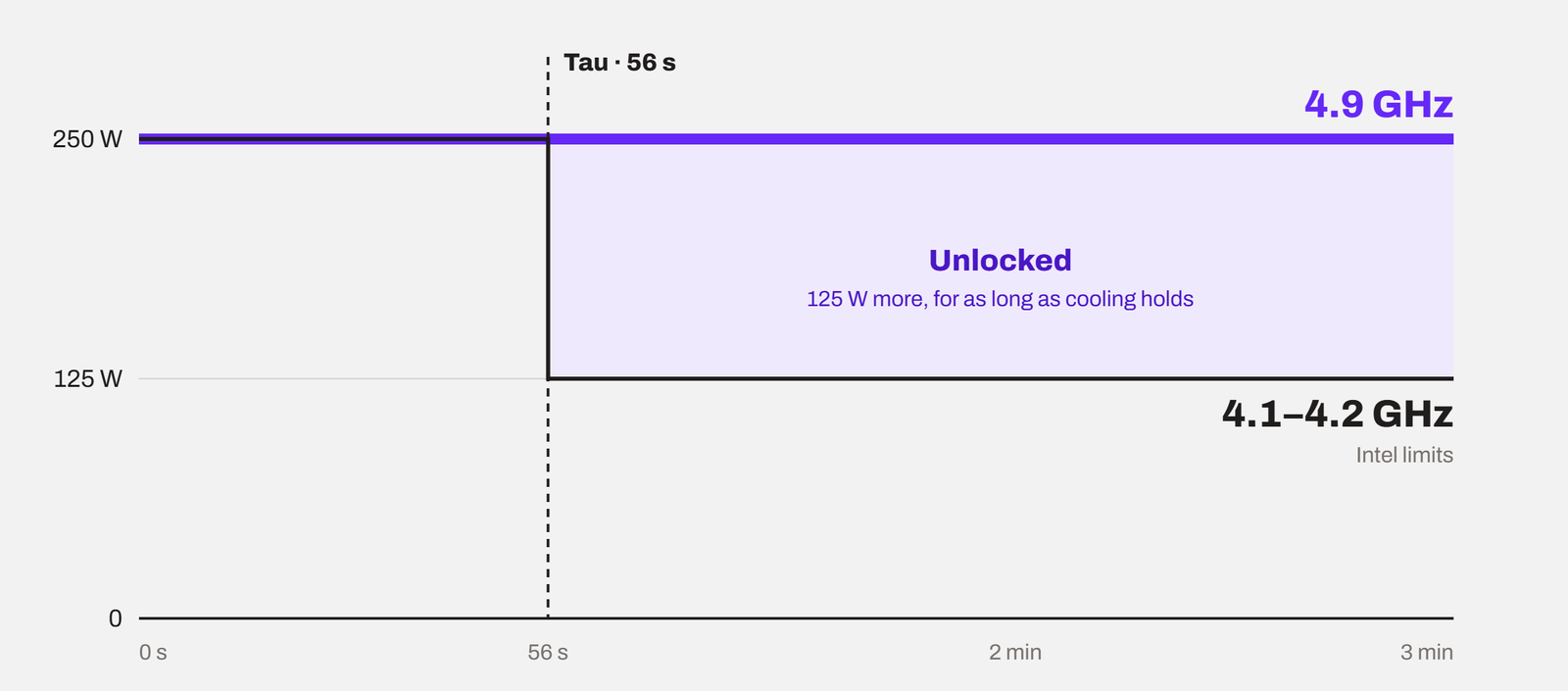
So, on modern boards, enhanced multi-core performance does not make your cores faster than Intel’s top turbo ratio. It removes the timer and the power cap that normally pull them back down.
3. Changing Current Limits (IccMax)
Current limits matter the most on Intel 13th and 14th-Gen processors. IccMax is the maximum current the CPU is allowed to pull from the motherboard’s VRM. Power is voltage times current, so IccMax works as a second ceiling behind PL1 and PL2.
For a Core i9-14900K, Intel’s performance profile sets it to 307 A and the Extreme profile to 400 A. Many boards shipped with it at 511 A, which again means no limit at all.
Even if you don’t follow the numbers above, keep in mind that all three limits exist to keep power, heat, and voltage inside what Intel validated the chip for. This setting switches them off.
What does “auto” mean?
Most people leave the setting on Auto and assume Auto means off.
That was not true for years. On older boards, Auto generally meant on, and some ASUS boards switched it on the moment you enabled XMP. But, it changes when Intel asks board makers to ship a profile called Intel Default Settings as the BIOS default for 13th and 14th Gen. On a board with an updated BIOS, Auto now generally follows Intel’s limits.
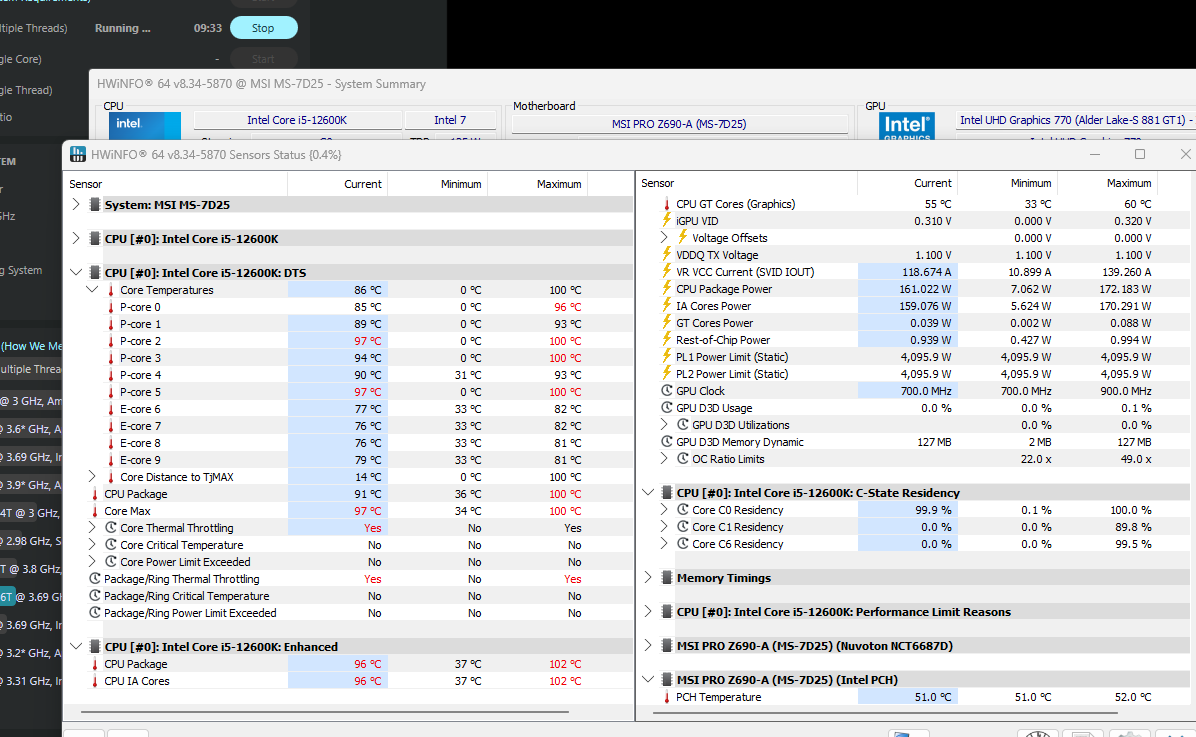
For example, on my motherboard, loading the BIOS defaults selected the water cooler preset. That is a 4,095 W power limit out of the box on a board nobody had touched.
But you cannot know which behavior you have without checking. So, do not leave it on Auto. Set it to Enabled or Disabled yourself.
What do you get when you turn it on?
With this feature turned on, the only thing you gain is the sustained all-core performance. But how much gain depends on how far the Intel limit sits below what the chip can pull.
For example, a 10900K goes down from 250 W to 125 W after 56 seconds. So, removing the limit gives a lot back. But a 13900K that is already allowed 250 W all day has much less to gain.
Now, take my own Core i5-12600K. Its limits are 125 W and 150 W. When I run an all-core Cinebench test, it pulls about 120 W. It doesn’t go past 130 W even with the 150 W limit set. In other words, the chip does not even reach its own limit. So, at stock ratios, removing that limit unlocks almost nothing.
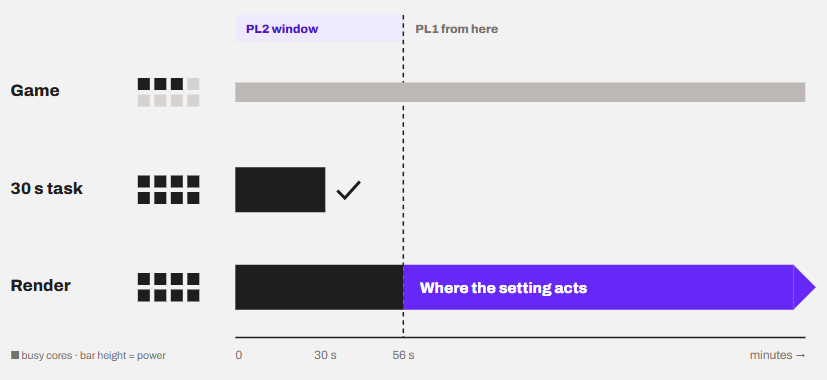
The gains are on the chips that do run into their power limit in long all-core work, like a Core i7 or Core i9. On these chips, the multi-core enhancement feature may help in tasks like:
- Long renders in Blender, Cinebench, and V-Ray
- Video encoding with HandBrake or similar
- Code compilation that runs for minutes
- Any load that keeps every core busy past the Tau window
On my 12600K, none of this applies. The chip never reaches its limit, even in a long Cinebench run, so there is nothing to unlock.
Where it does nothing
If your task is short, this feature adds to nothing. If the work gets done within the PL2 window, the limit never kicks in, and there are no improvements. Another case is gaming. Most games use a few cores at most and leave the rest. The CPU rarely sits at its all-core power limit while gaming, so there is hardly anything for this setting to unlock.
Legacy or single-threaded applications, CMS workloads, light productivity and office tasks, and small form-factor devices can hardly get any benefit from this feature.
Let’s clear another confusion here. I have read at many forums people saying that the locked CPUs with 65W PL1 gain the most from this feature. The idea is right, but the measured gains are not that much. For example, a Core i5-12400 has a PL1 of 65 W and a PL2 of 117 W. Under a long render, it drops to 65 W. So, ideally it should have some room for performance. But that is not the case.
TechSpot tested the 12400 with the limits removed and with the 65 W limit enforced. At 65 W, it was only about 3% slower in Cinebench R23 and less than 2% slower across 10 games.
See, a six-core chip with no E-cores does not need much more than 65 W to run every core at full turbo. There is very little left to unlock. So, this setting pays off only when a CPU is held back by its power limit for a long time. Short tasks, games, and a 65 W chip like the 12400 are not that case.
What does this feature costs you?
Some people just keep it disable and some very practical reasons. This feature costs you heat, power, noise and, on some chips, long-term stability. The performance that you get from this is not free.
1. Power
For example, the Core i9-13900K can hit a peak of up to 492 Watts with all the limits removed. With a 250 W limit, the peak was about 432 W. And this is just the CPU, not the whole computer. Your power supply and your motherboard’s VRM have to deliver that. On a high-end Z-series board, it is quite possible. On a budget B-series board with small VRM heatsinks, I don’t think it is worth taking the risk.
2. Temperature
The Physics is simple. More power is more heat. There is no way around that.
As we discussed above, Intel itself says that multi-core enhancement feature can result in processor overheating and advise disabling it. The real problem is when your cooler cannot remove the extra heat. The CPU reaches its maximum temperature and throttles itself. At that point, you have lost the extra performance you turned the setting on for. You are left with a hotter, louder PC that scores the same.
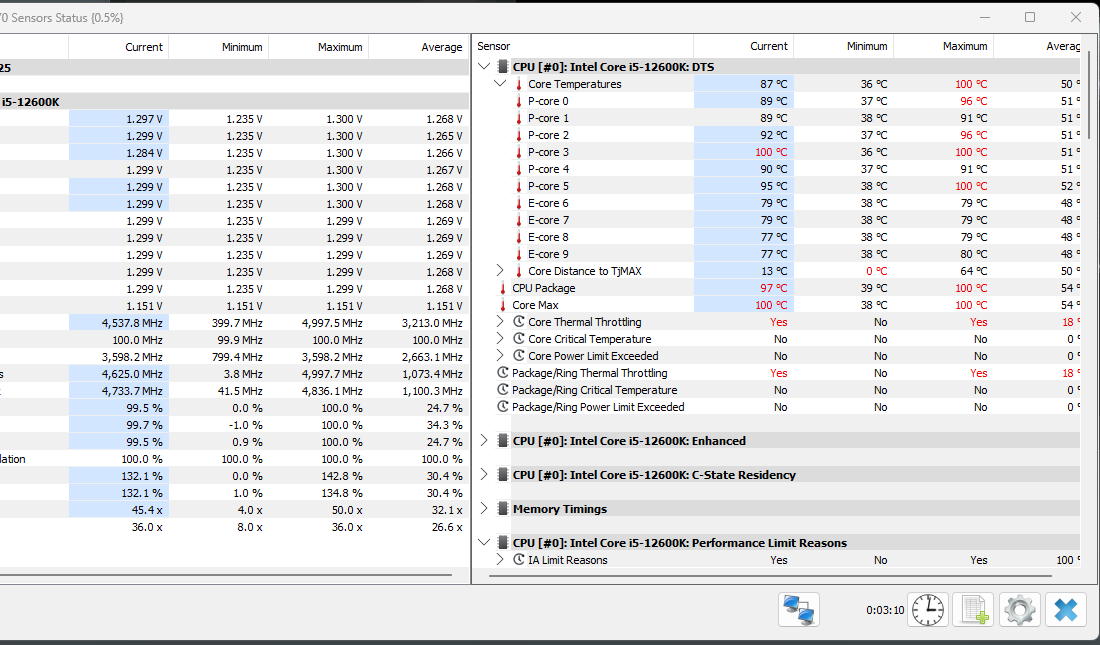
In fact, ASUS has perhaps saw it so much that they added a fourth option to the setting: Enabled – Remove All Limits (90°C), which removes the power limits but caps the CPU at 90°C.
3. Stability on 13th and 14th Gen
I have disussed this in other articles as well. I think it is worth mentioning here as well. In 2024, Intel confirmed that some 13th and 14th Gen desktop CPUs were degrading because of elevated operating voltage. It calls the issue Vmin Shift Instability.
In its root cause update, Intel listed four scenarios that can lead to it. The first one on the list is motherboard power delivery settings. They were simply ignoring Intel’s power guidance.
That is exactly what this setting does.
Intel’s suggested solution was to use the Intel Default Settings profile. The other three scenarios were fixed through microcode, ending with the 0x12B update. Intel added one more, 0x12F, in May 2025 for PCs that run for days under light load.
Intel’s mitigation for that scenario is to use the Intel Default Settings profile. The other three scenarios were fixed through microcode, ending with the 0x12B update. Intel added one more, 0x12F, in May 2025 for PCs that run for days under light load.
Keep in mind that the BIOS or microcode update will not repair a chip that has already degraded. So, on a 13th or 14th Gen desktop CPU, this setting is not worth a 4% gain.
4. Voltage
The power-limit part does not increase the voltage by itself. It just lets the CPU climb higher on the voltage curve it already has. But, a higher all-core ratio needs a higher voltage on every core.
Let me give you the example of my own 12600K again. I have cooled it with a good 240mm AIO. I could take all the P-Cores till 4.9 GHz or higher and E-cores till 4.0. Now, the system gets stable at around 1.38. But, the package power goes from 120 to 220 Watts. The performance gain is around 8 to 10%. The pattern is similar for other processors too because voltage affects power consumption and temperature far more than frequency does.
In other words, the extra voltage is what turns a small performance gain into a lot of heat.
Should you turn it on or off?
Yes, most people should turn it off. As a rule, I would keep it disabled on any PC where I cannot name the workload that needs it. But the answer changes with the CPU and the type of workload. Here is how I would decide.
| Your setup | My recommendation |
|---|---|
| 13th or 14th Gen desktop CPU | Off |
| Mainly gaming, any CPU | Off |
| Stock cooler, small case or budget board | Off |
| Core i5-12600K at stock ratios | Off. It changes almost nothing |
| Locked 65 W chip like the Core i5-12400 | Off. Because of minimal gains |
| Core i7 or i9 K-series (12th Gen or older, or Core Ultra 200S), 360 mm AIO, long renders | On, or better, manual power limits |
As we discussed above, if you have 13th of 14th-Gen CPUs, turn it off. Select Intel Default Settings in the BIOS and make sure your BIOS carries microcode 0x12F or newer.
If you mainly game, turn it off.
Turn it on if you render, encode, or compile for living. This is the one group it was made for. If you have an unlocked chip, a 360 mm AIO or better, and a board with a strong VRM, turning it on is reasonable. You get a few percent off every long job.
But, if you ask me, I would still not use the preset. I would set PL1 and PL2 by hand to the highest wattage my cooler can hold below 90°C. That gives me nearly all of the possible gains and no headaches.
If you have a stock cooler, a small case, or a budget motherboard, just turn it off. This feature inherently assumes cooling and power delivery you do not have.
How to turn Enhanced Multi-Core Performance off (or on)
This setting will be found in the BIOS/UEFI. It will be available in the overclocking menu most of the times. Restart your PC and press Del or F2 to enter the BIOS. The key or the process of entering the BIOS will vary depending on your motherboard manufacturer. So, go through the user manual or search internet.
On a Gigabyte motherboard, press F2 to switch to the Advanced mode. Set Enhanced Multi-Core Performance to Disabled. On older boards, look under Advanced Frequency Settings. Press F10 to save and exit.
On ASUS, press F7 to enter the Advanced Mode. Go to AI Tweaker or Extreme Tweaker on ROG boards. Set ASUS MultiCore Enhancement to Disabled – Enforce All Limits. Press F10 to save and exit
On ASROCK, go to OC Tweaker and select CPU Configuration. Set Multi Core Enhancement to Disabled. Press F10 to save and exit
On MSI, again press F7. Go to Go to OC and select Advanced CPU Configuration option. In the same menu, set Long Duration Power Limit and Short Duration Power Limit to Intel’s values for your CPU. For a Core i5-12600K, that is 125 W and 150 W. Press F10 to save and exit
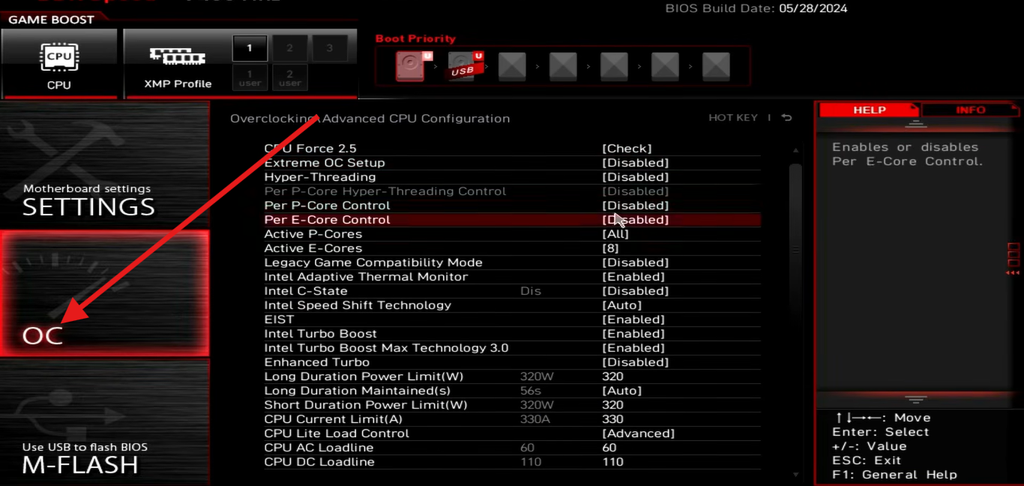
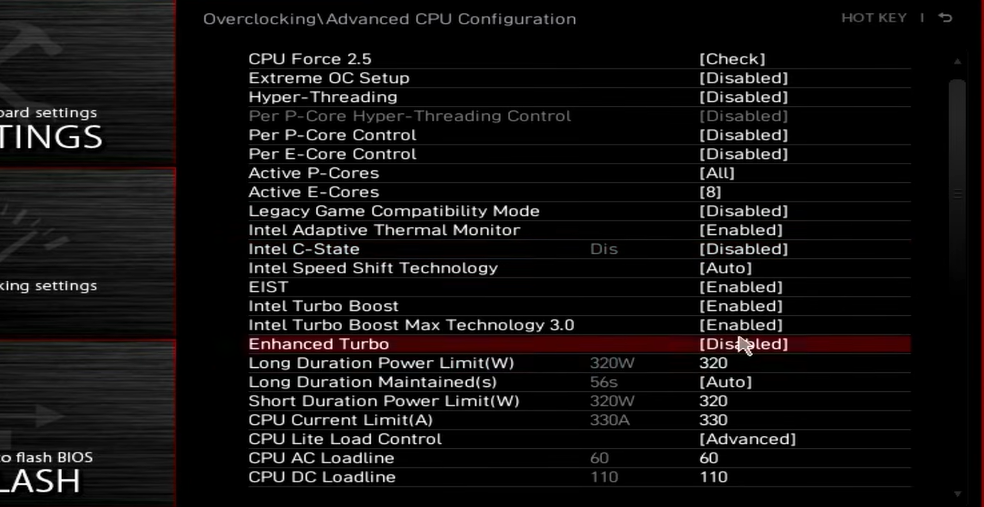
Note: If you have any other brand, go to it’s user manual and see how to enable this feature. Menu names move around between BIOS versions. If you cannot find the setting, search the BIOS for “Multi” or “Enhanced”. Most modern boards have a search box.
Conclusion
Enhanced Multi-Core Performance is a motherboard feature that removes Intel’s turbo and power limits. Intel has set these limits for some reasons. The same chip has to stay cool, stable and healthy for years on any cooler and any motherboard it is installed on. These limits make sure the CPU keep running as Intel wants to.
It gives a few percent in long all-core work, close to nothing in games, and it adds a lot of heat. If you render for hours and have the cooling for it, set PL1 and PL2 by hand instead. You get nearly the same results.
I hope this helps.