

CPUs are designed to handle a pretty good amount of heat. They also have the inbuilt mechanisms to save themselves from burning out. This safety mechanism is called throttling, which basically reduces the performance to compensate for the heat before reaching the damaging temperatures.
But managing heat in any CPU is very important in order to take the machine to its highest limits. Tasks like CPU rendering, video encoding, large code compilations, scientific computing, CPU-based 3D simulations, and heavy compression can take your CPU up to 100%. Without a proper cooling setup, the CPU can easily throttle and will reduce the performance to a great extent. Then you just wait for it to cool down or just upgrade your cooling setup.
Modern powerful CPUs need serious cooling if you want to hold their peak clocks. That means a large dual-tower air cooler or an AIO. Water is very good at taking the heat away from the CPU dies, and then a radiator will be there to dissipate the heat away from the computer.
Heat is just a byproduct!
In my college days, I used to overthink a lot about why electronics heat up and the popular solutions that we employ. At the most basic level, the electric power when put to work causes heat. Heat is unavoidable in electronics because of the resistance and other sources of energy loss.
Modern CPUs are perhaps one of the most brilliant inventions by humans. Being so small in size, they do so much work that requires hundreds of watts of power. There can be billions and billions of transistors inside a single CPU chip, and each requires power to work.
For example, the AMD Ryzen 9 9950X is rated for 170 watts TDP (Thermal Design Power). Other CPUs like the Intel Core Ultra 9 285K can consume up to 250 watts on their maximum turbo power. So, because the CPUs are essentially a powerful thermal load source, it will obviously generate a lot of heat. In fact, most of the electrical energy consumed by the CPU ultimately becomes heat. This is different from an electric motor, where most of the input power produces mechanical motion and some portion becomes waste heat.
The CPU doesn’t produce a useful physical output such as a movement or mechanical work. It processes information by charging and discharging capacitances, moving electrical charge, and changing transistor states. So, electricity involved has to go somewhere, and it eventually ends up as thermal energy.
CPU package power is approximately equivalent to heat that the cooler needs to remove. So, if the CPU package is dissipating 150 W continuously, the cooler essentially needs to remove almost around 150 joules every second.
Power density is another critical concept here. You can imagine two 150-watt heaters here. One concentrates all that heat into one coin-sized area, while the other is spreading it over a larger metal plate. Same power but wildly different surface temperature. CPU is the first one.
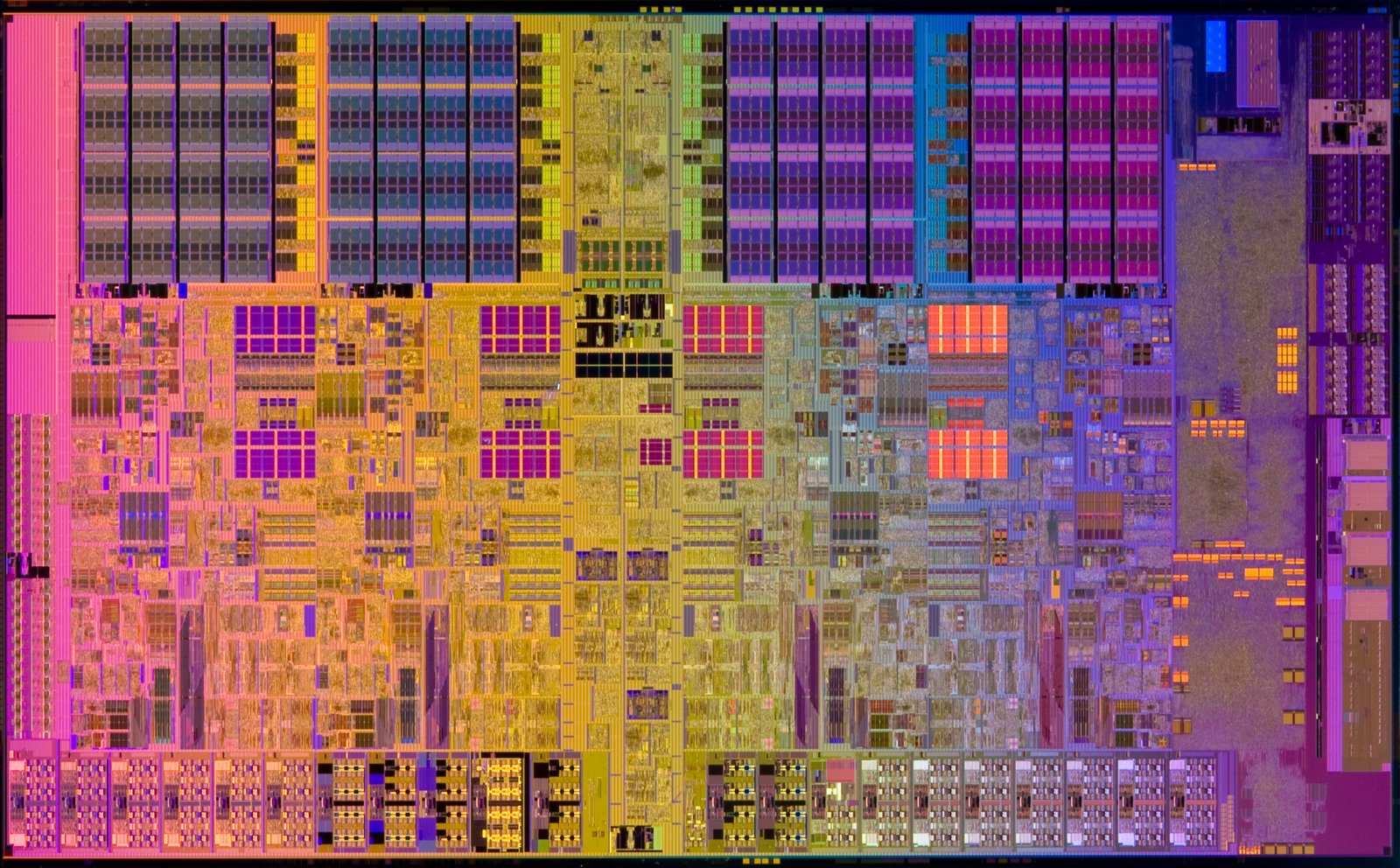
Modern processors contain billions of transistors on semiconductor dies that can be only around a few hundred square millimeters. Different regions of the chip can be doing different amounts of work, producing localized hotspots.
Another issue is that the CPU isn’t actually trying to stay cool. In fact, a processor can easily reach thermal limits around 95 to 100°C depending on the chip. They are designed to run near their limit as normal boost behavior. If cooling is excellent, the CPU can often maintain higher clocks because there is more thermal headroom.
What Temperature Is Too Hot for a CPU?
There is no universal number such as 80°C or 90°C. All of this is designed and decided by manufacturers. You will have to go through some specifications to understand.
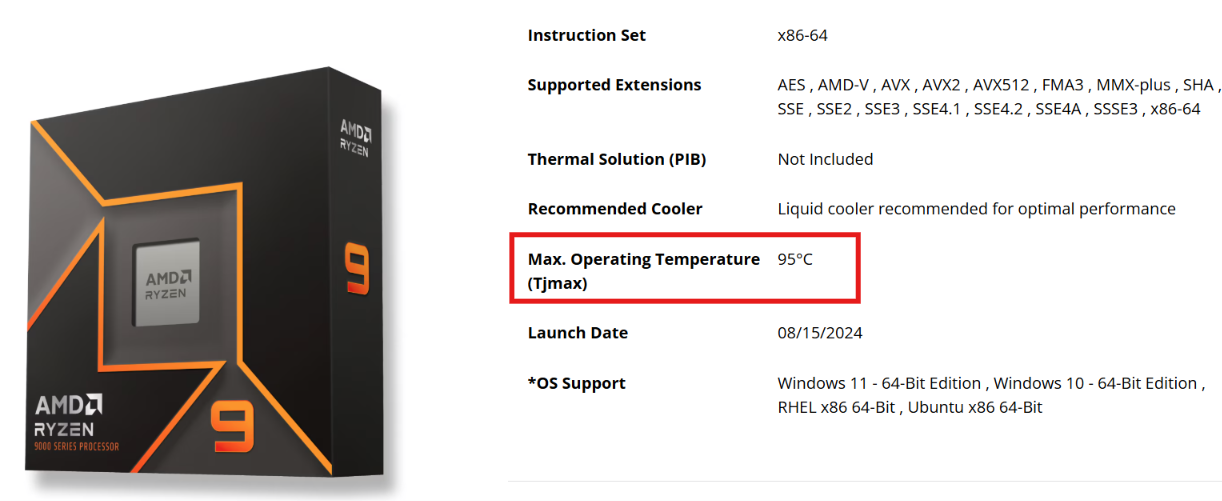
The most important is the TjMax (maximum junction temperature). It is the maximum temperature at the CPU’s semiconductor junction after which its thermal-management mechanism (throttling) intervenes. TjMax isn’t the temperature after which the CPU just burns away. It is kind of a thermal-control boundary.
TjMax is generally different for different CPUs. Both Intel and AMD specify this number on their product pages. So, you can find it out there.
CPU temperature will have different meanings based on the type of computer, i.e., desktop or laptop. A desktop PC generally has a larger heatsink, larger fans, more airflow space, and more room for heat dissipation. A laptop has severe space constraints. In other words, a laptop running at 90°C isn’t automatically in a worse thermal situation than a desktop running at 80°C. Laptop CPUs are often designed around a much tighter thermal and power envelope. We have to consider the processor’s thermal specification, power consumption, and clock behavior before making a decision.
Ambient temperature also plays an important role in CPU cooling. For example, if a CPU normally reaches 70°C with a 22°C room temperature, you shouldn’t necessarily expect it to remain at 70°C when the room reaches 35°C. A CPU sitting in a hotter room starts with air that is already warm. So, the cooler will get a smaller temperature difference available to transfer heat from the CPU into the surrounding environment.
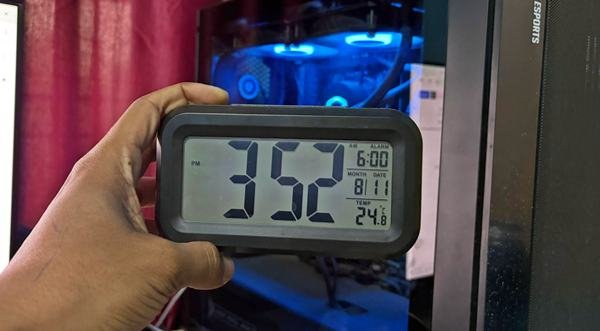
Power consumption is another important factor here. If the CPU is designed to work harder, it will generate more heat as well.
To keep things simple, we can just look at the CPU specifications, and the manufacturer will tell us what the maximum limit of the CPU is. Just consider that as the safe limit for your CPU. Other things are always secondary. There is no need to make it complex for you.
How Hot Is Your CPU Right Now?
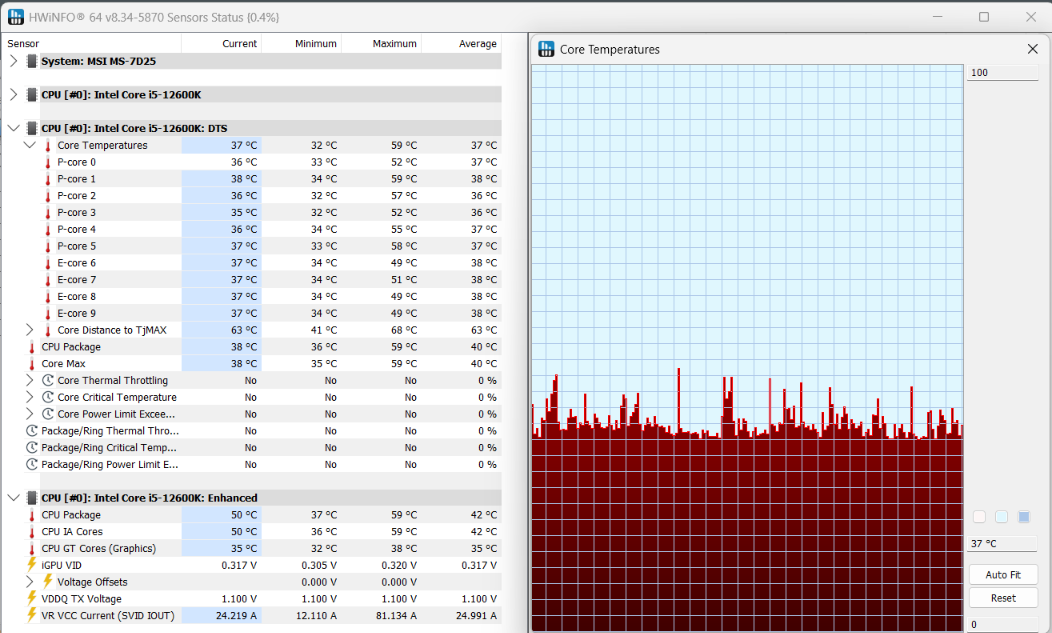
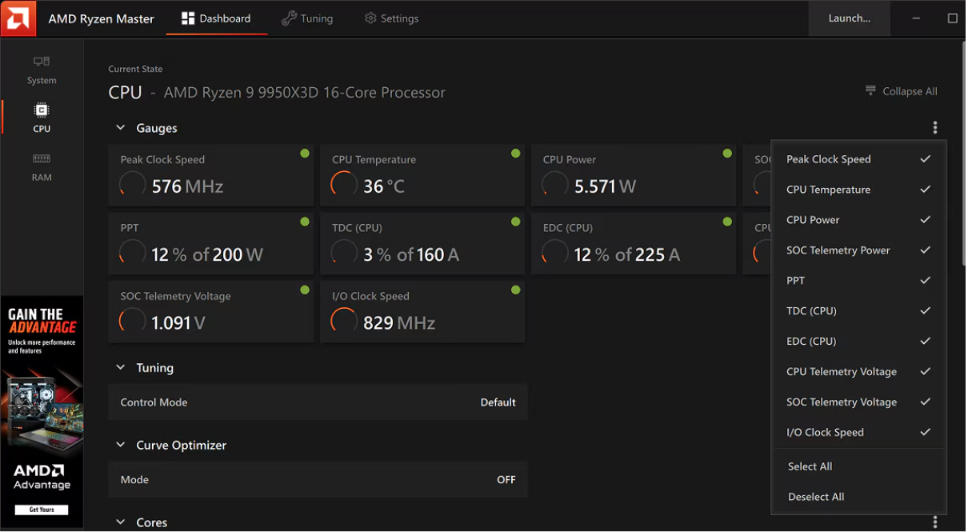
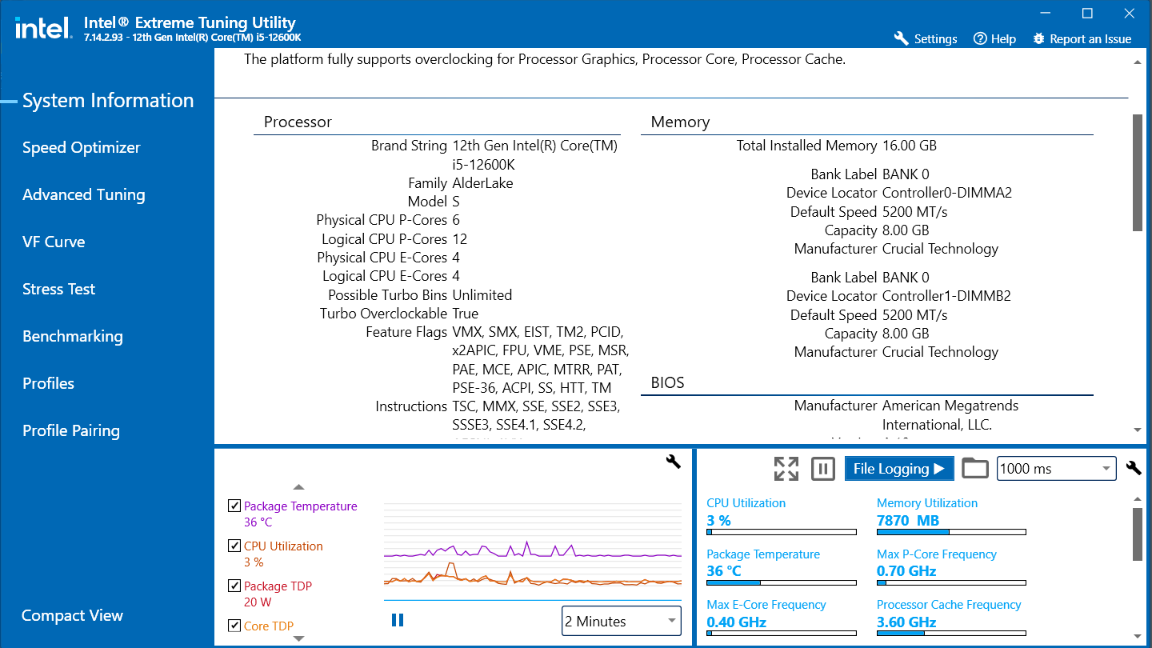
Both Intel and AMD provide their official software to check the CPU temperature and perform other operations such as voltage management and overclocking. In my opinion, they are the most reliable sources to keep track of the heat generated by the CPUs. If you want to pick a third-party software, HWiNFO and HWMONITOR are good software.
1. AMD Ryzen Master (for supported Ryzen desktop processors)
2. Intel Extreme Tuning Utility (for supported Intel CPUs)
3. HWiNFO (Good third-party software)
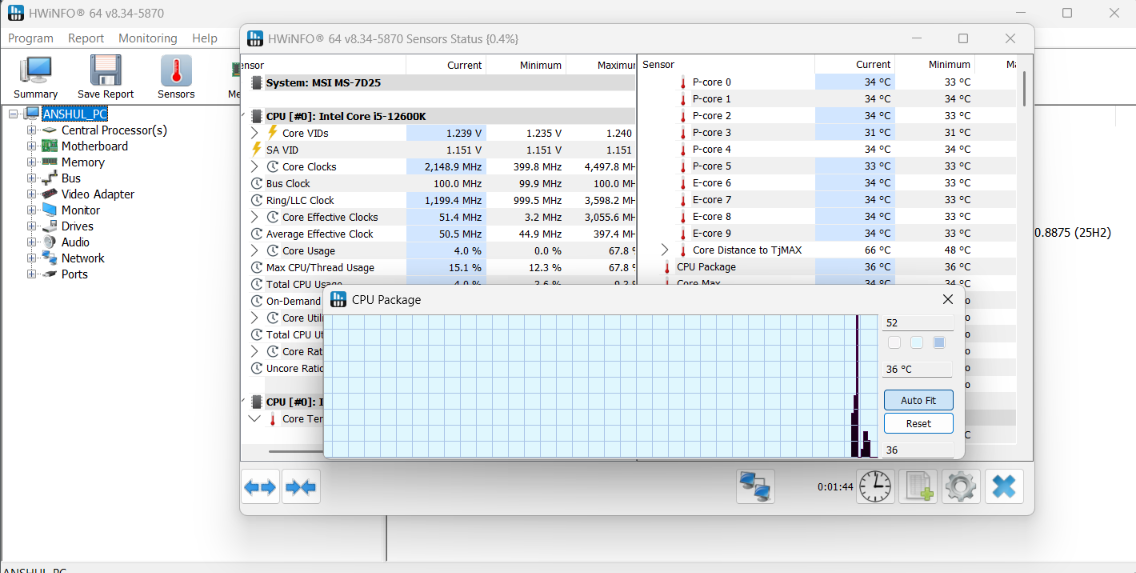
With these software, you can check and track the CPU temperature over time. This allows you to configure and optimize the cooling setup as well.
Can High CPU Temperatures Damage Your CPU?
No, high CPU temperatures don’t automatically damage your CPU because, as we discussed earlier, CPUs are equipped with the mechanism called “thermal throttling.” There are many other thermal-protection mechanisms that actively prevent silicon from reaching damaging temperatures.
Intel itself says that thermal throttling is a protection mechanism, and it can shut down the processor if throttling cannot keep the temperatures under control.
AMD gives a similar statement. It says that the CPU temperature depends on the cooler, airflow, ambient temperature, and many other things. And that when a processor reaches its specified TjMax, its power and performance are at their limit.
There is a big misconception that running a CPU at 90 to 100°C damages the CPU. Most people think that going above 90 degrees is always dangerous. But that isn’t true unless you have done some manual tweaks (overclocking) to your CPU. Reaching the thermal throttling point repeatedly is also not an issue from Intel’s side.
The major issue is persistent operation outside the processor’s intended operating conditions, particularly when the CPU is overclocked or subjected to excessive voltage and power. Temperature is just a part of the equation. A CPU’s long-term reliability is influenced by many other factors, like core voltage, junction temperature, current density, operating time, power consumption, etc.
The CPU Overheating Diagnostic: Find Out Which Problem You Have
I think we are now clear that CPU heat is normal and even excessive temperatures like 90 degrees are acceptable. But if you think your computer is reaching the throttling point over and over again, it might be the symptom of another issue.
It could be excessive CPU power, a demanding workload, poor cooling, inadequate airflow, high ambient temperature, incorrect BIOS settings, or a malfunctioning cooling component. I have troubleshot many computers and wasted hours and hours just to find out the CPU itself was damaged. It could be anything causing excessive CPU heat, and sometimes, it is going to be really hard to pinpoint the issue.
Both Intel and AMD recommend a systematic approach to monitor and diagnose CPU temperature problems. But it is generally the similar diagnosis flow for any CPU in question. Let’s talk about it step by step.
Step 1: Confirm that the CPU is actually overheating
So, whenever I get a computer in hand for diagnosing the temperature problems, I do rigorous monitoring on the top limits. With a good cooling setup, a CPU should idle between 30°C and 40°C (86°F to 104°F). There can be some variations based mainly on the idle load and ambient temperature. But this is an acceptable range.
As we start to see higher idle temperatures, we can start to conclude that there are some issues with either the heat generation or dissipation part.
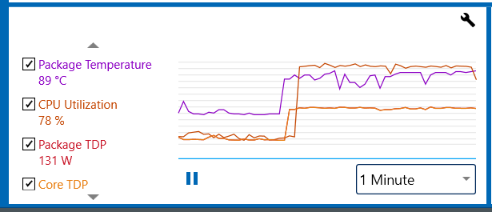
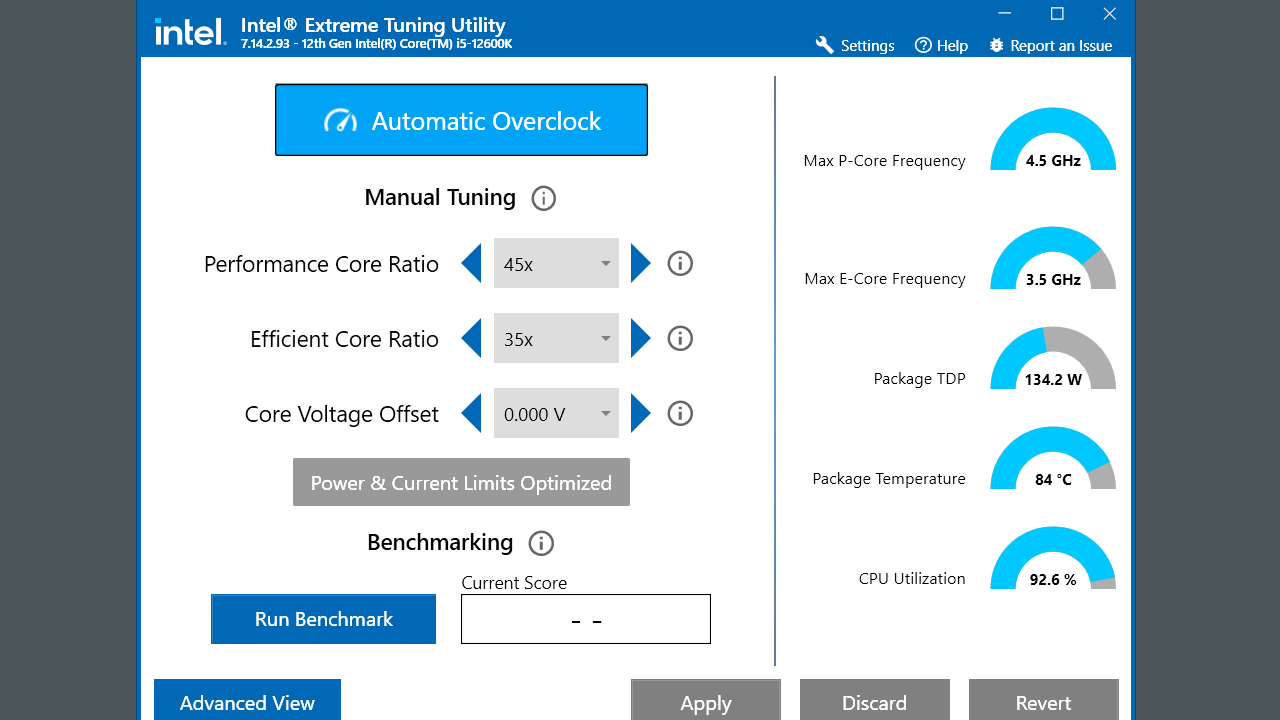
From the temperature graphs, we can find patterns.
For example, if a CPU at 10% usage is at 90°C while at low power (say 25 Watts), I will be very sure that the issue is related to cooling or the background activity.
There can be some unusual cases, like 100% CPU usage at 70 to 75°C with a power draw of 30 watts. In this case, there will mostly be a power limit. Possibly, the PL1/PL2 will be capped too low in BIOS.
Sudden temperature spikes without any load indicate issues with heat dissipation and thermal paste. So, we have to identify these patterns carefully.
Step 2: Check CPU load.
I can always say that I keep my computer light, and ideally the CPU consumption should be low. But, with these CPU monitoring software, we can look at the actual load in real time. You can do it also with the Task Manager and find out which software is consuming most of your CPU resources.
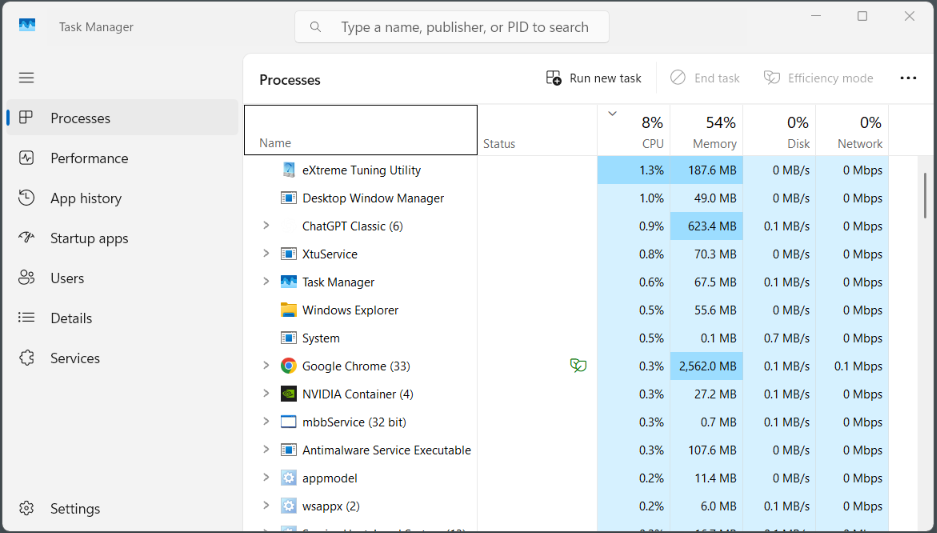
Windows Update, rendering, video encoding, code compilation, antivirus scans, and other legitimate workloads can temporarily push CPU usage very high. But, if the temperature is unusually high without any major app running, there can be some background processes going on.
If the CPU utilization is low but the temperature remains unusually high, the problem is more likely to involve the cooling system, background software, BIOS settings, sensor interpretation, or airflow.
Step 3: Look at the CPU power, not just utilization
CPU utilization can have different meanings, and it is possible that one CPU at 100% load creates more heat than the other one. This is mainly because different workloads, clock speeds, voltages, and instruction types cause varying power consumption.
I would recommend using HWiNFO to check CPU package power for this.
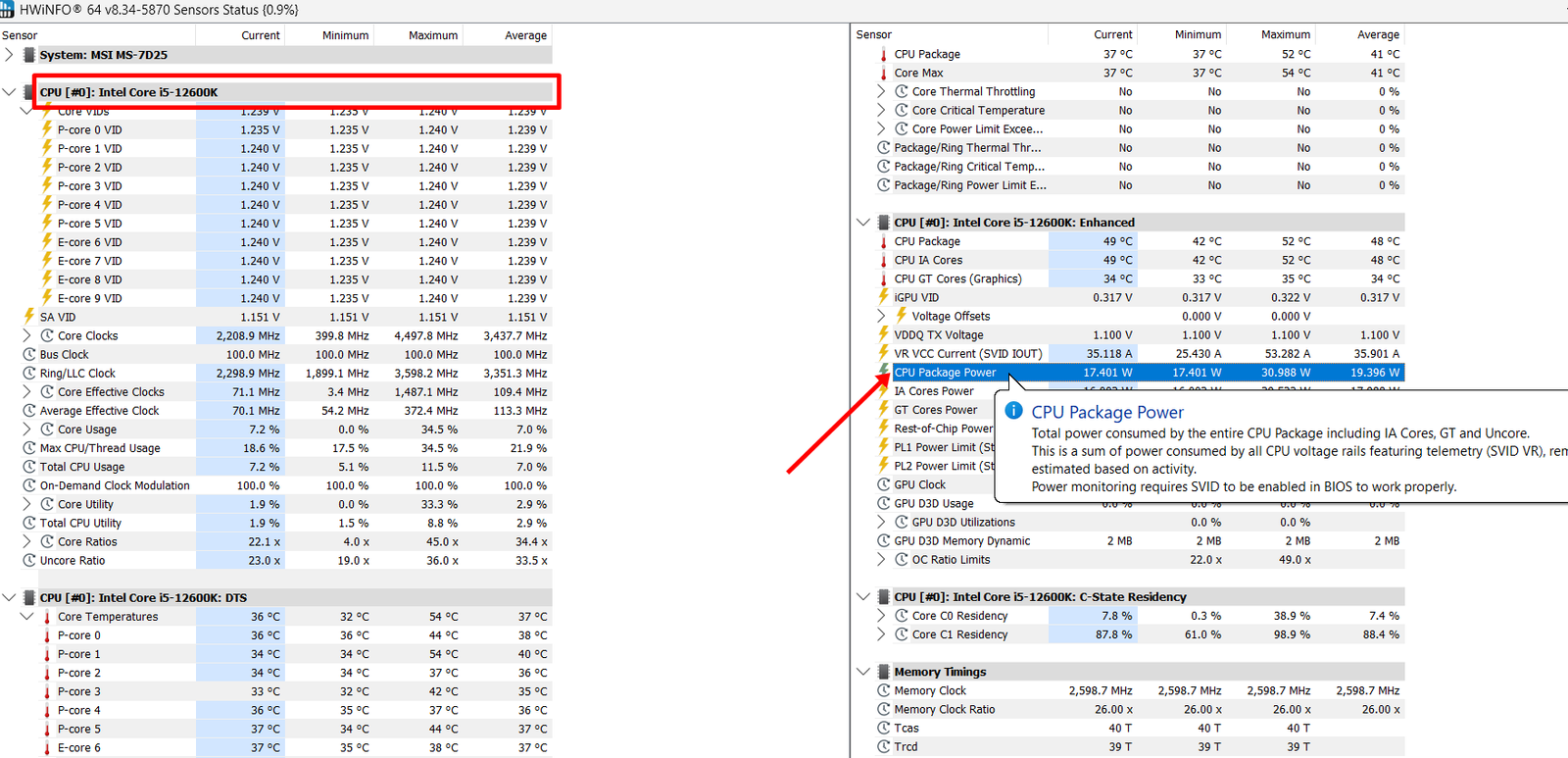
If the CPU is drawing unusually more power than expected for the workload, you should check the BIOS power settings, overclocking, Intel Turbo/AMD precision boost related settings, CPU voltage, or motherboard default settings. It is good to reset all these settings once and run the CPU at recommended profiles.
I generally see three patterns here.
This distinction is important:
High temperature + high power = cooling capacity may be the limiting factor.
High temperature + unusually low power = worth checking the cooling path, mounting, airflow, or sensor behavior.
Low temperature + power-limit throttling = Overheating might not be the problem.
Step 4: Check the cooling setup and ambient temperature
The cooler has to dump the collected heat into the outside atmosphere. Also, it has to take the input air from the environment itself. So, if the gap between the CPU temperature and the ambient temperature is too low, the cooler has less gap to transfer the heat away. Basically, a CPU operating at 85°C in a 20°C room isn’t necessarily equivalent to the same CPU operating at 85°C in a 35°C room.
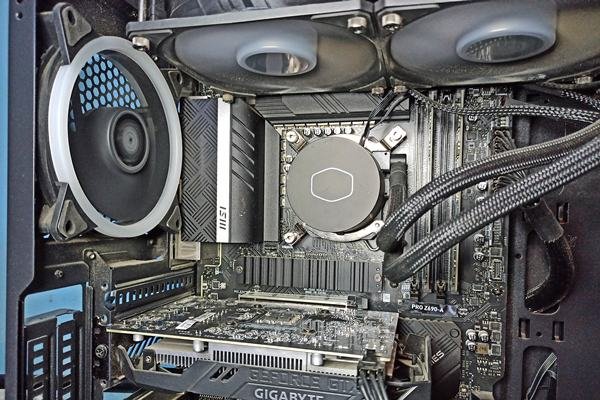
Make sure the cooler fans are running and adjusting the speed based on the CPU usage and temperature. Check if the radiator (in case of AIO) is clean. Check if the case fans are also working. In case of a laptop, check if the cooling fan/fans are rotating.
How to Fix an Overheating CPU
Fix 1: Reduce CPU utilization
Before touching any hardware, just head to the Task Manager/Activity Monitor and observe any visible culprit. Make sure to sort by CPU usage. Heavy load from rendering, encoding, or compiling is expected and not a problem by itself. But you have to look for tasks you didn’t ask for.
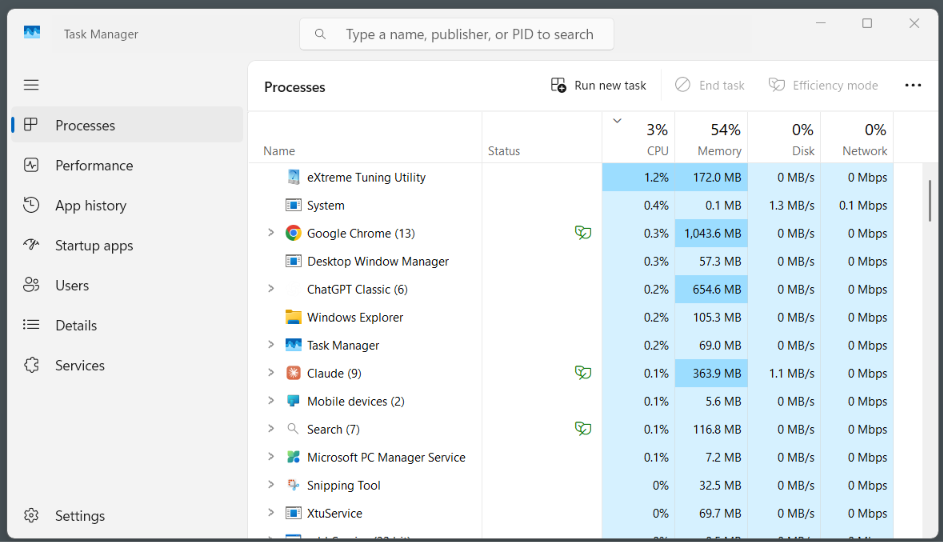
You can just right-click the process and click End task. The operating system will warn you before you end any important process. Just make sure you do not stop them. The process is to identify the software. Once you have the name, you can uninstall it from Settings or the Control Panel menus.
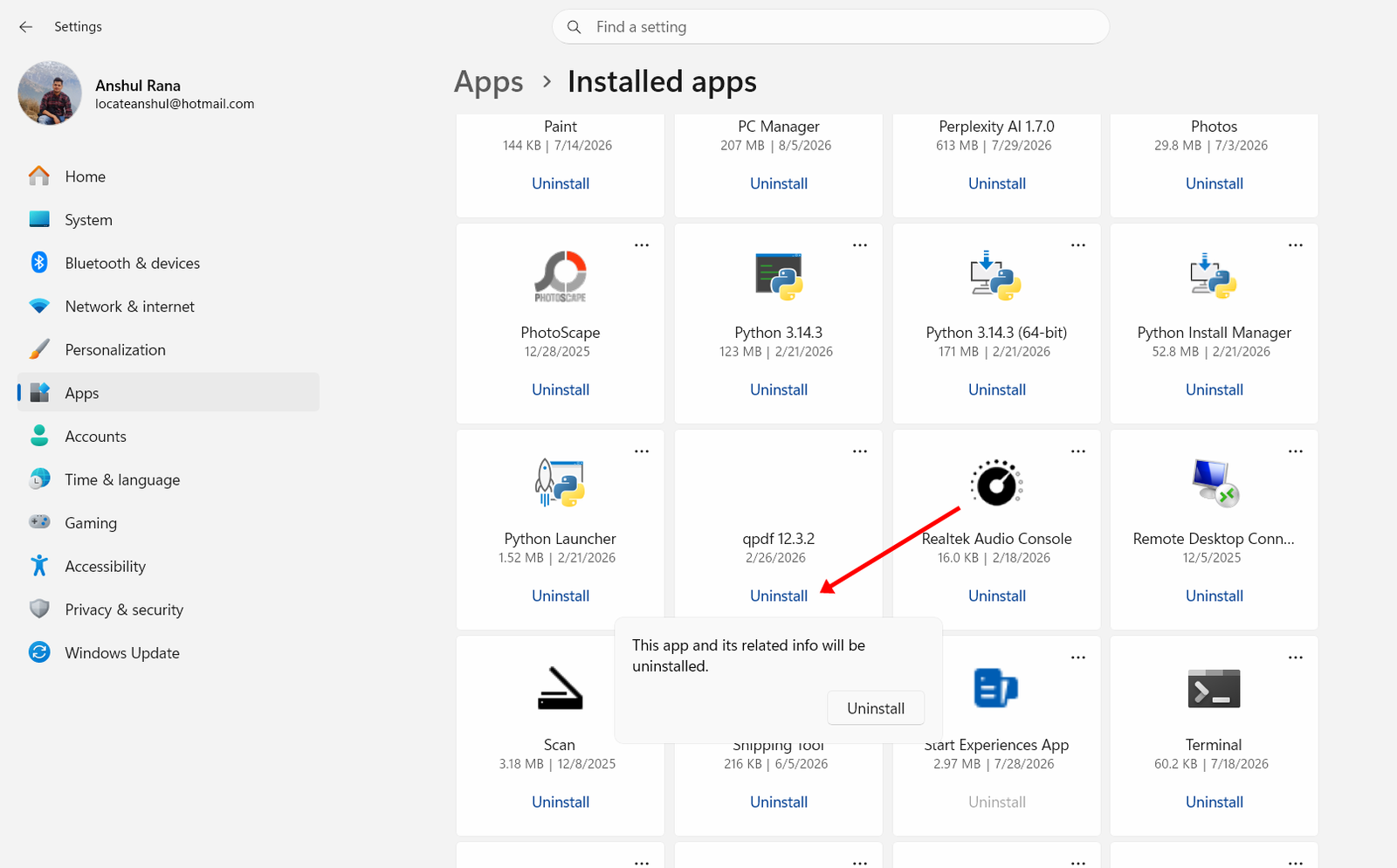
If you don’t recognize a process pulling high CPU, look it up before assuming it’s harmless. However, if the Task Manager is looking clean, you can proceed to the next step.
Fix 2: Clean the PC
I don’t recommend any fancy cleaning in case of PC. You can open up the case and brush away the dust. If you have, use compressed air and hold the fan blades still while you blow through them. I personally use a paint brush to clean the fans and radiators first and then blow away the air.
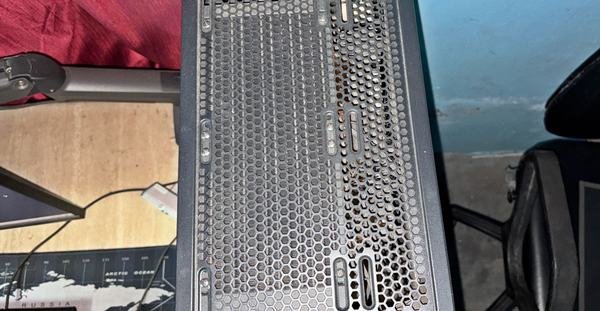
In the case of laptops, I wouldn’t recommend opening them up if they are under warranty or if you have no experience. In that case, a professional laptop cleaning service would be recommended.
Heatsinks and radiators work by exposing a large surface area of metal fins to moving air. Dust settles on those fins, blocks airflow through them, and acts like a blanket trapping heat exactly where you don’t want it. Do this every 6–12 months, more often with pets, carpet, or a dusty room.
Fix 3: Fix/Upgrade your cooling setup
For an air cooler, verify that the CPU fan is spinning and its RPM changes as CPU temperature increases. For an AIO liquid cooler, check both the pump RPM and radiator-fan RPM. If you have done some sort of manual tweak or overclocking, make sure you also adjust fan speed profiles.
In case of AIO, it is possible that the fans are spinning but the pump has failed. It is important that you check the pump as well. This information will be available mostly in the BIOS/UEFI menu.
For example, my PC has the Intel Core i5 12600K, but I have equipped it with a good quality 240 mm AIO. I know it’s an overkill most of the time, but whenever I am putting the CPU under load, I know the AIO will help me squeeze the maximum power out from it. In fact, I have taken it safely till 5.2 GHz and I faced no issues at all.
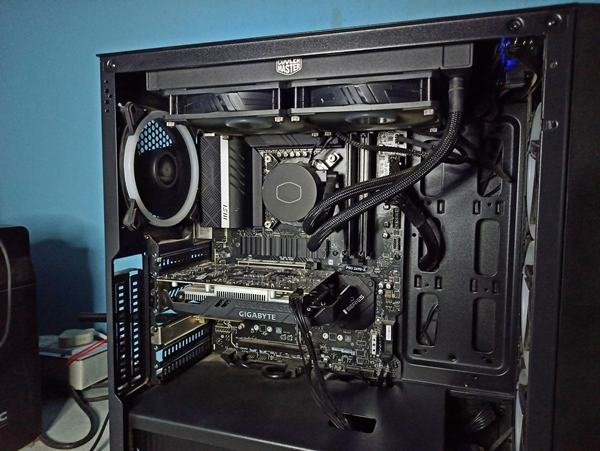
I see a lot of people doing cost-cutting when buying coolers for their CPUs. This isn’t right. For the entry-level CPUs and moderate workloads, the stock/boxed air coolers are good enough. But, as you go towards the high-performance desktop CPUs, large/dual-tower air coolers become a necessity. If your CPU load is even higher and the CPU itself is a high-performing one, an AIO would be suitable.
Fix 4: Reapply thermal paste.
The purpose of thermal paste between the CPU and cooler’s contact plate is to fill microscopic imperfections. The goal is to improve thermal contact so most of the heat dissipates to the cooler thermal plate rather than staying inside the CPU.
You should always consider replacing the thermal paste if the cooler has been removed or the thermal interface is visibly dried. Degraded thermal paste is a major culprit when your system has unusually high temperatures despite an adequate cooler.
Many people also ask what the time limit of thermal paste is after which it should get replaced. There is no specific time frame as such. A thermal paste can remain effective for years. However, there is nothing wrong in replacing it from time to time if you want.
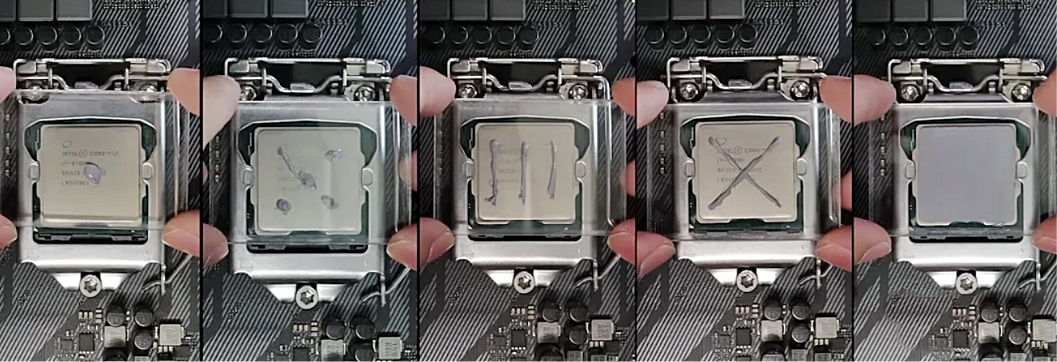
Make sure to clean the old thermal interface with high-purity isopropyl alcohol and lint-free material. Apply a suitable amount of thermal paste and reinstall the cooler. A proper contact is what we are looking for. Do not obsess over finding the perfect thermal-paste pattern.
Re-applying thermal paste in a laptop is much harder than on desktops. So, it is good to get professional help for that.
Fix 5: Improve case airflow
A good case airflow is more about the balance of input and output air rather than the number and brand of fans. The case should ideally take front or bottom air input (cool) and then throw it at the components. The hot air then can go out from the rear or top exhaust.
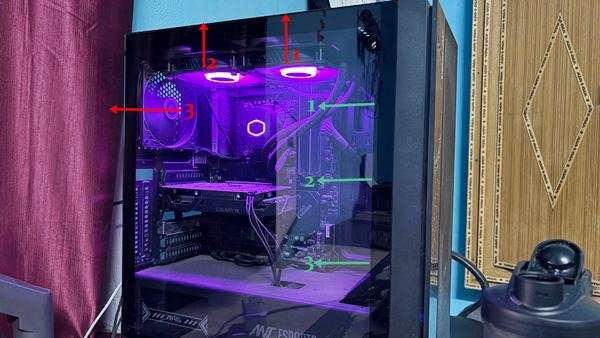
The exact configuration depends on the case and hardware. But the general rules of thumb are that the cool ambient air should come inside without obstructions. The hot air should not reside inside the case because of lower exhaust pressure.
Consider the GPU as well. They generate a huge amount of heat. The heat eventually enters the case environment, potentially increasing the temperature of the air reaching the CPU cooler.
Fix 6: Check BIOS settings/Remove overclocking
Check if you have done any modifications in the BIOS. Things like CPU multiplier/frequency, CPU voltage, Intel power limits, AMD PBO, curve optimizer, motherboard performance profiles, etc., can contribute to abnormal heat generation.
Basically, if you are not overclocking your CPU intentionally, load the motherboard’s default/optimized settings and test the CPU again.
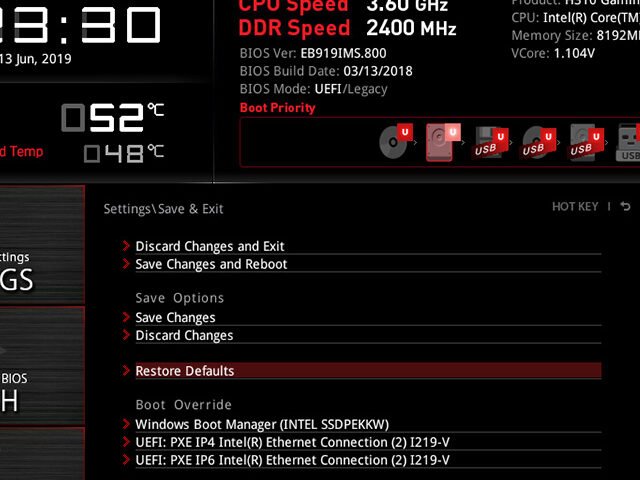
This is especially useful for diagnosing the root cause. For example, if the temperatures return to normal at stock settings, the previous configuration was increasing power consumption or voltage. It is good not to reapply them.
Fix 7: Reduce CPU power.
In case your CPU is operating properly but simply producing more heat than your cooling system can dissipate, reducing its power limit can be a great solution. Lower CPU power directly means less heat generation.
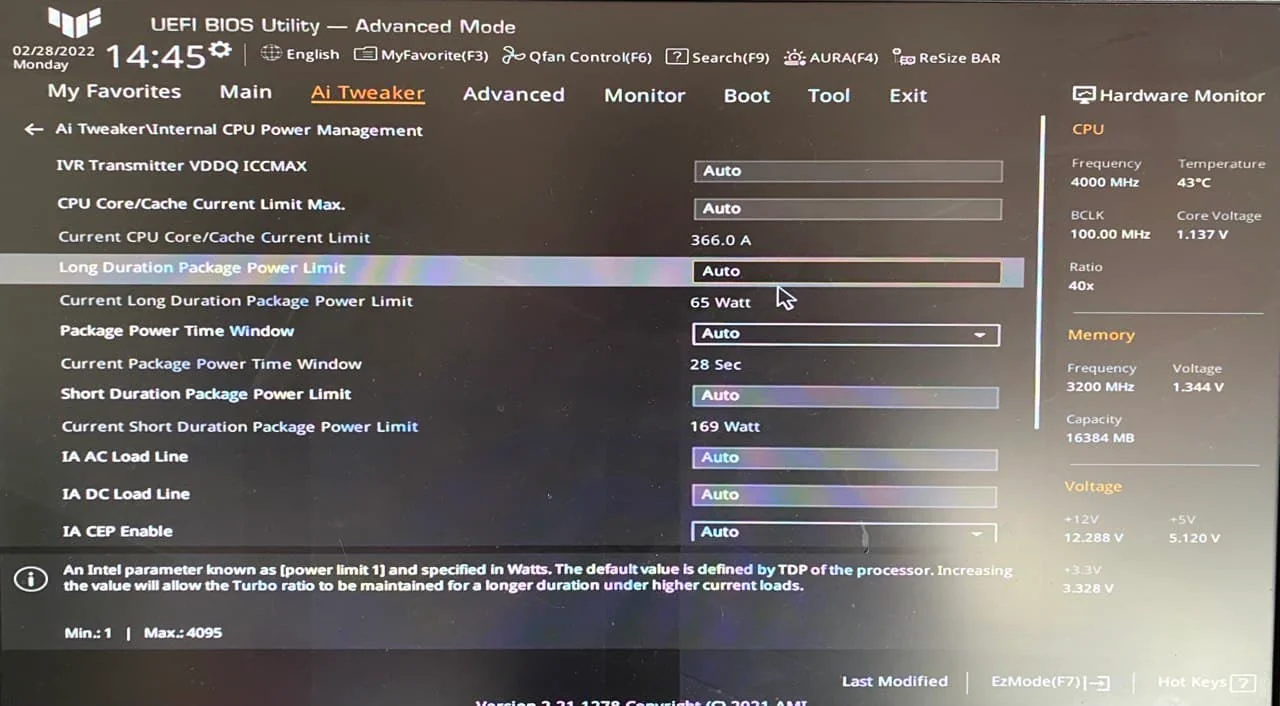
The performance impact doesn’t necessarily scale directly with the reduction in power. Depending on your workload and processor, reducing peak power can have a very small performance impact, while it can substantially reduce temperature and noise. This will work even better with high-end CPUs that consume large amounts of power during sustained workloads.
Your main options include
- Lowering Intel PL1/PL2 or equivalent power limits
- Configuring AMD PPT through PBO
- Undervolting on both Intel and AMD
- Using Curve Optimizer on supported AMD processors
The exact settings can be seen on your motherboard’s webpages. They can also vary depending on the CPU generations. So, don’t blindly copy voltage or power values from another processor. This can sometimes be dangerous for your PC. So, do good research and refrain from doing changes if you are not sure about everything.
Fix 8: Upgrade the CPU cooler
If you have done all the things above, your PC might be good with a new and upgraded cooling setup. Air coolers can provide substantial cooling capacity, but if you already have one, it is better to go for liquid cooling setup this time.
Check for physical compatibility before purchasing. Things like CPU socket support, case cooler height, radiator support, RAM clearance, and GPU clearance are important to check before you buy any new CPU cooler.
In case upgrading the cooler doesn’t work and the CPU temperatures are still high at normal loads, it might be the CPU that itself has the problem. In that case, a CPU replacement might be your last option.
Conclusion
There is no universal temperature at which every CPU becomes too hot. The right question to ask is how close is the CPU to its specified thermal limit, and is it thermal throttling? Managing heat in the CPU is really important, and when it starts to hamper your work, it is generally a signal that you should either fix or upgrade something. Most of the time, you just have to upgrade your cooling setup or reapply thermal paste. But, if that didn’t work and you haven’t overclocked, maybe the problem is much deeper and technical in nature.