

For overclocking, Intel is quite clear about non-K processors and says that traditional CPU overclocking is supported only on unlocked processors with a K or X suffix. The hardware-requirement article says almost the same thing. In our Intel CPU overclocking article, I have discussed the same thing in complete detail.
For undervolting, Intel has a dedicated article where they state that Intel does not provide undervolting controls/software/tools for locked non-K processors. For details on this, you can go to our Intel CPU undervolting article.
But, just because Intel says that non-K chips can’t be overclocked or undervolted, for that matter, it is still possible through some ways. Before discussing more about it, I assume that you are aware of the risks associated with CPU overclocking and undervolting.
For more than a decade, people have overclocked locked Intel chips again and again. Most of the time, motherboard makers found a hole, and Intel closed it a few months later. In my CPU overclocking beginner’s guide, I said you need a K-series CPU and a Z-series motherboard to overclock an Intel processor. That is still the official rule. In this article, we will look at everything that sits outside that rule.
We will see why non-K chips are locked, which generations can still be pushed, the full BCLK method for 12th gen, and the tuning that works on every locked Intel CPU today. I will also tell you when it is simply not worth your time.
What does “non-K” mean on an Intel CPU?
In this article, when I say “locked,” it means Intel doesn’t allow overclocking and the multiplier is locked. “Unlocked” means the CPU is overclockable.
Intel adds a suffix at the end of its CPUs. But, if there is no suffix, it means the CPU is locked. However, the CPUs with the K suffix (K, KF, and KS) are unlocked. There can be other suffixes like F and T, both of which are locked.
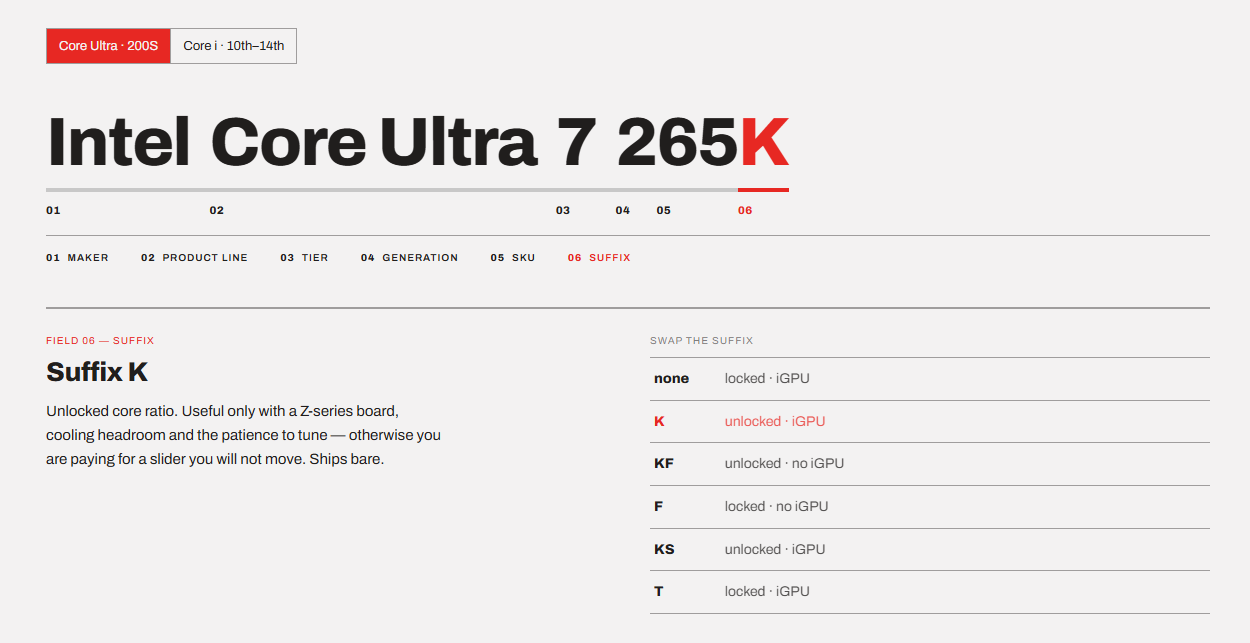
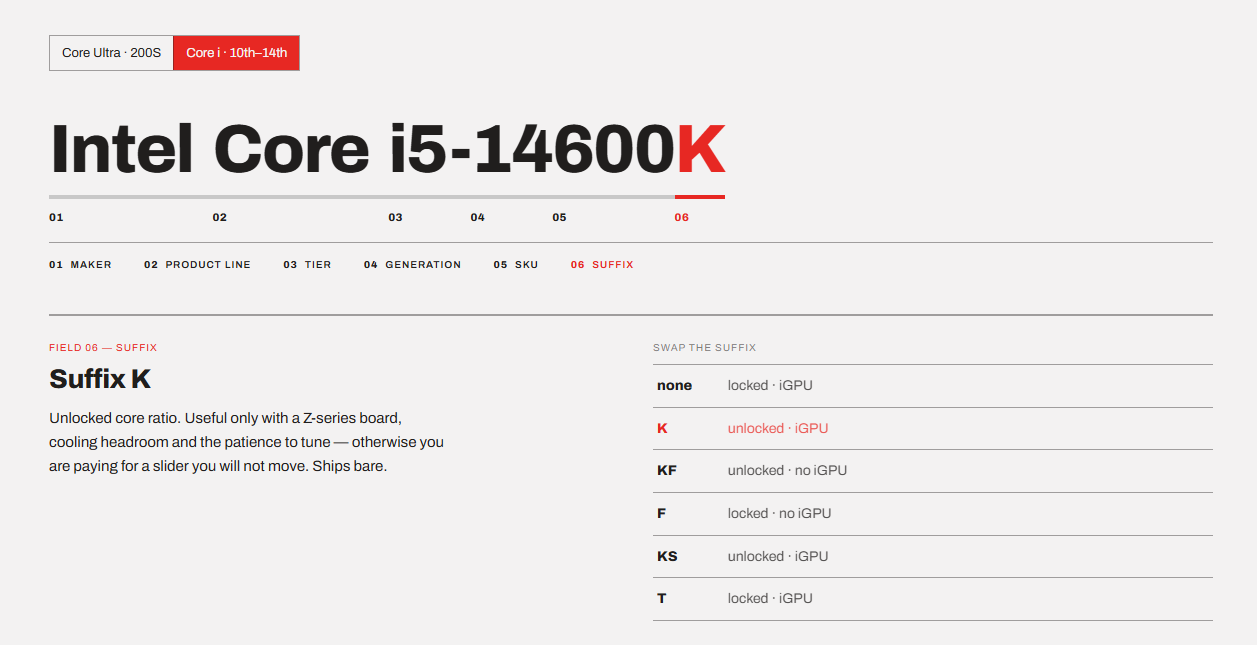
One thing to note is that the F suffix has nothing to do with overclocking. A Core i5-12400F is exactly as locked as a Core i5-12400. It just doesn’t have an iGPU. The same goes for Intel’s newer naming. A Core Ultra 7 265K is unlocked, while a Core Ultra 7 265 is not. Here are some examples to understand the naming better.
| Suffix | Example | Multiplier | What it means |
|---|---|---|---|
| K | Core i5-14600K, Core Ultra 7 265K | Unlocked | Overclockable, with integrated graphics |
| KF | Core i7-14700KF, Core Ultra 5 245KF | Unlocked | Overclockable, no integrated graphics |
| KS | Core i9-14900KS | Unlocked | Special edition, better binned |
| No suffix | Core i5-12400, Core Ultra 7 265 | Locked | Standard desktop chip, usually 65W |
| F | Core i5-12400F, Core Ultra 5 225F | Locked | Same chip, no integrated graphics |
| T | Core i5-14400T | Locked | Low power version, 35W |
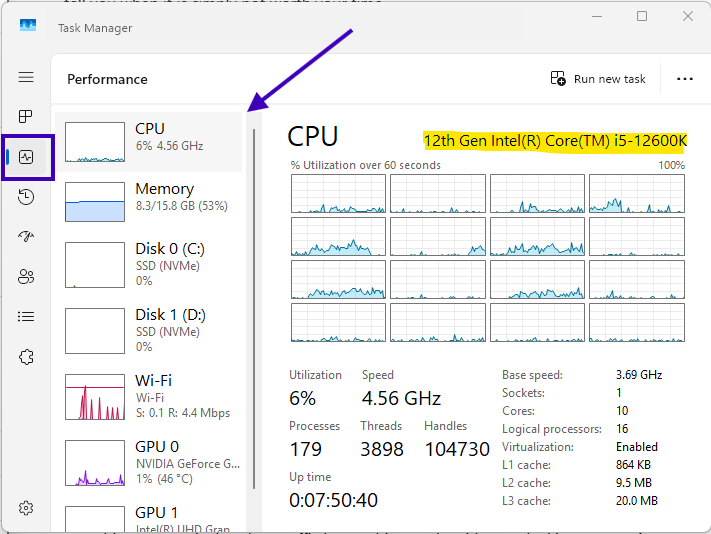
To find which CPU you have, just go hit Ctrl + Shift + Esc to open Task Manager on Windows. Go to the Performance Tab and select the CPU option. Your CPU name will be written on the top.
Why can’t you overclock a non-K CPU?
There should be a reason, right? Yeah, there is a reason.
But, to understand, you’ll have to understand how an Intel CPU gets its speed. We can conclude it from this simple multiplication.
CPU frequency = Base clock (BCLK) × Ratio
BCLK is the reference clock of the CPU. On Intel desktop platforms, it runs at 100 MHz by default. The ratio, also called the multiplier, decides how many times that clock gets multiplied. When you overclock, you generally play around with the multiplier.
BCLK is not the same thing as the “base speed” printed on the spec sheet. If those terms confuse you, read my base clock vs. boost clock article first.
If we take the example of the Core i5-12400, its highest boost frequency is 4.4 GHz.
100 MHz × 44 = 4.4 GHz (This CPU won’t allow raising the multiplier, so the frequency is capped unless you raise the BCLK)
On a K CPU, you simply raise the ratio. 100 MHz × 50 = 5.0 GHz. That is basically the whole idea of normal overclocking.
On a non-K CPU, the ratio can go down, but it can never go above what Intel set. So, the only knob left is BCLK.
The base clock (BCLK) is locked as well
If you are thinking that you can just raise the base clock from 100 MHz to 120 MHz and call it a day, sorry, Intel is ahead of you.
Since Skylake (6th gen), Intel CPUs have a BCLK governor. It measures the real base clock in real time and stops the CPU if it goes past a hard limit. SkatterBencher has documented this limit at 103 MHz.
Let’s go to the same example again. On a locked Core i5-12400:
103 MHz × 44 = 4.53 GHz
This calculates to around a 3% overclock, and this is going to be the similar case with most non-K chips. I don’t think this is worth opening the BIOS for.
The motherboard is your bet on non-K processors
Whether you will be able to overclock a CPU (K or non-K SKU) depends heavily on your motherboard.
So, if you have a Z-series (Z690, Z790, Z890) or a B-series board (B660, B760, B860), you can do both CPU and memory overclocking with a K CPU. However, only memory overclocking will be possible on a non-K CPU. In the same way, for example, if you have an H610 or H810 board, you get no overclocking support even on an unlocked K-SKU processor.
It is important to mention power limits here. Most boards let you change them no matter the chipset, and as you will see later, they are the most useful setting a non-K owner has.
The 15-year game played by Intel and motherboard makers
Before anything else, I want to show you a pattern and basically tell why the non-K trick eventually dies.
Let’s start with the Sandy Bride and Ivy Bridge (2011 to 2013). With Sandy Bridge, Intel moved the clock generator into the chipset. BCLK was now tied to the PCIe and DMI clocks, so raising it destabilized the whole system. The best BCLK result on a locked Sandy Bridge chip is only around 111.86 MHz, and that is a world record, not a daily setting.
But, for the non-K owners, on the Core i5 and i7 chips that supported Turbo Boost, Intel gave the option to add up to 4 extra Turbo bins on P67, Z68 and Z77 boards. Intel called these chips “limited unlocked.” So, a core i5-2500 with a 37 ratio at max Turbo could run 100 MHz × 41 = 4.1 GHz. Because the i3 chips didn’t have Turbo Boost, they get nothing. In 2013, Intel said that Haswell non-K chips would lose Turbo bin tuning completely. That was the end of the free 400 MHz.
Between 2015 and 2016, Supermicro found a crazy loophole. There was a Core i3-6320 that showed up running a 120 MHz BCLK on a Supermicro H170 board. What really happened was Supermicro found a bypass to the power control unit. Basically, it was a small microcontroller inside the CPU that manages power and houses the BCLK governor. No governor, no limit.
ASRock even turned it into a whole marketing campaign called SKY OC. People bought cheap Core i5-6400 chips and ran them well past 4 GHz. There were obvious side effects like no turbo boost, no C-states, no integrated graphics, etc.
In January 2022, Intel got really angry when they found that some Z690 boards could overclock locked 12th-generation chips. And there were clear reasons.
What happened was Intel gave the motherboard maker a pre-release microcode, in which the BCLK governor checked the CPU’s internal clock generator but not an external one. So, on boards with their own external clock generator, BCLK could go far beyond 103 MHz. Intel removed this in the final microcode. However, motherboard makers built BIOSes that could still load the old one. Intel warned on Tom’s Hardware that it doesn’t warranty operation beyond spec.
The final doors were closed with the Raptor Lake in 2023. It was tested on the MSI B660M Mortar Max motherboard by Tom’s Hardware. What was found is that the “Non K OC” option was there with a Core i7-12700 and simply disappeared with a Core i7-13700 installed. The funny part is how Intel stopped it. It didn’t add a new lock. Intel just didn’t leak a pre-release microcode with the hole this time.
How to overclock a non-K 12th gen Intel CPU with BCLK?
In the last 8 years approximately, this is the only real non-K overclocking method. So, let’s go through it thoroughly. I would recommend you reading about the risks of overclocking before you proceed.
What do you need for non-K BCLK overclocking?
1. A 12th-gen non-K CPU.
Celeron G6900, Pentium G7400, Core i3-12100, Core i5-12400, i5-12500, i5-12600, i7-12700, or i9-12900. The F versions work the same way.
13th-gen chips do not work, even the lower models that use Alder Lake-based cores.
2. A motherboard with an external lock generator and the right BIOS.
The most popular options are:
- MSI MAG B660M Mortar Max WiFi DDR4
- ASUS ROG Strix B660-F Gaming WiFi
- ASUS ROG Strix B660-G Gaming WiFi
- ASUS ROG Maximus Z690 Apex
The MSI board is a good example of what makes the difference. According to TechSpot, the Mortar Max was the same as the regular B660M Mortar except for a Renesas RC26008 external clock generator and a slightly beefier auxiliary MOSFET.
3. A good one, which is more than enough
Overclocking these chips draws close to double their stock power. So, you would require at least 240 mm AIO or a powerful air cooler. The stock Intel cooler is not an option at all.
4. A BIOS you will never update
A BIOS update removes the options. We will talk more about it later on.
Step 1: Record your stock performance
This included benchmarking your chip and keeping track of the max temperature and package power. I would recommend running the Cinebench 2026 single and multi-core bench and keeping note of both the scores. While the benchmarks are running, keep HWiNFO open and record the average and maximum power as well as the temperature.
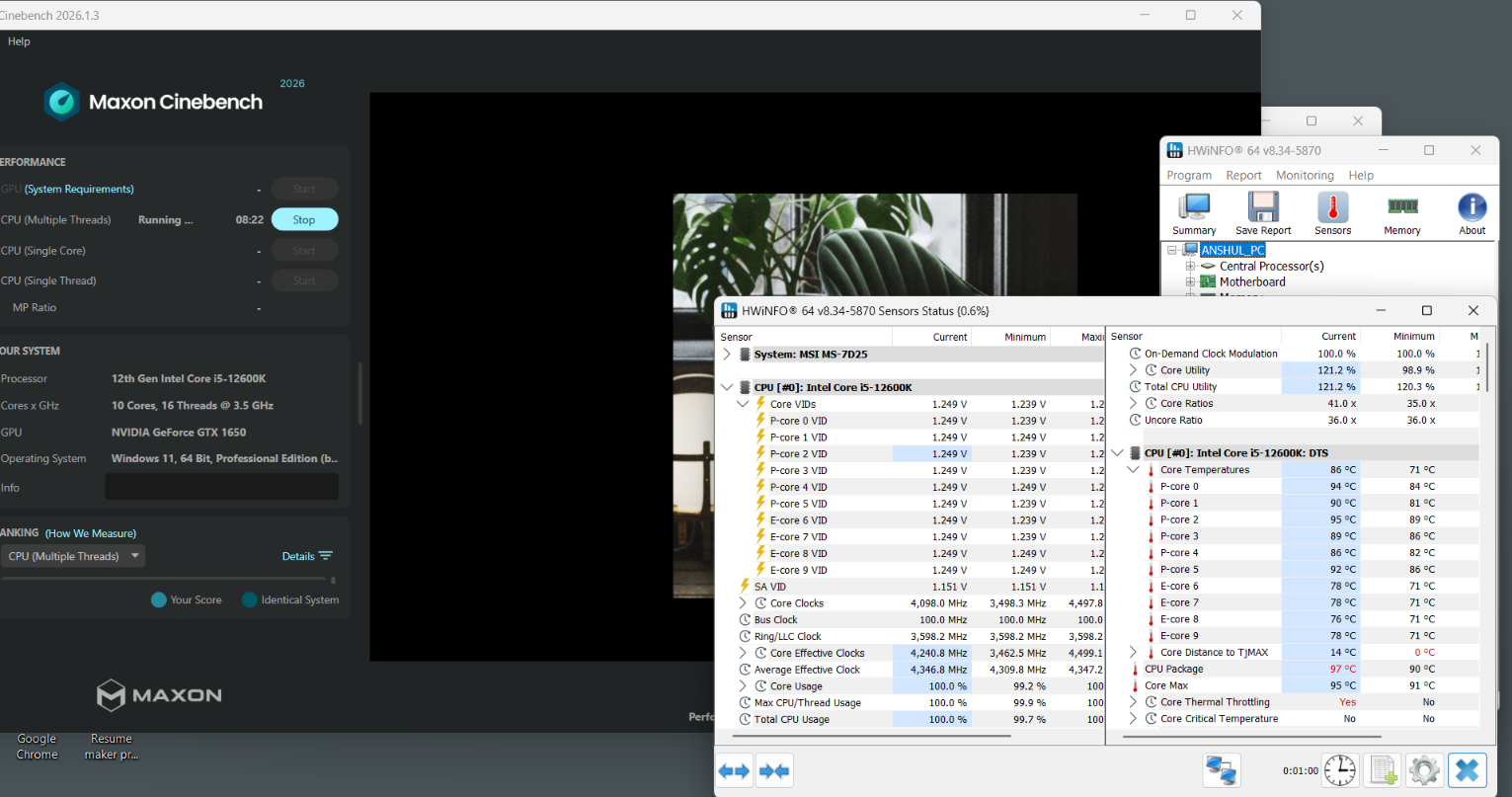
Without a baseline, you will never know whether your overclock helped or hurt.
Step 2: Enable the non-K BCLK option in the BIOS
This option will be named differently on different motherboards, such as
ASUS: Extreme Tweaker → Tweaker’s Paradise → Unlock BCLK OC. ASUS also requires the XMP II profile for memory.
MSI: Select the “Non-K OC” microcode option in the overclocking menu.
Again, not all mothers will have this option. However, normal BCLK adjustment will be available on most motherboards. But keep in mind that “BCLK adjustment” and “non-K BCLK overclocking” are not synonymous. They are different things.
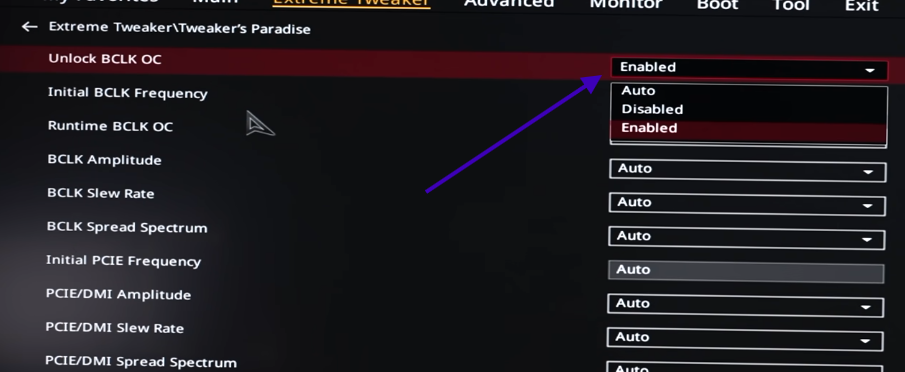
For example, MSI currently describes BCLK control as being available on its OC Engine (clock generator) motherboards, rather than implying that every MSI board supports it. Its BIOS documentation also makes the distinction between ordinary BCLK controls and the hardware required for more flexible BCLK operation
Step 3: Set the P-Core Ratio before touching BCLK
On locked non-K CPUs, you are not allowed to raise the multiplier, but you can lower it if you want. Remember the formula. Frequency is BCLK × ratio, so we pick the ratio first. On ASUS boards, set the Performance Core Ratio to Sync All Cores.
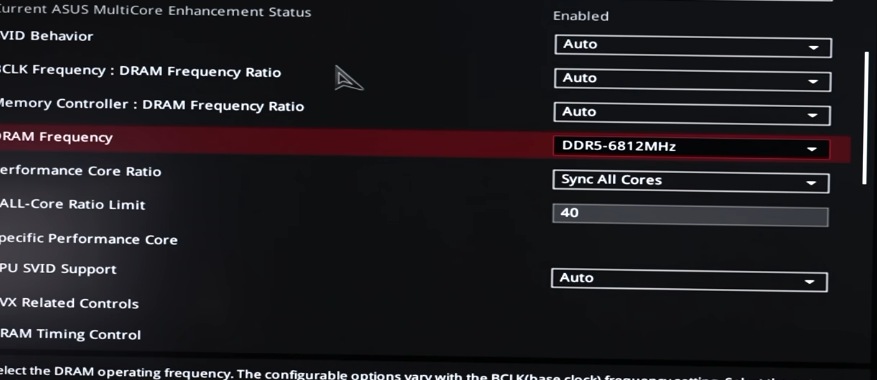
The all-core ratio limit will be different on different motherboards. Just find the highest number and set it there. In my case, the maximum was 40. Keep in mind that this is the ratio for all the cores combined. Your CPU can have a higher ratio based on its boost clock, but that happens only when one or two cores are active.
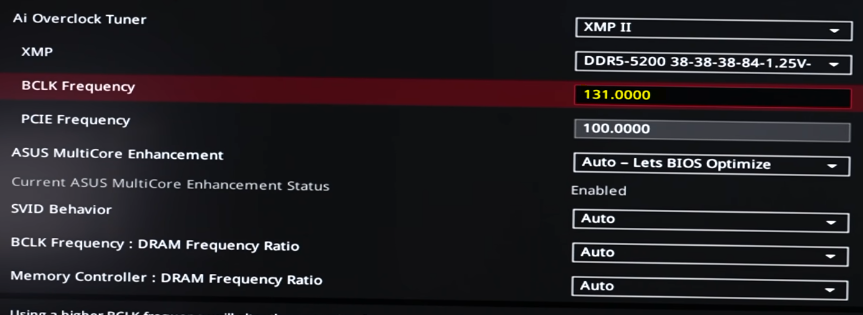
With a 131 MHz BCLK:
131 MHz × 40 = 5,240 MHz
Step 4: Lower the ring and memory ratios
BCLK feeds three things, although the Alder Lake keeps the PCIe clock at 100 MHz. The cores, the ring bus (cache), and your memory all get multiplied by BCLK, and each has its own ratio. In some motherboards, you can separate things in the tweaking menu, such as target CPU core speed, DRAM speed, and cache speed.
For example, your DDR5-5200 kit ran at a DRAM ratio of 52. At 131 MHz BCLK:
131 MHz × 52 = 6,812 MHz
A 5200 kit would never run on that frequency. So we would have to back lower the DRAM frequency to roughly the kit’s XMP speed.
The cache ratio is the same story. At stock, it sits somewhere around 38 to 40. That is too high with a 131 MHz BCLK. So, you may have to lower it to some conservative numbers like 33. It then becomes
131 MHz × 33 = 4,323 MHz
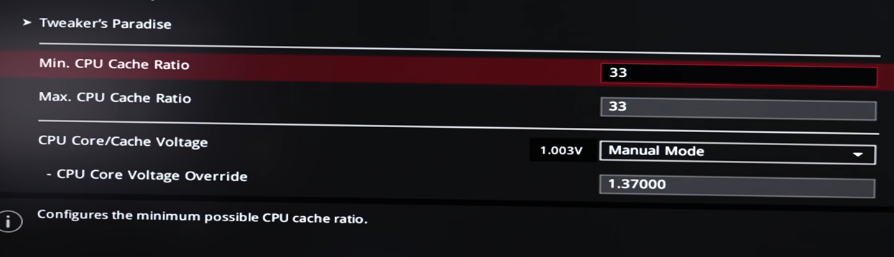
Some caches can hold much higher clocks than this, but it depends.
Step 5: Raise the BCLK in small steps
I would not recommend you jumping straight to 131 MHz. You should always raise it in steps. It is good to take steps in 5 MHz. So, from 100 MHz, you should jump to 105 MHz and so on. Every chip is different, so yours may stop earlier or go further. That is CPU binning at work.
You would expect the higher-tier chip to be better silicon. But with locked chips, the tier tells you nothing about how well a sample overclocks.
Step 6: Set the voltages
Because we are running at a much higher frequency than Intel intended, we would require much more voltage. More voltage is never a magic fix. You just have to find a sweet spot by trials and testings. I would recommend
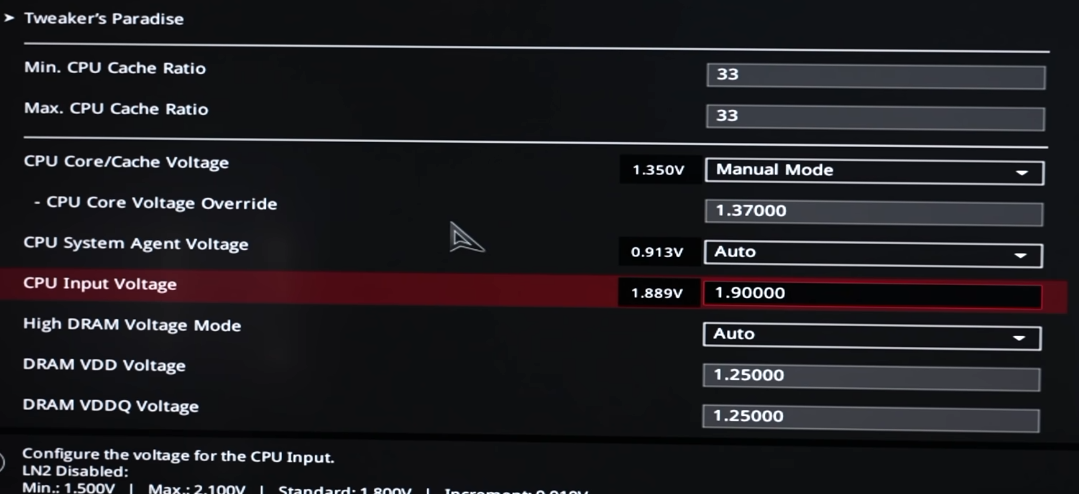
My advice is to start at 1.30V and go up in 0.02V steps only when the system crashes. I would not go past 1.40V on a locked chip. You are already running it far outside what Intel designed it for, and most tests show extra voltage past that point doesn’t buy you much.
Step 7: Stress Test
Cinebench is a good benchmark, but only benchmarks are not enough. I would recommend a Y-cruncher or OCCT for a heavier load. If you can, run real games for a few hours, and while doing all this, keep HWiNFO open. Keep track of the maximum temperatures and WHEA errors. If there are errors or system crashes, try reducing the BCLK a little bit.
On full load, on the processors like 12400, you should expect something like 96°C peak on one core and a peak power consumption of 135 watts. You have to understand the difference between those two rows. A 96°C peak on one core during Cinebench is the worst case. A long, heavy workload sitting there for hours is a different story.
Step 8: Freeze your BIOS and watch for microcode updates
This overclock only exists because of an old microcode. So, anything that loads newer microcode can break it. This included BIOS updates and even Windows updates. These updates may load newer microcode and kill the BCLK function. You have to understand the trade-off here. Running a pre-release microcode from 2021 means your CPU misses years of microcode fixes, including security fixes. I would only do this on a gaming machine, not a PC you use for work or banking.
Is 12th gen BCLK overclocking still worth it in 2026?
For most people, it isn’t. These boards launched in 2022 and are no longer made, so you are shopping on the used market. You are also locked to an old BIOS and old microcode forever.
However, there is one case where I think it makes sense. If you already own a processor like the Core i3-12100 or i5-12400 and find a supported board at a cheap price, it can be a fun project. And with DDR5 prices where they are in 2026, a DDR4 board like the Mortar Max is not a bad place to be.
I would not advise you to purchase the whole platform just for it.
Can you overclock 13th and 14th-gen non-K Intel CPUs?
This is a major question, and the clear answer is no. You can’t overclock 13th- and 14th-gen non-K Intel CPUs in the real sense.
The Alder Lake microcode trick does not load on Raptor Lake chips, and there is no leaked microcode to replace it. The best recorded BCLK on a Core i5-13500 is 102.98 MHz, right under the governor’s limit.
However, you are not stuck completely. You can still play around with power limits, undervolt with AC load lines, and obviously overclock your memory on B660, B760, H670, or Z-series boards. We will talk about that in the upcoming section.
Can you overclock Core Ultra 200S (Arrow Lake) non-K CPUs?
No. You can’t.
The Core Ultra 5 225, Core Ultra 5 245, Core Ultra 7 265, and Core Ultra 9 285 are all locked. On the 800-series chipsets, Z890 supports CPU core, BCLK, and memory overclocking, while B860 only supports memory overclocking. And the CPU overclocking part needs a K chip anyway. The Intel 200S boost profile is available only for K SKUs. It needs a K chip on a Z890 board. So, for a non-K Arrow Lake chip, your tools are power limits and memory overclocking. A Core Ultra 7 265 has a processor base power of 65W and a maximum turbo power of 182W, so the power limit section below applies to it directly.
What can you do on a modern non-K Intel CPU?
You can do three things, but they are not considered overclocking in the real sense. But on modern locked chips, especially Core i7 and Core i9, they often give you more real performance than BCLK overclocking ever did.
1. Raise the Power Limits
Every Intel desktop CPU has power limits. These are PL1, PL2, and Tau. PL1 is the long-term power limit, while the PL2 is the short-term boost limit. Tau tells how long the chip is allowed to stay at PL2.
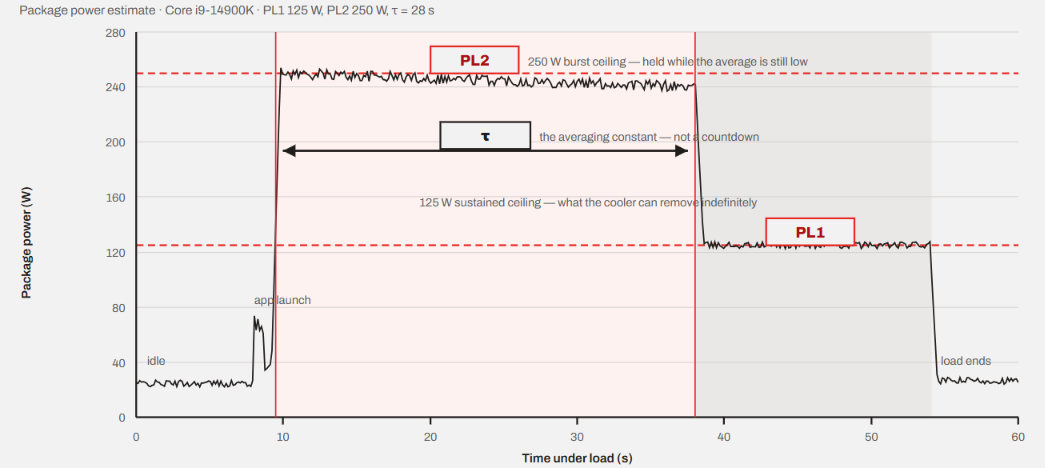
The Core i7-14700K, for example, has a processor base power of 65W and a maximum turbo power of 219W. So, under normal Intel behaviors, 14700 can boost to 219W for a short window. After Tau runs out, it drops back towards 65W.
219 ÷ 65 = 3.4 times less power for the long haul.
For a 20-core chip in a 10-minute heavy workload, that is a huge drop. Raising PL1 to something like 125W lets it hold much more of its speed. Now, the processors like the i7 and i9 get more benefit from raising this base power in certain workloads because they have many cores and a big gap between 65W and their turbo power. A 12400 would gain much less from this tweak.
In the case of gaming, the difference is mostly nothing, because games rarely push these chips to their power limits in the first place. I have explained why your 16-core CPU barely helps in games.
Keep in mind that in order to raise the power limits, your motherboard should have power limits removed. So, check what your board is actually doing in HWiNFO64 before changing anything.
2. Undervolt the AC loadline
Lower voltage means lower temperatures. Lower temperatures mean the chip can stay at its boost frequency longer without throttling.
But the problem is that the classic voltage offset is often blocked. After the Plundervolt vulnerability in 2019, Intel got much stricter about undervolting. Newer chips have Undervolt Protection (UVP), and many B-series boards remove or ignore negative offsets.
The only option you are left with is the AC load line (AC LL). Lowering this makes the CPU use less voltage. But there is a catch to it, called CEP (Current Excursion Protection). This system detects when voltage is too low and throttles the CPU to protect it. So, your temperatures drop, but so does your performance.
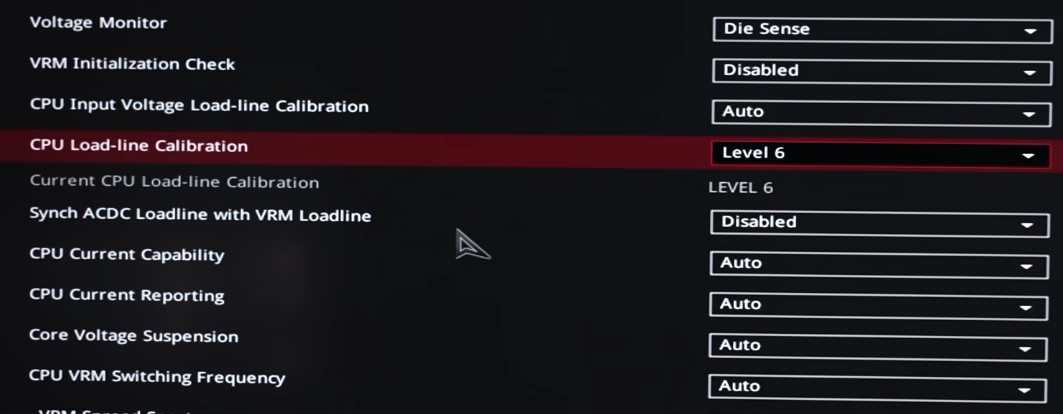
With CEP enabled, lowering the AC load line can cause huge drops in performance. With CEP disabled, there is almost no loss, and CPU run way cooler.
Another problem here is that newer microcode only lets you disable CEP on 14th gen non-K chips. 13th gen non-K and older chips can’t disable it. So, always run Cinebench before and after an undervolt. If your score drops, CEP is throttling you and you can hardly do anything about it.
3. Overclock your memory.
Since 11th gen, Intel allows memory overclocking on B-series boards like B560, B660, B760, and B860. However, the H610 and H810 boards don’t support it.
At the very least, enable XMP. Many people run their expensive RAM at base JEDEC speed for years without realizing it.
Beyond XMP, you can tighten timings. This helps 1% lows in CPU-heavy games more than it helps averages.
If we talk about the risks included with these three and also with BCLK overclocking, it depends heavily on what you are doing. Power limits and XMP are low risk if your cooler and VRM can handle them. AC load line undervolting is low risk for the hardware, but it can cause crashes. BCLK overclocking is the risky one, because you raise voltage on a chip Intel never validated for it, and you run old microcode.
Conclusion
If your plans are to overclock your CPU, it is better not to buy a non-K SKU in the first place. However, if you end up with one, overclocking will be restricted heavily to your motherboard and the CPU generation as well.
For a few short windows, like Skylake in 2016 and Alder Lake in 2022, people did. Today, these windows are almost closed. Real non-K overclocking only works on 12th gen chips with specific boards and an old BIOS. And even there, I would only do it if I already owned the parts. For everything else, you can just do memory overclocking, adjust power limits, and AC load lines. To be specific, raising PL1 alone can do more for long workloads than any BCLK overclock.