

Hyper-Threading is Intel’s name for simultaneous multithreading, or SMT. They have their own way to utilize this technology, which lets one physical core show up as two logical processors in Windows.
We covered the theory behind it in our CPU threads and SMT vs. Hyper-Threading article. So, I won’t repeat all of it here. This guide answers one practical question. The question is whether you should enable hyperthreading or not.
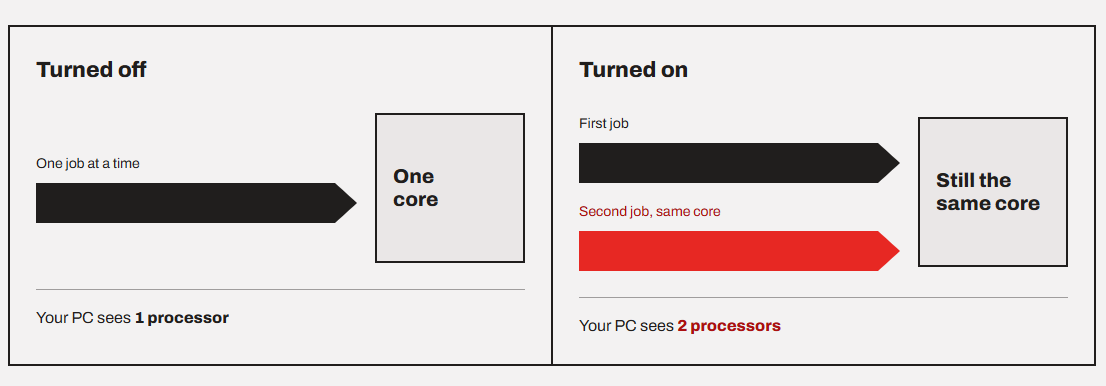
For most people, the answer is yes. There are only gains and nothing to lose for most people with this feature turned on. However, there are a few cases where turning it off makes sense. And if you bought a new Intel chip recently, you might not even have the option.
So, let’s get started and find the answer.
What is the purpose of hyperthreading?
A CPU core spends a surprising amount of time waiting. It waits for data from RAM, it recovers from a wrong branch prediction (we covered that in our CPU pipelining deep dive), or it waits for an earlier instruction to finish.
Hyper-threading is a way to utilize that idle time to do something meaningful. Basically, increasing the resource utilization.
Intel explained how in its original 2002 Intel Technology Journal paper. Each logical processor gets its own copy of the architecture state, which is basically the set of registers that tracks what a thread is doing. The heavy parts of the core, like the execution engine and the caches, are shared between both threads.
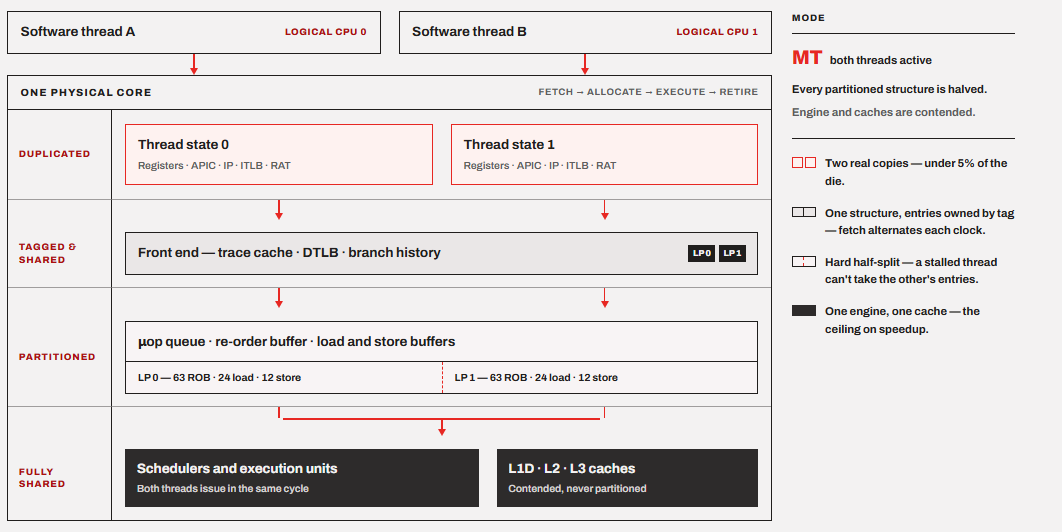
Intel also shares some internal queues between two threads, so one stalled thread can’t block the other one. In other words, you don’t get a second core. You get a second lane into the same core.
Most people think the two threads utilizing one physical core will double the performance, but that is never the case. Intel’s first implementation took less than 5% of the die area and delivered up to 30% more performance in common server benchmarks.
In the case of the modern Intel processors with hybrid core design, only P-cores support hyper-threading. E-cores on Alder Lake and later mainstream hybrid CPUs generally do not support hyper-threading. In fact, each E-core provides one logical processor.
The performance difference with hyper-threading turned on vs. turned off.
If you are curious to know about the performance, you will see the biggest difference in heavily multithreaded workloads. Basically the tasks where all of the CPU’s execution resources are busy. Tasks like CPU rendering, video encoding, compression, compiling, and some scientific or professional workloads make the best use of HT. However, the improvement is not equivalent to adding six physical cores; the two threads on each P-core still share that core’s resources, so the performance gain is workload-dependent.
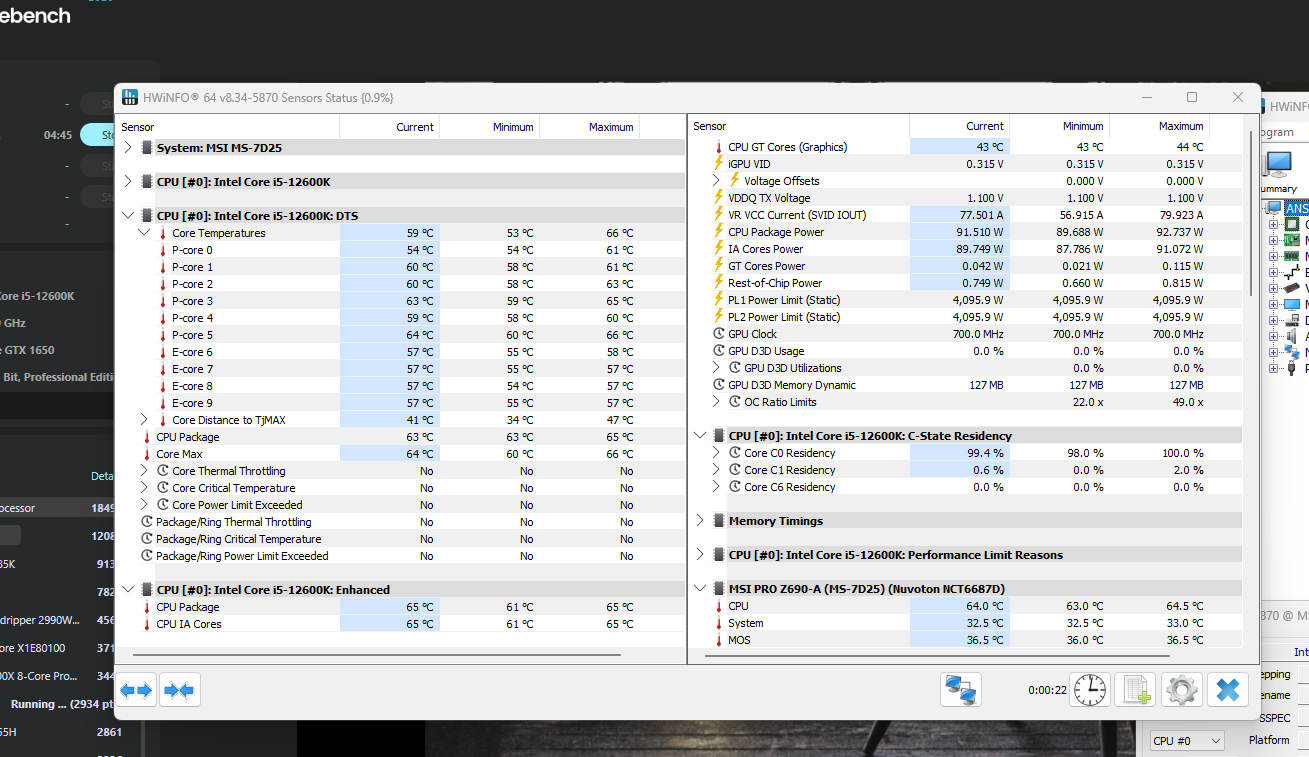
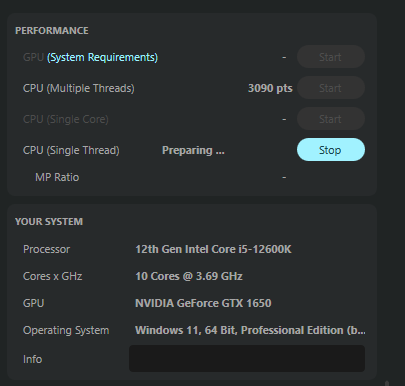
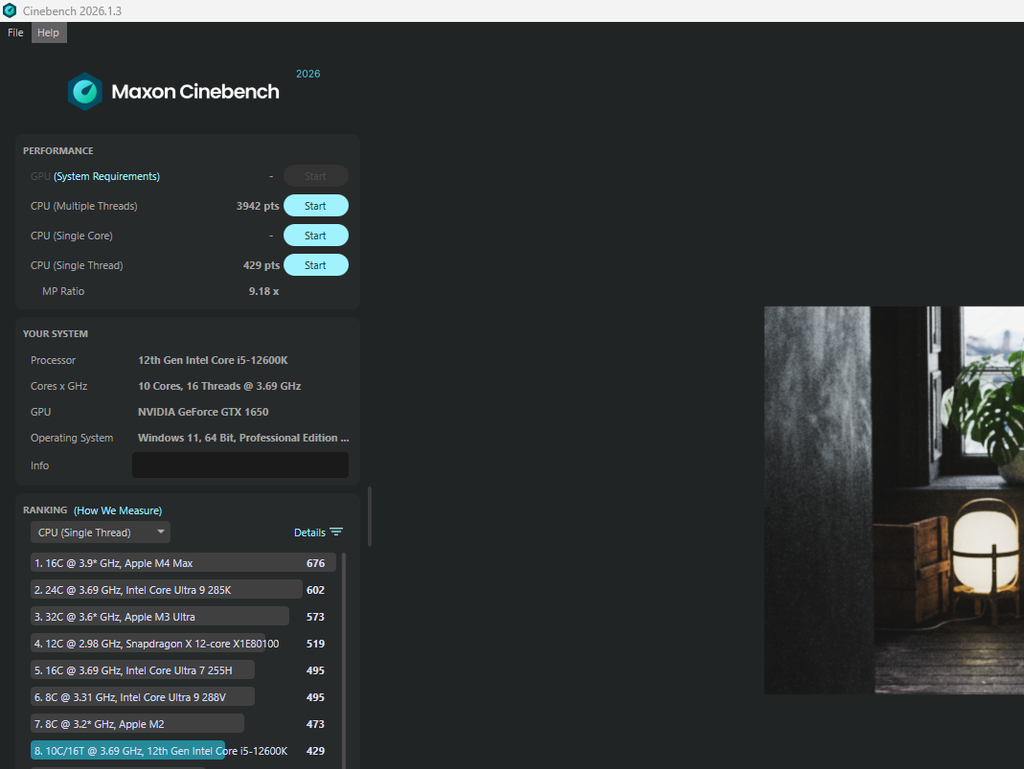
Just to show you the difference, I ran the Cinebench multiple-thread and single-thread benchmarks. The Cinebench Single-core test is designed specifically to prioritize hyperthreading performance. So, it can’t be run with HT turned off. All other system settings and specs remain the same. These are my findings. I also kept track of the maximum package power and temperature. So, here is a result table and screenshots for you.

| Benchmark | Hyper-Threading | Score | Max. Package Power | Max. CPU Temperature |
|---|---|---|---|---|
| Cinebench 2024 Single-Thread | Enabled | 429 | 40 W | 70°C |
| Cinebench 2024 Single-Thread | Disabled | 447 | 42 W | 55°C |
| Cinebench 2024 Multi-Core | Enabled | 3942 | 123 W | 80°C |
| Cinebench 2024 Multi-Core | Disabled | 3090 | 92 W | 66°C |
| Difference (HT Off − HT On) | — | +18 (+4.2%) | +2 W (+5.0%) | −15°C (−21.4%) |
| Difference (HT Off − HT On) | — | −852 (−21.6%) | −31 W (−25.2%) | −14°C (−17.5%) |
The 21.6% Cinebench multi-core performance reduction makes sense because Cinebench’s rendering workload can keep many CPU execution resources busy simultaneously.
However, the single-thread score was better with HT disabled, although by just 4.2%. This happened mainly because with only one software thread running on a P-core, hyperthreading doesn’t actually matter. With HT disabled, there is no sibling logical thread competing for those shared resources. So, yes, it is possible that the single core performance comes out better with HT disabled. But this isn’t a difference worth taking very seriously. So, we can conclude that HT is mainly helpful with multi-threaded applications.
Does your Intel CPU even have hyper-threading?
Well, this is worth checking if it’s a modern Intel CPU from the Core Ultra series or Panther Lake. So, the first question is whether your CPU has this feature available to toggle on or off. Let’s go through this table for a second.
| Intel CPU family | Hyper-Threading? |
|---|---|
| Core i3/i5/i7/i9, 11th gen and older | Depends on the model (i9-9900K has it, i7-9700K doesn’t). |
| Core 12th, 13th, and 14th gen (Alder Lake, Raptor Lake) | P-cores only. E-cores always run one thread. |
| Core Ultra 200V (Lunar Lake) | No |
| Core Ultra 200S, 200H, 200HX (Arrow Lake) | No |
| Core Ultra Series 3 (Panther Lake) | No |
Intel’s naming schemes can get confusing sometimes, especially in laptops. The quickest check is Task Manager > Performance > CPU. If “logical processors” is higher than “cores,” hyper-threading is on.
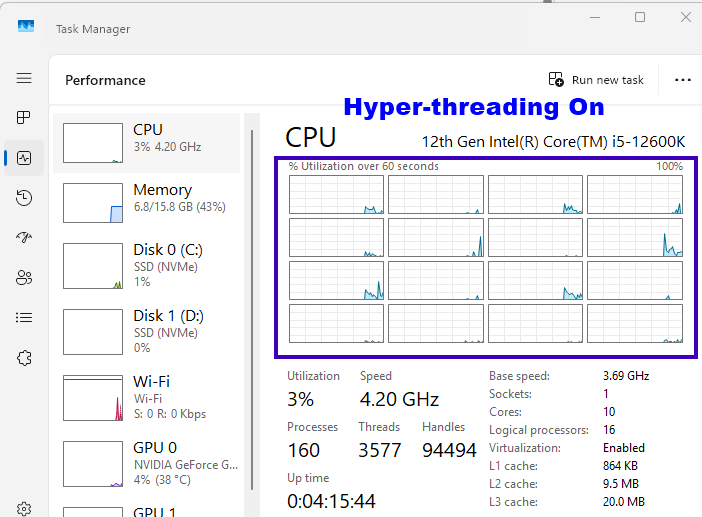
Let’s take an example of my CPU, i.e., 12600K. It has 6 P-Cores and 4 E-Cores. So, ideally, you should have:
(8 × 2) + 16 = 32 threads
But, as you can see in the screenshot above, the total logical cores are 24.
(6 P-Cores x 2) + 4 E-Cores = 24 total logical processors
Now, let’s turn Hyper-Threading off.
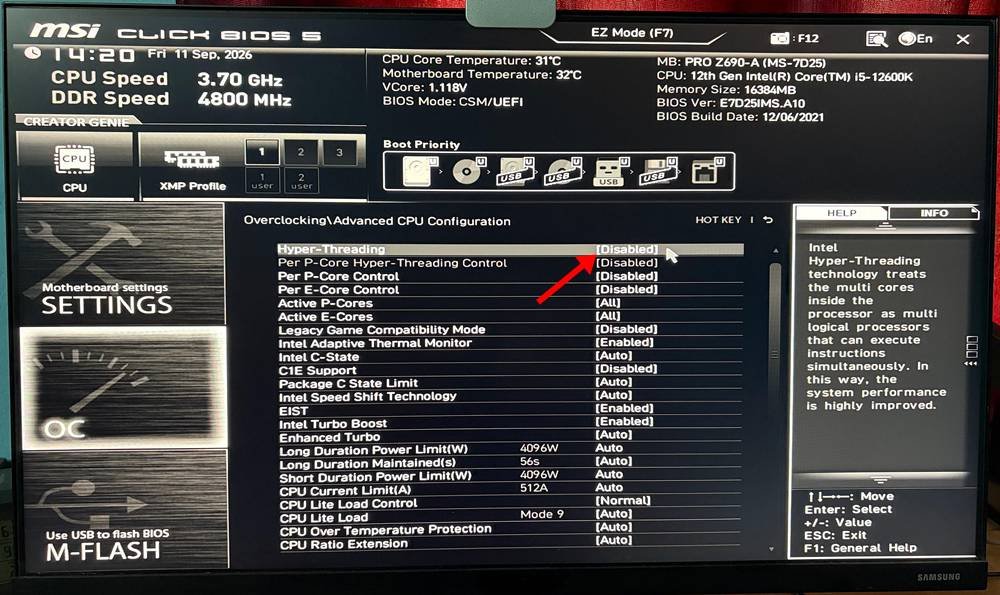
I am left with 6 (P-Cores) + 4 (E-Cores) = 10 logical processors. See screenshot below
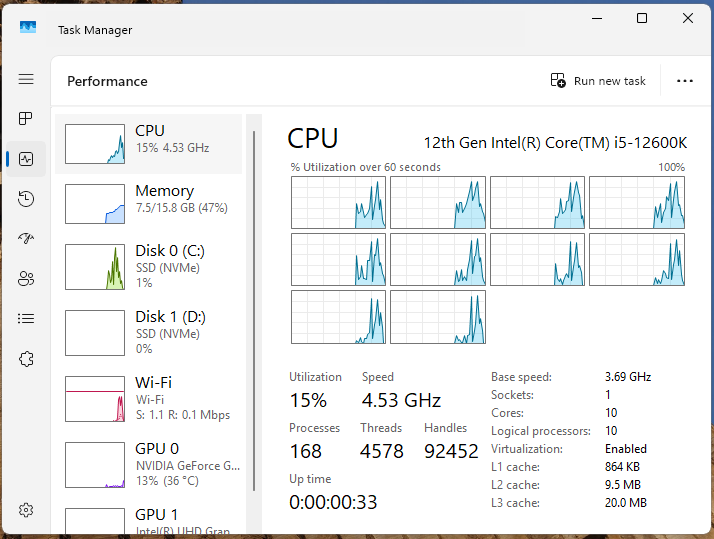
So, you got my point. Right? With hyperthreading, the OS shows more logical processors than usual and what is available on the hardware basis.
However, the game changes with the modern chips in Lunar Lake, Arrow Lake, and Panther Lake. In these systems, there is no toggle to turn hyperthreading on or off. Its 24 cores run 24 threads, and that’s it. Intel’s reasoning was primarily efficiency, die area, and the changing value of SMT in a hybrid CPU.
In the older chips like my 12600K, hyper-threading was great because Intel could get additional throughput from a P-core without adding another physical core. But, with the Lunar Lake and Arrow Lake, Intel made a decision that the silicon, power, and complexity required for that second thread were better spent making the P-core itself stronger and adding more E-cores.
Intel said directly that Series 2 was designed without HT and that the increased number of E-cores can handle more parallel work without relying on traditional HT.
The Benefits of Keeping Hyperthreading On
1. Faster multi-threaded work
We have already discussed that multi-threading mainly helps with multi-threaded workloads. Rendering, video encoding, compiling code, and compressing files all split their work into many threads. Multi-threading gives those threads more lanes to run on. Hyper-threading was developed mainly to serve this purpose. Some other tasks that can benefit from hyper-threading are
3D rendering: Software like Blender, Cinebench, V-Ray, Corona Renderer, and KeyShot can divide an image or scene into many pieces and process them simultaneously.
Video editing and encoding: Software like Adobe Premiere Pro, DaVinci Resolve, HandBrake, FFmpeg, etc., can use many CPU threads, although GPU acceleration can change the balance.
Photo editing: Many operations on photo editing software like Adobe Photoshop and Lightroom can utilize multithreaded performance. However, many of the photo editing tasks are single-core heavy.
Compression/Decompression: 7-Zip, WinRAR, Zstandard, etc. can often use many threads, depending on the algorithm and settings.
Software Compilation: If you are a software developer, large projects can benefit heavily from additional cores and threads. Visual Studio, GCC, Clang and other build systems can compile multiple source files simultaneously.
Virtual Machines: VMware Workstation, VirtualBox, and Hyper-V can assign multiple virtual CPUs to a virtual machine.
Gaming: Although games are mostly single-core heavy, modern games such as Cyberpunk 2077, Starfield, and Microsoft Flight Simulator use multiple CPU threads for game logic, physics, asset streaming, and various other tasks.
Databases and servers: MySQL, PostgreSQL, SQL Server, and web servers can run multiple requests simultaneously, making more CPU threads useful under high workloads. Scientific and engineering computing can also benefit from multi-threaded performance.
2. CPUs with fewer cores can benefit from multithreading
According to a test done by TechSpot back in 2019, the 4-core Core i7-7700K lost 37% of its average frame rate in one of their 1080p game tests with hyperthreading disabled. Its 1% lows dropped by 38%.
So, the fewer physical cores you have, the more hyper-threading matters. On a 4-core or 6-core chip, turning it off is like throwing away performance you already paid for.
3. It matters the most for multitasking
If you multitask, you should never disable hyper-threading. Intel itself points out that hyper-threading helps your PC run more background tasks without disruption.
Why do some people disable hyper-threading?
1. Most games hardly benefit from multi-threading
If you look at Intel’s hybrid scheduling whitepaper for the 12th gen layout, they are very clear about the order in which threads get used. They state that P-cores come before E-cores. The second thread on each P-core is used last, only when all the P-cores and E-cores are already busy.
To put that in practice, think of a 14900K. A game has to fill 8 P-cores and 16 E-cores before it even reaches the hyper-threaded lanes. Hardly any game does that. So, on a 12th- to 14th-gen i7 or i9, disabling Hyper-Threading usually changes very little in games.
Turning hyperthreading off can only help, especially when there is a CPU bottleneck. So, if you play at 1440p or 4K on a mid-range GPU, you will hardly see any difference.
2. Lower power, heat, and voltage for overclocking
If two threads have loaded a single core to its fullest, it is obvious that that specific part will get hotter than other areas. But there is a trade. You lower power draw by doing less work, not by doing the same work more efficiently.
This is the reason why many people overclocking Raptor Lake processors disabled hyper-threading just to ensure cooler P-cores and a higher stable all-core multiplier. Again, they had to trade some multi-threaded performance for it.
3. Security on shared machines
In 2018 and 2019, researchers found side-channel flaws like L1TF and MDS (ZombieLoad). You do not have to get into that. Let me tell you what happened simply.
Basically, two threads sharing one core also share small internal buffers, and technically, one thread can peek at data from the other.
OpenBSD disabled Hyper-Threading by default in 2018. Ubuntu recommends disabling it on affected systems that run untrusted code, like multi-user servers.
In return, Intel said it was “not recommending that Intel HT be disabled.” Microsoft also built a core scheduler into Hyper-V that protects virtual machines while keeping Hyper-Threading on.
However, all this isn’t relevant to normal home users. They can keep using HT benefits on their machines.
If hyper-threading is good, why did Intel remove it?
Intel has a very solid and, in fact, a smart reason behind it.
See, when Intel designed the Lion Cove P-cores for Arrow Lake and Lunar Lake, Intel made major changes to its internal design. Intel’s P-core engineer Ori Lempel’s exact words were, “Hyper-Threading doesn’t come for free.” Basically, extra logic and complexities had to be added to get it done.
According to Intel’s slides, dropping it gave Lion Cove about 5% better performance per watt and 15% better performance per power per area. The cost was roughly 15% worse performance per area.
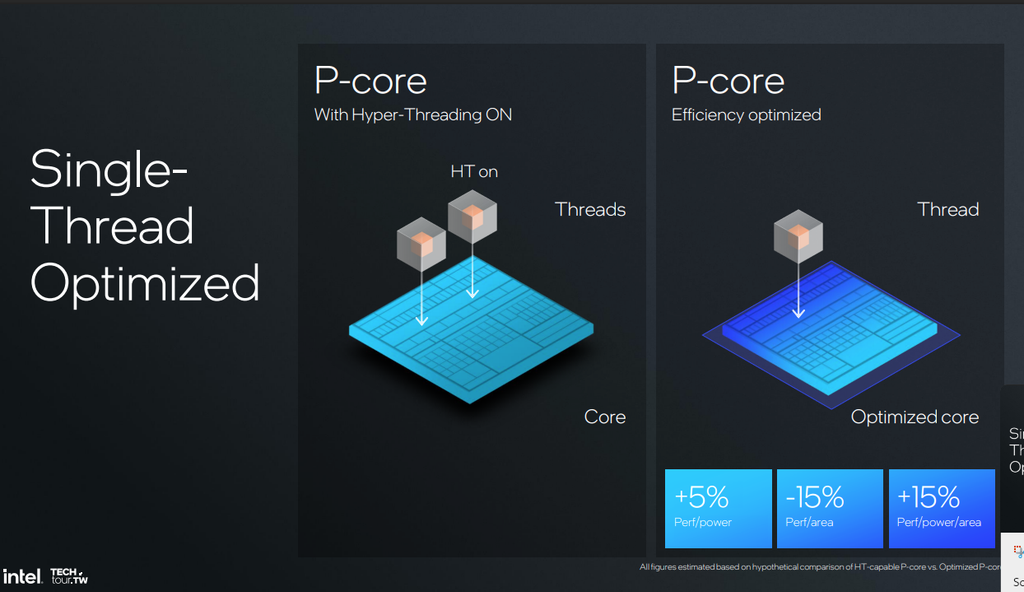
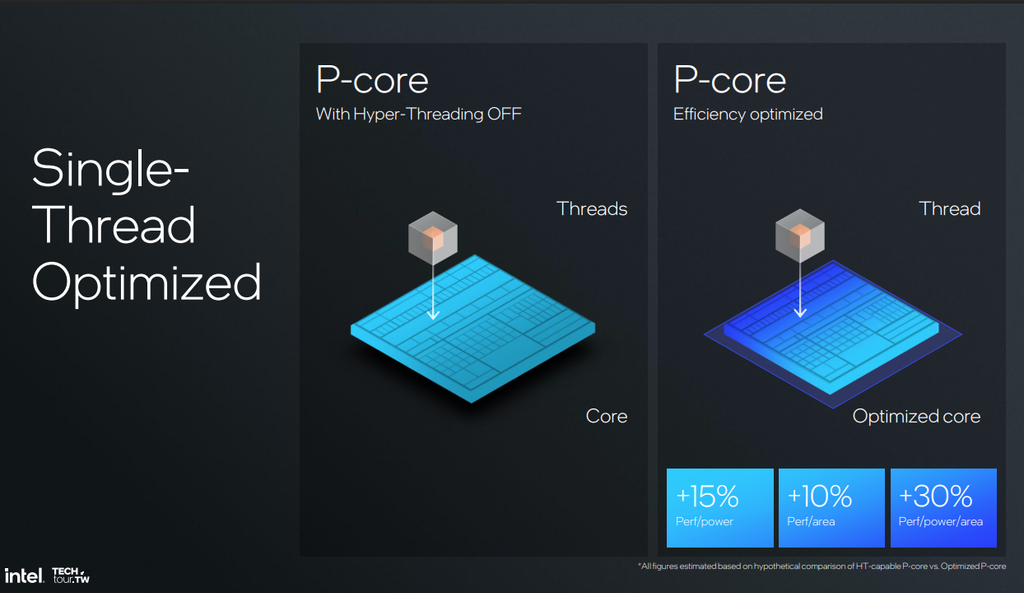
After seeing these benefits in terms of performance and power, Intel decided E-cores could carry multi-threaded work instead. Intel’s Robert Hallock said Arrow Lake saved that wattage and still came out ahead in multi-core performance.
However, there came a twist.
In July 2025, Intel CEO Lip-Bu Tan confirmed that SMT is coming back for data center chips. He said that moving away from SMT put them at a competitive disadvantage. However, the leaks still suggest that Nova Lake (Core Ultra 400) still won’t have it. But, because nothing is official yet, we can’t be sure.
So Intel removed hyper-threading from cores that were engineered to work without it. It does not mean hyper-threading is hurting the 13th- or 14th-gen CPU you already own.
So, when should you keep hyper-threading on or off?
On the older CPUs with 4 to 6 cores and no E-Cores, such as i7-7700K, i7-8700K, or i5-10400, it is best to keep hyper-threading always on. On 12th- to 14th-gen i5, i7, or i9 for mixed use, again, keep it on.
However, in case you are on a 12th- to 14th-gen i7/i9 and mainly do CPU-bound gaming, you can try turning it off. However, the final decision should come from the benchmark scores.
The next situation is when you are manually overclocking Raptor Lake P-cores. In this case also, turning HT off is a fair trade, especially if you don’t do heavy multi-threaded work.
At last, if you are on Arrow Lake, Lunar Lake, or Panther Lake, you have nothing to toggle. So, no need to find fancy tricks.
Testing is important
Do not turn HT on or off just because you read it in a forum, or I am saying so. Test it on your system for your specific use cases. There is no harm in trying benchmarking, gaming, or running your workload with HT on and then off. The process is pretty easy to follow.
- Go to the BIOS, usually under Advanced > CPU Configuration, and find “Intel Hyper-Threading Technology.”
- Some high-end boards also let you toggle it per P-core.
- Pick one game and one repeatable scene. Use the settings you actually play at. Run benchmark software if you want.
- Record average FPS and 1% lows with a tool like PresentMon or CapFrameX.
- Do three runs with it on and three with it off.
If the difference is within 2 to 3%, that’s not worth giving attention to. Turn it back on.
Conclusion
SMT in itself is an amazing technology. It costs very little silicon and can add real multi-threaded performance. AMD uses it as SMT only, while Intel has named it hyper-threading.
On Intel CPUs that support Hyper-Threading, it is normally enabled by default in the BIOS/firmware. And for most users, it is best to keep it on. It matters most on 4- and 6-core CPUs, and in everyday use you won’t notice any downside.
In my opinion, turning off HT makes sense for a very narrow group of people. Gamers chasing every last frame on a 12th- to 14th-gen i7 or i9, manual overclockers, and admins of shared servers can benefit from it, that too with very little gain. Even then, I would recommend benchmarking before you finalize your decision.
Imagine hyper-threading as a free extra lane, not an extra core. You should close this lane only when you have proof your traffic moves faster without it. I think I have given you all the situation where it can be suitable and where it can never be.