

I have done this undervolt on my Intel Core i3 6006U laptop, and it is working great for me. This is an old and entry-level laptop but heats up like some very powerful system. Even for very basic tasks like browsing, it was reaching 80 degrees and even higher than that. I tried replacing thermal paste and cleaning the cooling fan. But nothing works. So, I thought of reducing its voltage and seeing what happens. I was able to get the average temperature down by around 15 degrees Celsius. Now, here I am a guide for you so that you can also apply it just the way I did.
The first issue with my 6006U processor is that it is locked for overclocking. So, the official XTU doesn’t work on it. Most laptop processors are like that, whether Intel or AMD. However, it is worth checking if your processor is locked or unlocked. If it is unlocked, I have already published undervolting guides for both unlocked Intel and AMD Ryzen CPUs. This guide is specifically for locked Intel laptops.
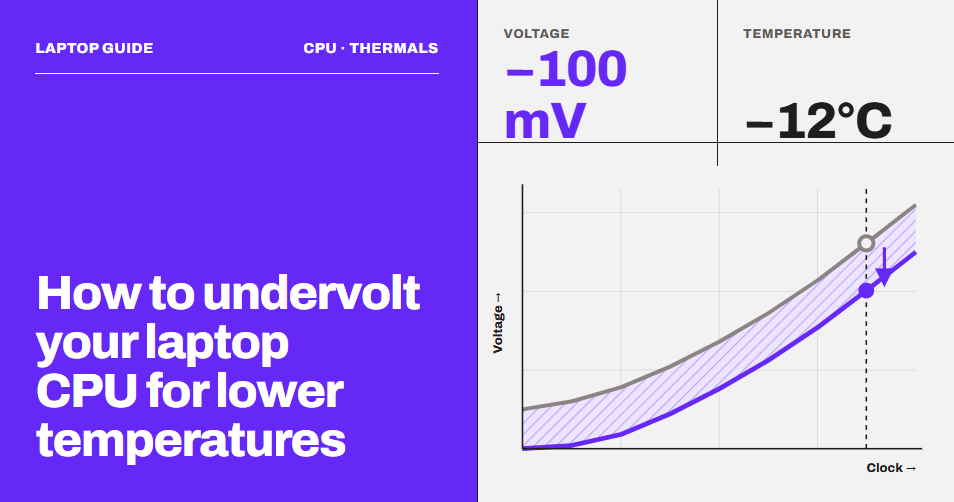
On most locked Intel CPUs, we can reduce the voltage if we want. Although the official tools will not work, we can use a third-party software called ThrottleStop. Undervolting in itself is safer than overclocking. Still, it can void your warranty and result in issues like reboot loops. So, make sure you go through the article properly because I will be giving you the recovery steps as well.
What is CPU undervolting, and how does it reduce the heat?
A CPU is built from billions of transistors, and they act like electric switches. You might have heard that CPUs only understand 0’s and 1’s. So, the CPU logic is implemented with the help of these circuits switching between varying voltages. The faster the switching, the higher will be the voltage requirements. After a point, running transistors faster gives them less time to complete their electrical transitions. To maintain reliable options, the CPU generally needs a much higher voltage. Also, voltage requirements increase as the CPU temperature rises, again for the sake of stability. We do not have to go deeper than this into it.
Your CPU has a supply voltage, called Vcore, and it provides the electrical potential that allows these circuits to operate. So, voltage is like a push that allows the transistors to switch reliably. But increasing voltage does not simply make the CPU stronger. It changes the electrical operating conditions of the transistors.
This is where undervolting comes into the game. For CMOS logic, the dynamic power formula is like this:
PDynamic ∝ C x V2 x f
where:
- C = capacitance being switched
- V = supply voltage
- f = switching frequency
V squared in the formula means the dynamic power rises approximately with the square of voltage.
So, purely as an illustration, reducing voltage from 1.20 V to 1.10 V gives:
(1.10/1.20)² ≈ 0.84
That is roughly a 16% reduction in the dynamic-power component associated with voltage. But we are assuming frequency and other conditions remain the same.
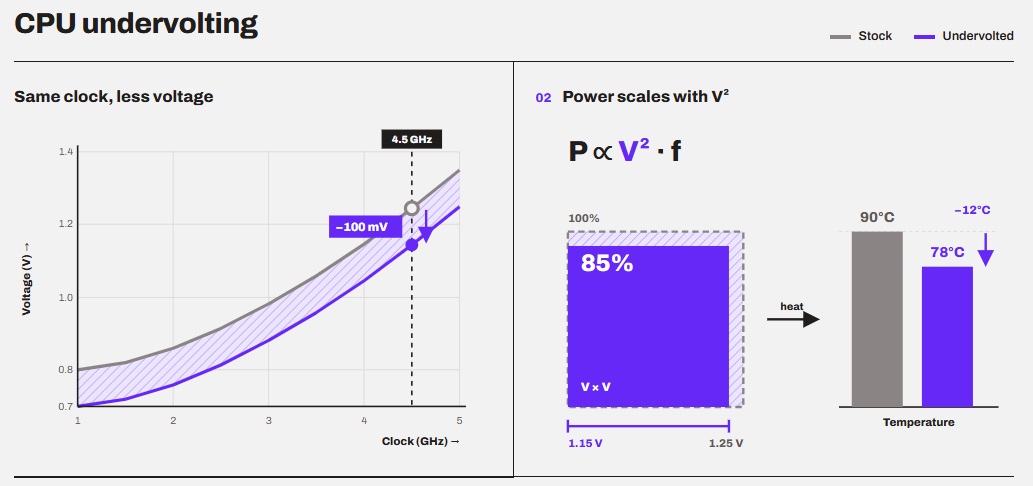
So, if we can reduce the voltage and try to run the CPU at the same frequency, we can have the most impact on the total power and hence the temperature.
Now, whether a CPU can be undervolted and at what level is a real case of luck here. Two same CPUs can have different headrooms available for undervolting and overclocking, for that matter. So, a CPU can be working at factory settings, e.g., 5.0 GHz at 1.25 V, but can be undervolted to run 5.0 GHz at 1.10 V.
On the locked CPU, the frequency reduction is possible. We are stopped from increasing it. So, some people might combine underclocking with undervolting to reduce the power demands to very low limits and reduce the overall temperature drastically. But, with underclocking, you have to lose some performance as well. But, with pure undervolting, we generally try to keep the clock speeds the same while just turning the voltage down.
Why would a CPU operate below its default voltage?
In our CPU binning article, we discussed that when a CPU is manufactured, not every physical chip is electrically identical. Tiny manufacturing variations can result in two processors of the same variant with somewhat different voltage requirements.
Intel itself says that insufficient voltage can cause timing errors or glitches. So, the factory voltage/frequency operating range has to work across a wide range of real-world conditions and across many individual chips. Manufacturers generally set the default voltage at a nominal range and keep some margins above from the bare minimum. So, it is possible that your processor is capable of running perfectly at 1.05 volts, but because there were other chips that required 1.18 V for stable operation, yours also got marked with 1.18 V. With undervolting, these opportunities and free headroom are explored, and generally we are able to run our processors at a lower voltage without compromising on the frequency.
How to check if your Intel CPU can be undervolted?
When I try to install the Intel Extreme Tuning utility on my laptop, it throws the message “Attempted to install on an unsupported platform,” and this is normal because the system is not allowed for tweaks.
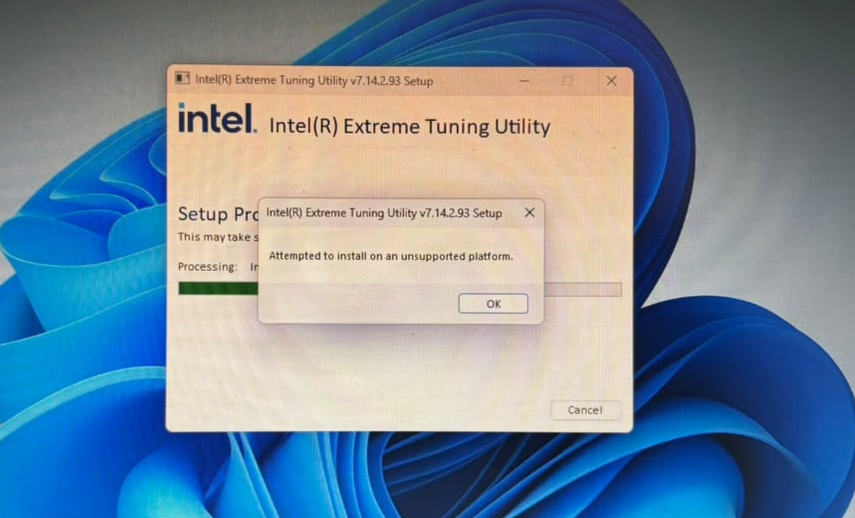
But that doesn’t mean I can’t do anything.
Whether you will be able to undervolt or not depends on whether the manufacturer or the motherboard/laptop maker has locked the voltage controls. The CPU itself is rarely the limit, so the check is really whether the control exists and can be changed. On most laptops, you will find no undervolt controls in the BIOS/UEFI. My laptop’s BIOS looks like this, for example.
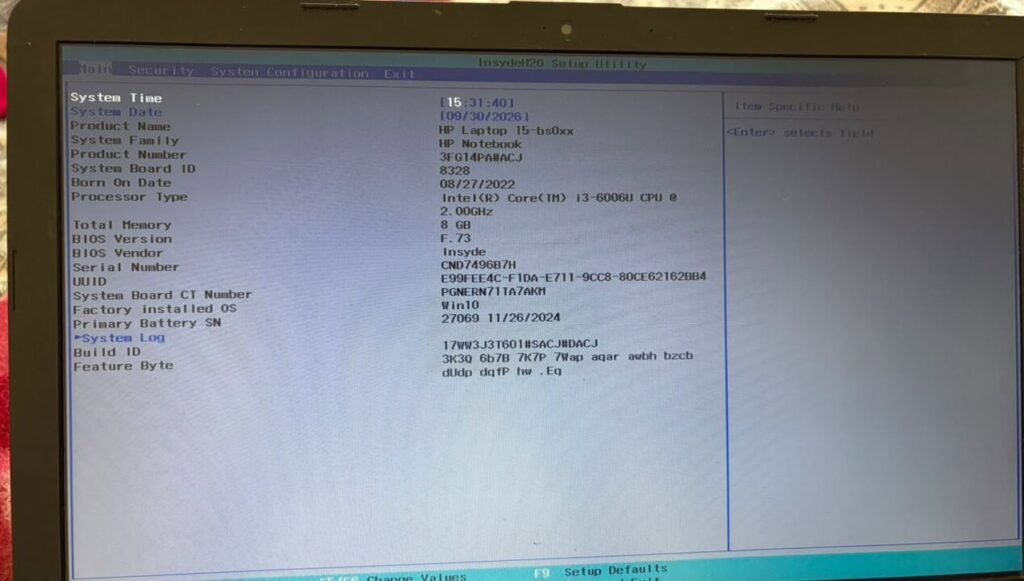
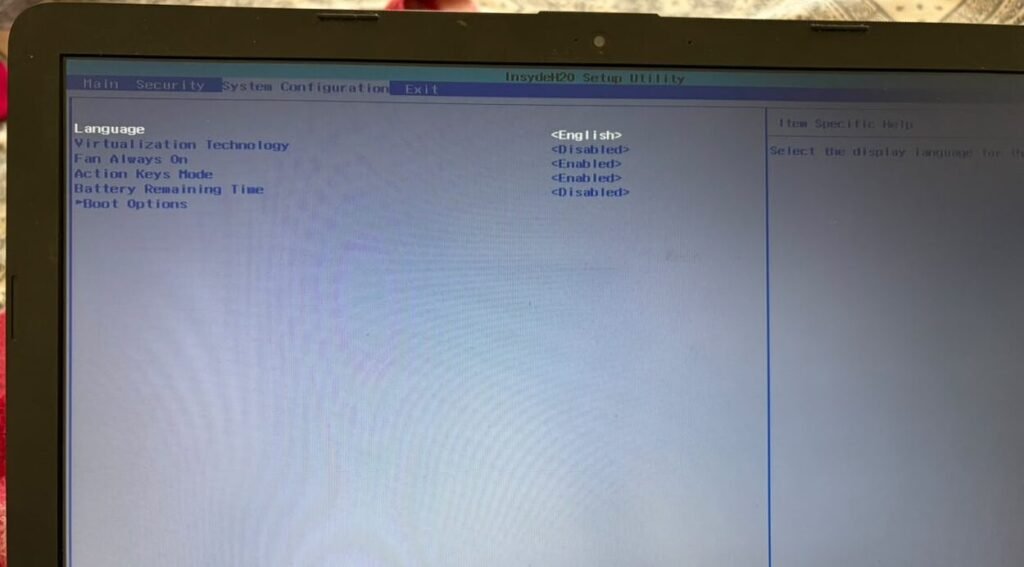
I don’t have the mouse support in the BIOS. How can I expect to have undervolt controls? Funny, isn’t it?
There is no setting or menu where you can find out whether or not your CPU can be undervolted. So, it is better that you try the methods discussed below directly and check for yourself. But, if you still want to know, install ThrottleStop and see if the FIVR button is clickable. Click it and look at the Unlock Adjustable Voltage checkbox. If you can tick it, you are good to go. If it is greyed out, your laptop is locked.
Before you undervolt
As discussed earlier, undervolting is generally safer, but aggressive settings can make your system unstable, causing crashes, freezes, restarts, or boot failures. I would recommend applying settings step by step, as I will advise in the upcoming sections. Then I would advise running stability tests before you reduce the voltage further. But, before you begin, make sure to note down the default values. Take photographs if you want to make it easy.
If a BIOS undervolt prevents the system from booting, enter the BIOS and restore the CPU settings to default. If you cannot access the BIOS, clearing the CMOS can reset the motherboard settings and recover the system. Make sure you know the key to enter the BIOS as well as the ways to clear the CMOS. With that said, let’s get started.
Undervolting an Intel Laptop
1. Download ThrottleStop.
Download ThrottleStop from the TechPowerUp website. It comes as a zip file, so extract it and run ThrottleStop.exe. It needs no installation.
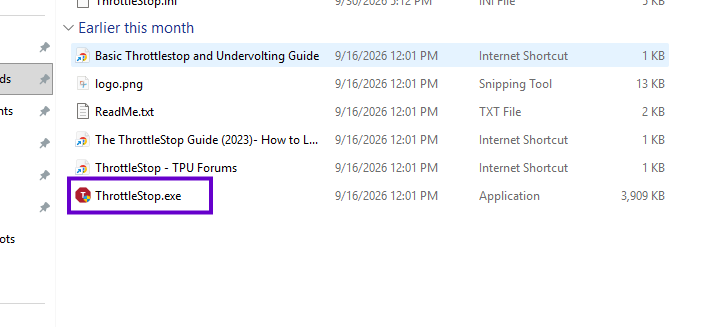
Also install HWiNFO, which we will use to watch the voltage and temperatures. And keep a stress test ready, like Cinebench or Prime95. The guides to use both are given in this article.
2. Note your baseline
Before you do anything, run a Cinebench/Cinebench R23 multi-core test and note three things: the score, the peak temperature, and the package power in HWiNFO.
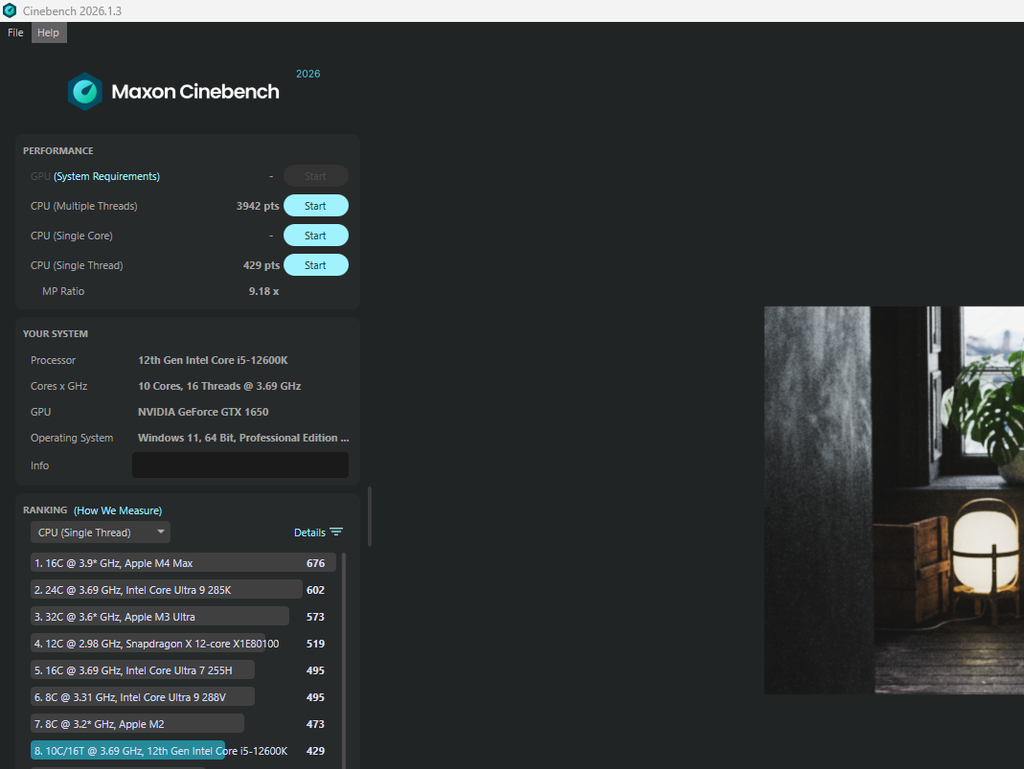
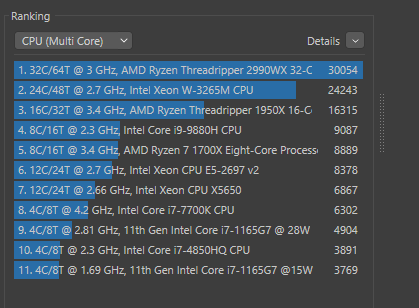
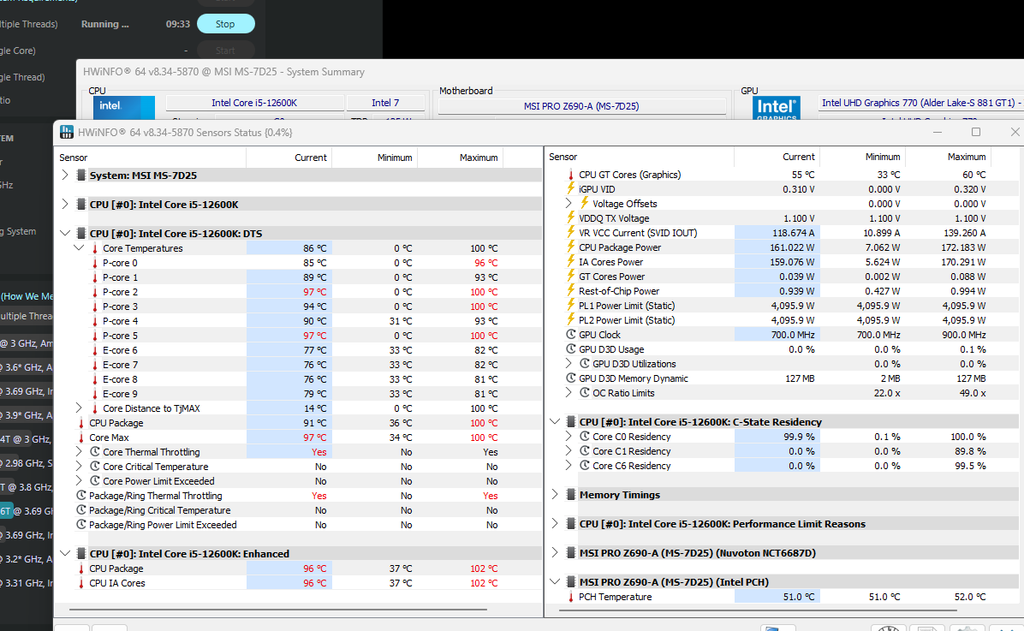
The simple reason is that without a baseline, you cannot tell if the undervolt helped. The goal is to have lower temperature and power consumption while keeping the score the same.
3. Open the FIVR menu.
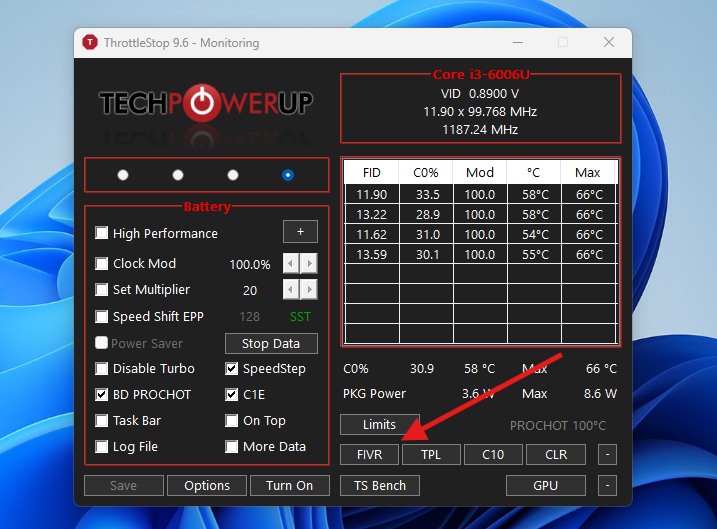
In the main ThrottleStop window, click FIVR.
Under FIVR Control, make sure the CPU Core is selected in the left box. Now tick Unlock Adjustable Voltage. This activates the Offset Voltage slider.
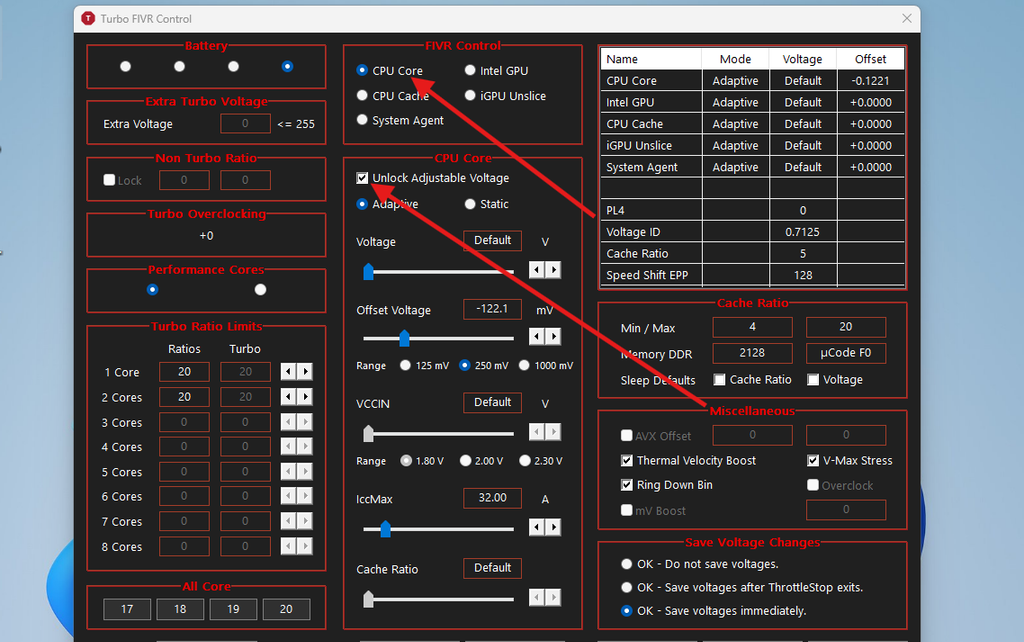
4. Set the CPU core offset.
This is the main value that you will have to focus on. Drag the Offset Voltage slider to a negative value. Start with -50 mV. That is safe on almost every chip that allows undervolting.
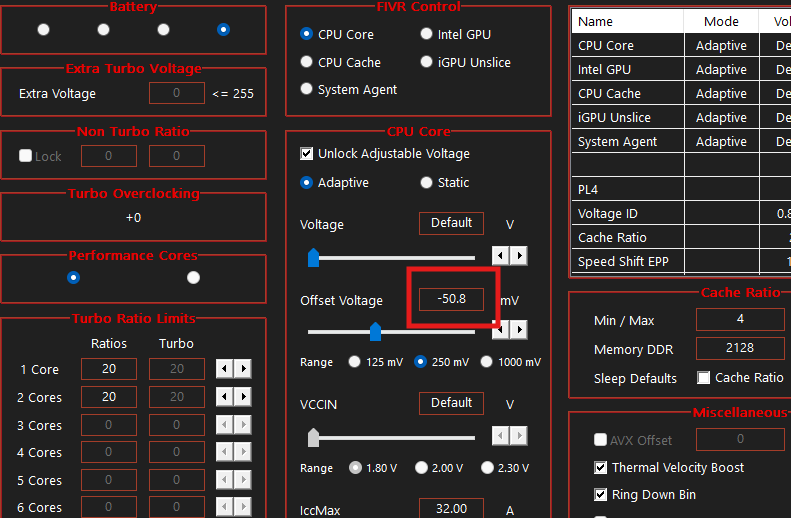
You can also click the slider and use the arrow keys for small changes. Then click Apply.
With this negative offset, you are telling the CPU’s voltage control system to request roughly 50 mV less voltage than its normal voltage/frequency curve would otherwise request.
5. Set the CPU cache to the same value.
On Intel CPUs, the CPU core and the CPU cache share the same voltage plane. So, they must have the same offset. Some people first stress test with the core voltage offset and then adjust the cache, but it is good to change both cache and core voltage offset together and then test for stability.
Select CPU Cache in the left box, tick Unlock Adjustable Voltage, and set the same value as the core. Click Apply.
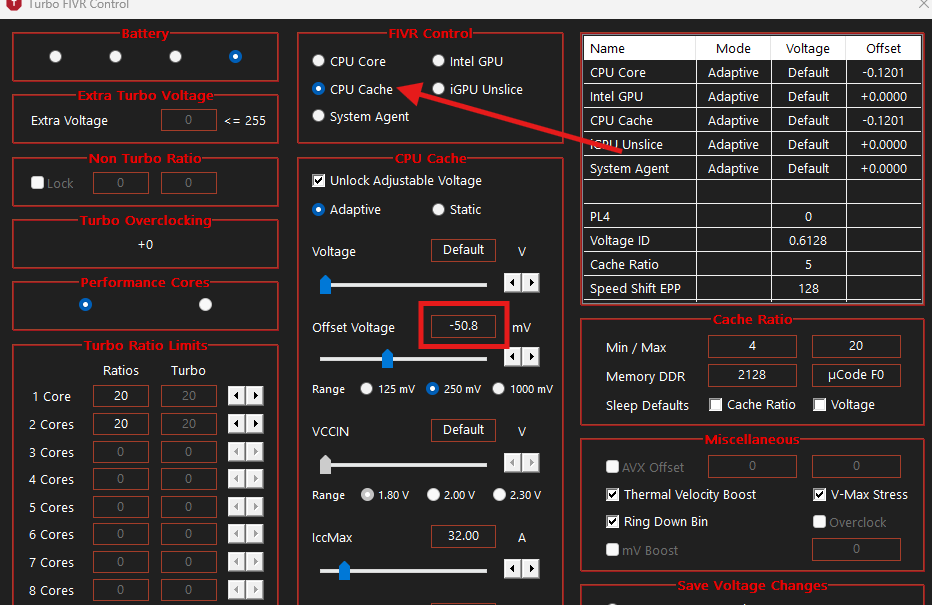
The reason is simple. If the values are different, the higher voltage wins. Your undervolt will not do anything, and you won’t know why.
6. Leave the other planes alone.
You will also see options for Intel GPU, Intel GPU Unslice, and CPU System Agent. Keep them at 0 mV for now. They can cause instability that is hard to trace. Once your core and cache undervolt is stable, you can try the iGPU separately.
7. Stress test and increase undervolt slowly
Now run Cinebench again, or Prime95 with small FFTs if you want a harder test. Open HWiNFO and watch the CPU package power, temperatures, and clock speeds.
Compare with your baseline. If the temperature dropped and the score didn’t, the undervolt works. In many cases, the score goes up slightly because the CPU throttles less.
Run the test for at least 15 to 20 minutes. Short tests hide instability.
If you think the system is stable, increase the offset by 10 steps, e.g., -50 to -60. Once you hit a crash or other problem, adjust the settings at the last step. If the system hit a crash at -70, adjust at -60 and then test again. Maybe try to keep it at -55 for safety.
9. Save your settings
Once you find your stable value, go back to the FIVR window and click OK – Save voltages immediately. This saves the values to the selected profile.
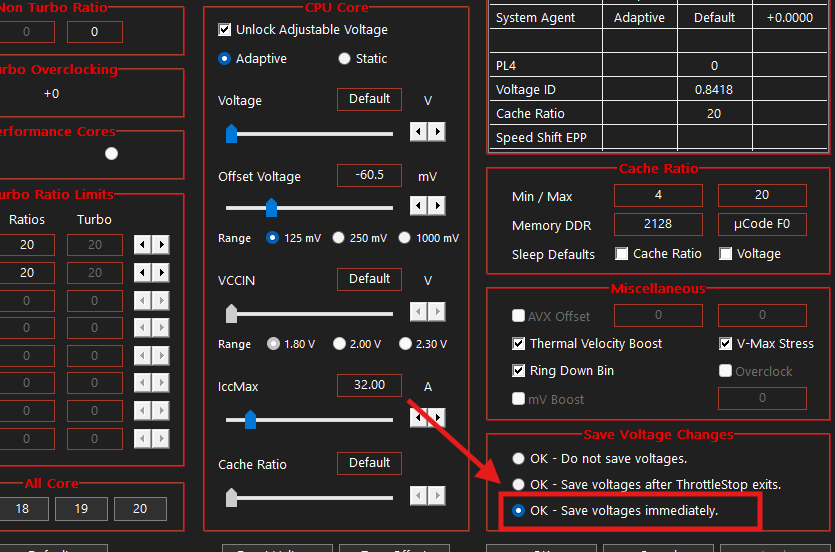
Then, in the main window, choose which profile you want (Performance, Gaming, Battery or Internet). You can use different offsets for each one.
If something goes wrong.
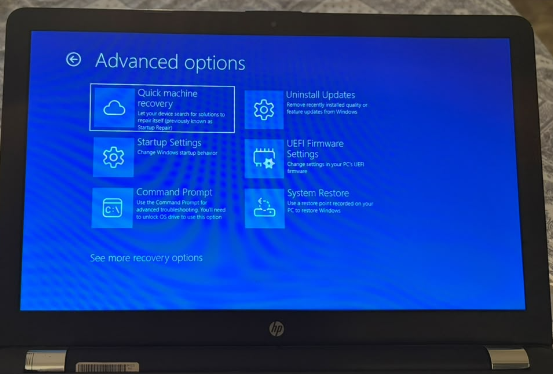
In my case, my system got the WHEA 0x124 error. It happened at -120 mv on both CPU core and Cache. So, I intentially set at -100 mv for both and the system got perfectly stable. This error is generally connected to overclocking and undervolting. My system was booting up for a minute and then shut down. So, I have to go to Windows recovery mode and open the system in safe mode.

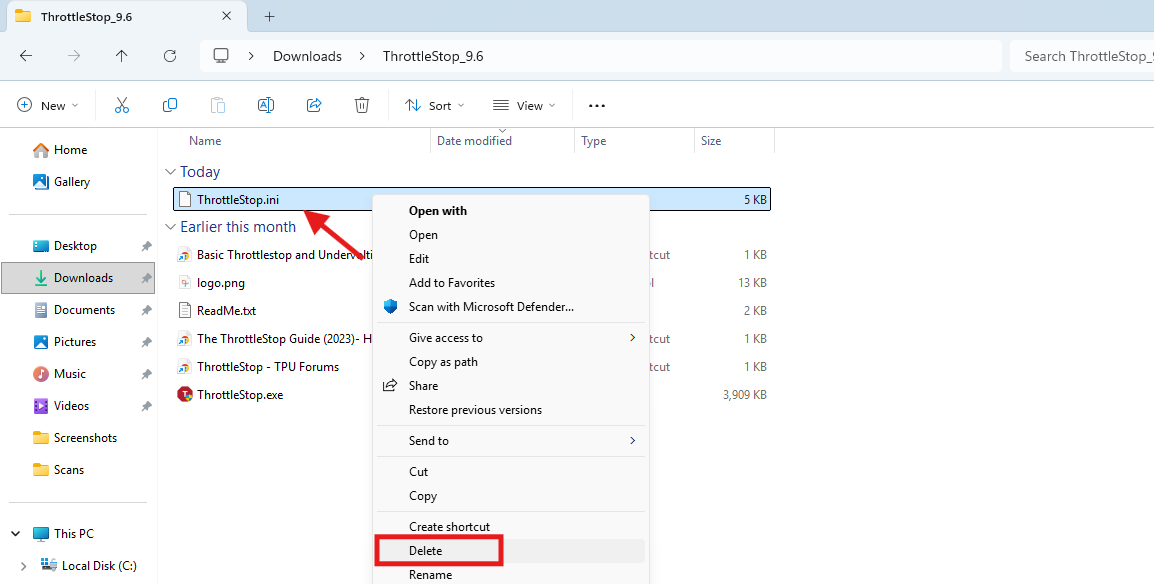
Then I just delete this Thottlestop.ini folder which gets saved in the same Throttlestop menu. So, you may have to do that in some cases.
If the system doesn’t boot up in the safe menu, you will have to clear the CMOS.
10. Make it start with Windows automatically
ThrottleStop must be running for the undervolt to apply. If you close it, the CPU goes back to stock voltage.
Windows Task Scheduler can be used to do it.
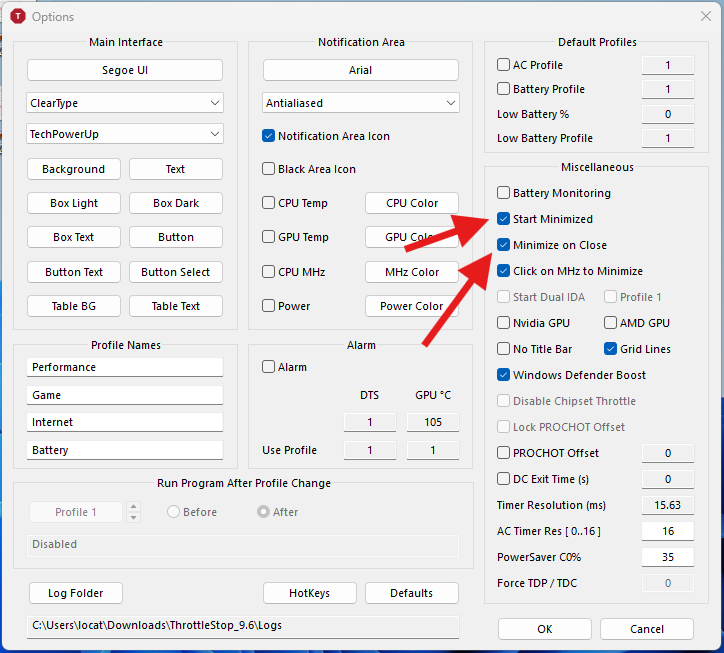
But do this only after you have tested your settings for a few days. If you put an unstable value in the startup task, your laptop will crash every time it boots. Here is how you would do it. But, first in Throttlestop, check these two boxes in the Options menu.
- Start Minimized: the main window doesn’t open at launch. It goes straight to the tray.
- Minimize on Close: clicking the X sends it to the tray instead of quitting. Without this, an accidental click on X closes the program, and the undervolt goes with it.
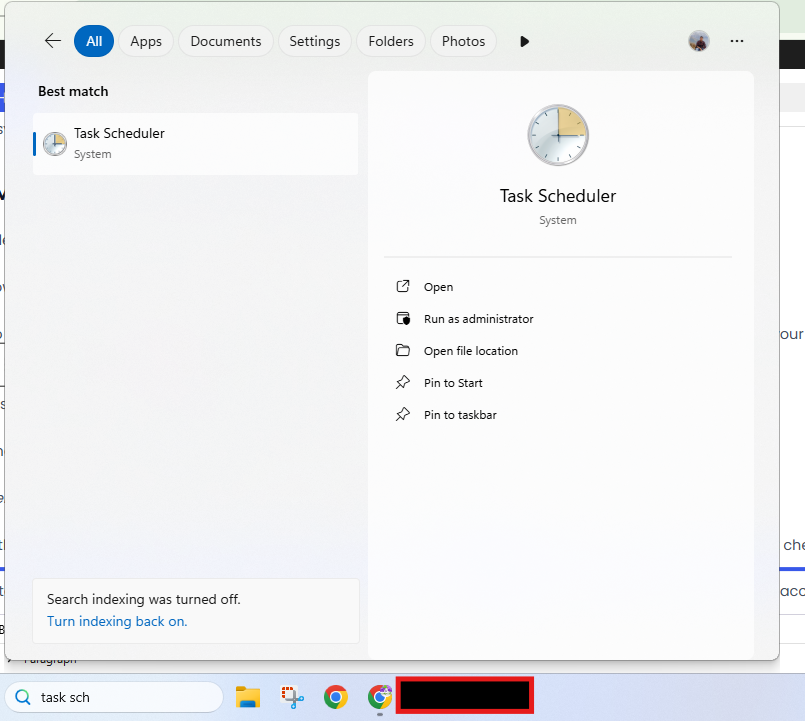
1. Press the Windows key, type Task Scheduler and open it.
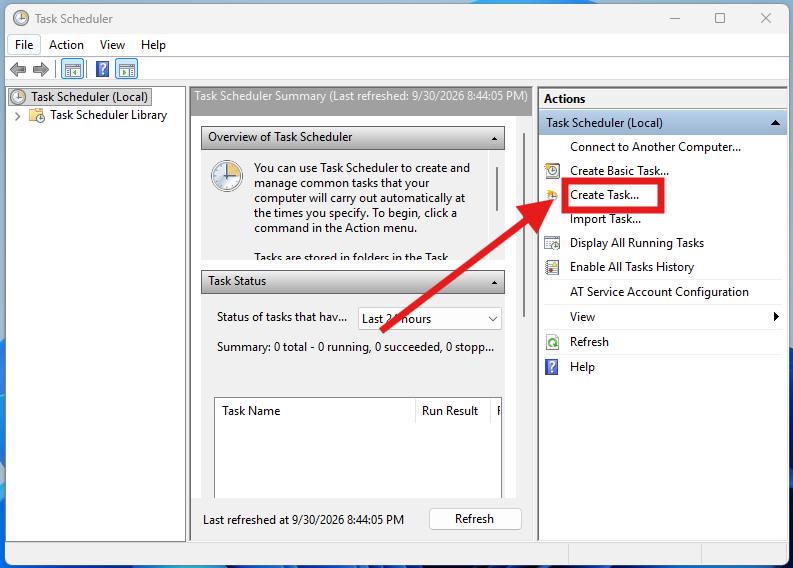
2. In the right pane, click Create Task. Do not click “Create Basic Task”, because it hides the options we need.
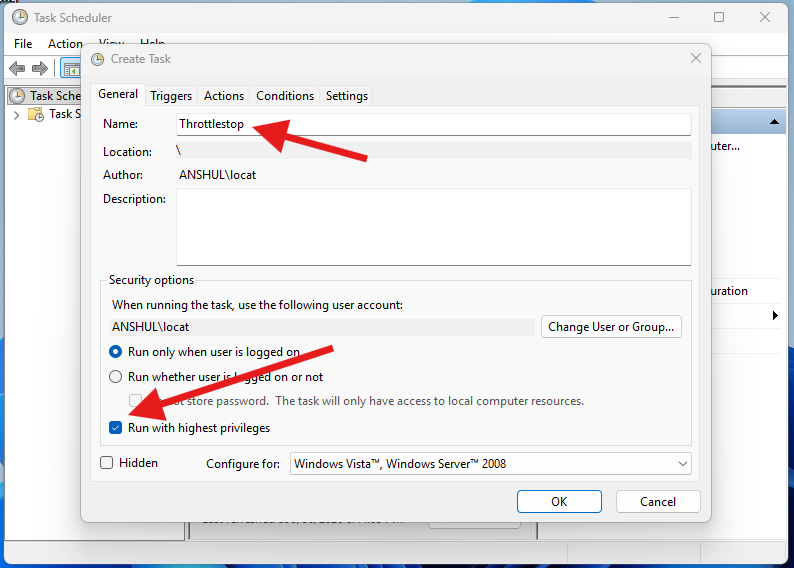
3. On the General tab, give it a name like ThrottleStop. Tick Run with highest privileges. This is the most important checkbox here.
4. Go to the Triggers tab and click New. Under Begin the task, choose At log on. Select Specific user and pick your account. Click OK.
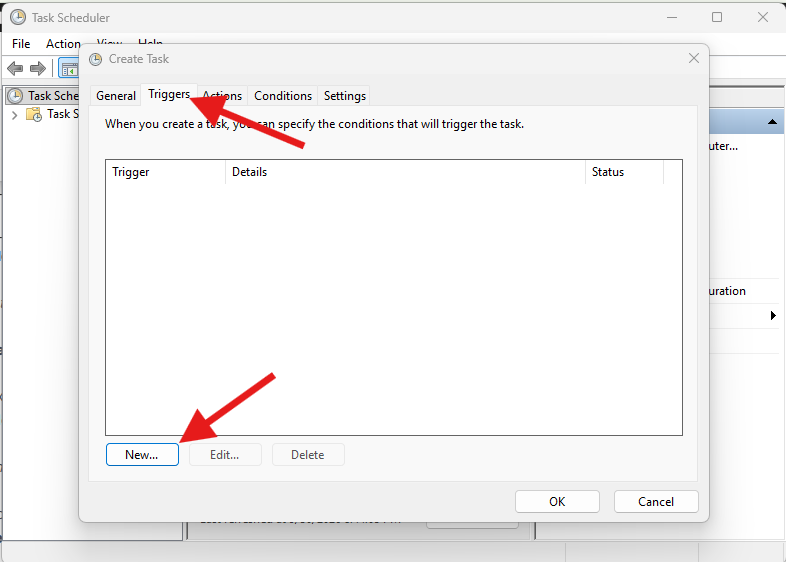
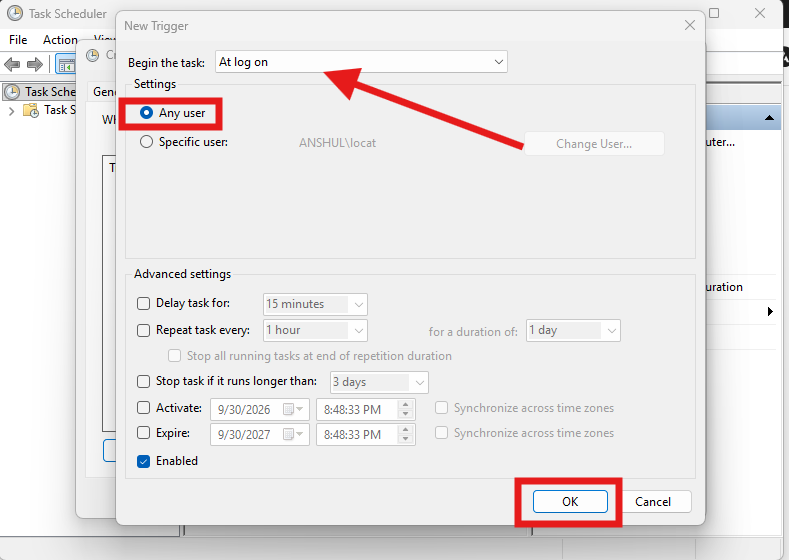
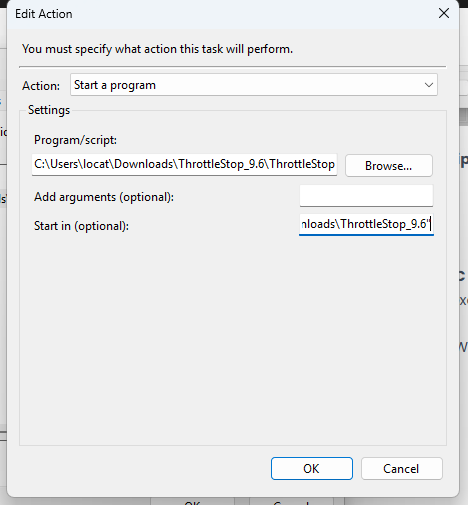
5. Go to the Actions tab and click New. Keep the action as Start a program. Click Browse and select ThrottleStop.exe.
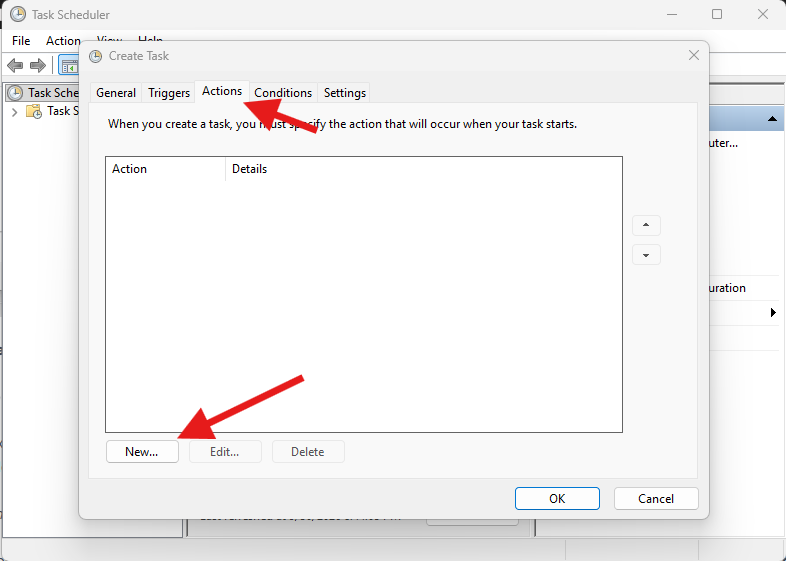
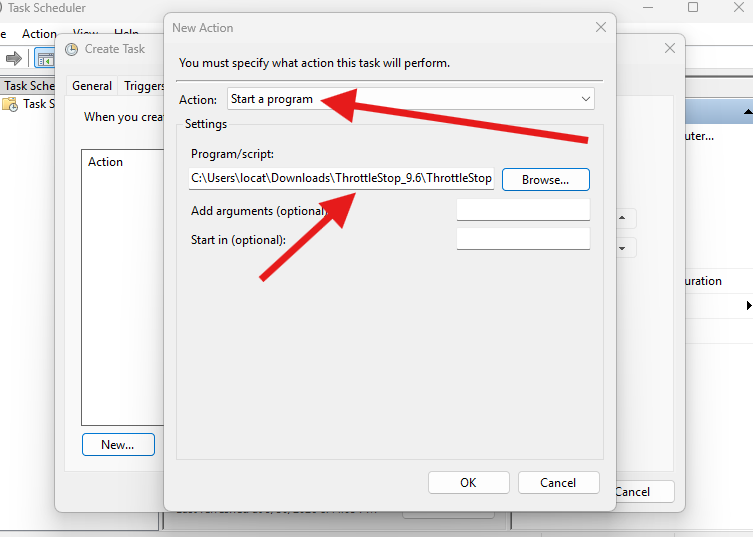
Now, fill in the Start in (optional) box with the folder that contains ThrottleStop, for example C:\Tools\ThrottleStop. Do not skip this. ThrottleStop reads its settings file from its own folder. Without this path, it may start with default settings and ignore your saved profile.
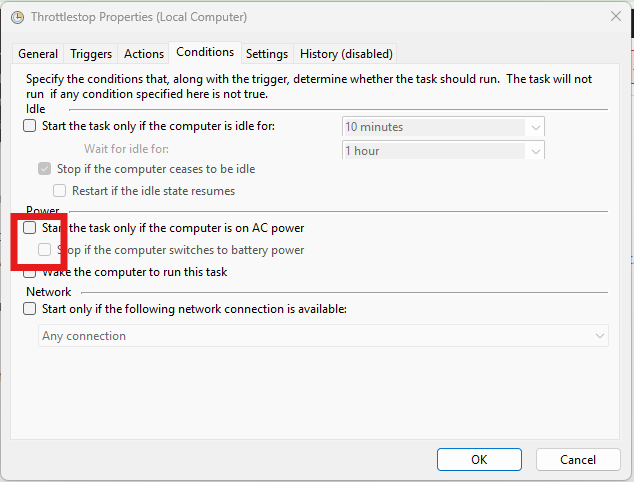
6. Go to the Conditions tab. On a laptop, Windows ticks two boxes here by default: Start the task only if the computer is on AC power and Stop if the computer switches to battery power. Untick both. Otherwise, the undervolt won’t apply when you are on battery, and that is exactly when you want it.
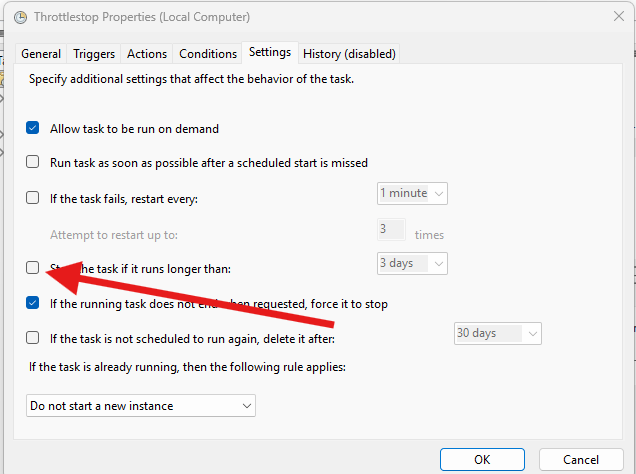
7. Go to the Settings tab and untick Stop the task if it runs longer than 3 days. See, ThrottleStop keeps running in the tray, so Windows will kill it after three days. Then your laptop quietly returns to stock voltage, and you won’t know why.
8. Click OK. Windows may ask for your account password. Enter it.
Test the task before you trust it
Right-click the task in the list and choose Run. ThrottleStop should open and apply your profile. Then restart the laptop once and check that it appears in the tray on its own.
For this to be clean, open ThrottleStop’s Options window and tick Start Minimized and Minimize on Close. The second one is easy to miss. Without it, clicking the X closes ThrottleStop completely, and the undervolt goes with it.
Keep in mind that a wrong undervolt value in a startup task will crash your laptop at every boot. That’s why I told you to test for a few days first. If it does happen, boot into Safe Mode, open Task Scheduler and disable the task. Then fix the value and try again.
What results can you expect?
It depends on the chip and the laptop. A typical undervolt on a 4th to 11th gen laptop gives a few degrees to around 10 degrees Celsius lower temperature. In my case I was able to lower the average temperature by around 15 degree celcius. You will also see lower fan noise and longer sustained boost clocks. Battery life improves a little, but do not expect miracles. I could not quantify it in my own testing, so I won’t promise a number here.
One more thing. Undervolting cannot fix a bad cooler or dried-out thermal paste. It is a nice optimization, not a replacement for proper cooling.
Keep in mind that if your laptop is 12th gen or newer, you will most likely be locked out. In that case, look at power limits and cooling instead.