

Intel introduced default settings for 13th- and 14th-generation unlocked (K-series) desktop CPUs. The reason Intel made these profiles was to fix some prevalent instability and degradation issues. These issues were arising because motherboard makers were shipping BIOS defaults with much higher limits than Intel’s. With these profiles, Intel put official numbers back and published this guide.
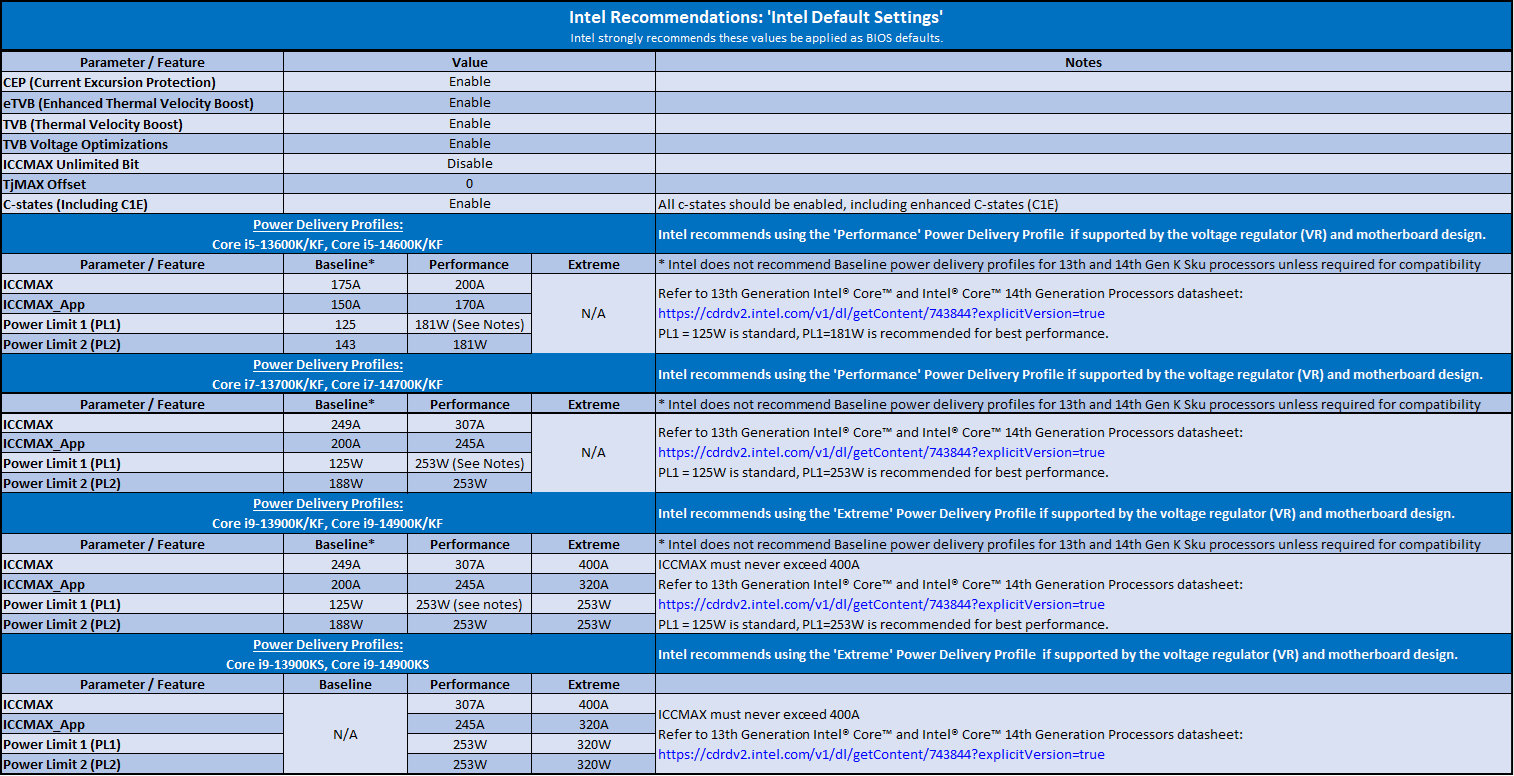
If you want to change them, your motherboard will expose them to you in the BIOS, usually as Baseline, Performance, and Extreme. The names themselves tell what they are meant to do.
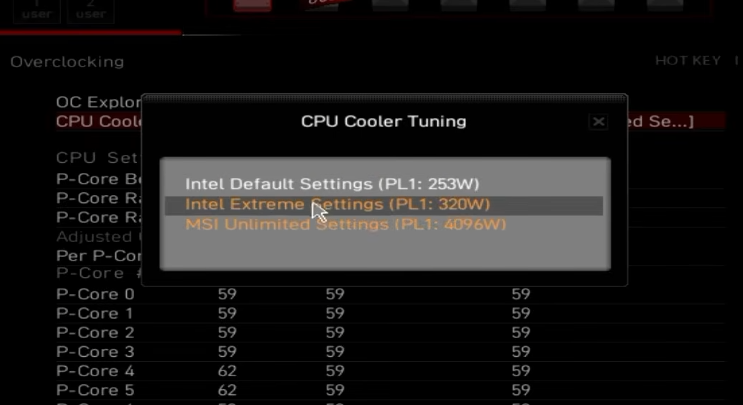
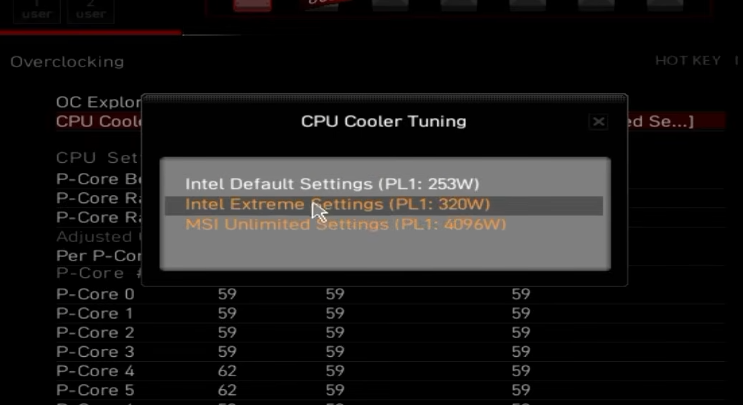
Whether you need to touch upon these settings depends on what you want to achieve with them. Some motherboards will allow you to select just the Intel Default Settings and no other options like Extreme or Performance. On the other hand, they might be named differently. For example, some MSI motherboards will only allow you Intel Default and Intel Extreme settings. However, the highest power limits are named MSI Unlimited Settings.
A profile is a bundle of numbers, mainly PL1, PL2, PL4, and two current limits. If you aren’t familiar with the power ones, I have explained them in PL1, PL2, and Tau. The current limit (ICCmax) is the highest current level the CPU is allowed to pull through the motherboard’s voltage regulator. More on that later.
Difference between Baseline, Performance, and Extreme Modes
Extreme mode, as the name suggests, is for the processors that are equipped with high-end cooling and strong VRMs on the motherboard. On a 14900K, it’s roughly 253W sustained (PL1 = PL2) and a 400A current limit. This mode is useful for heavy and long workloads like rendering and compiling. However, it may result in excessive power consumption and heat. So, a good cooling setup will be non-negotiable.
The performance mode is tuned to provide higher performance than the processor base power of 125W and a maximum turbo power of 253W. For a 14900K, the figures are roughly 125W sustained (PL1), 253W short-burst (PL2), and a 307A current limit. These limits can vary depending on the processor, motherboard vendor, VRM capabilities, and manual overrides.
Baseline is the most conservative and efficient profile. Again, for a 14900K, it sets the settings to about 125W PL1 and 188W PL2, with the 307A limit. Consider this as the lowest-risk setup.
Here are the values for the Core i9-13900K/KF and i9-14900K/KF:
| Setting | Baseline | Performance | Extreme |
|---|---|---|---|
| PL1 | 125 W | 253 W | 253 W |
| PL2 | 188 W | 253 W | 253 W |
| PL4 | 293 W | 380 W | 380 W |
| Iccmax | 249 A | 307 A | 400 A |
| Iccmax.app | 200 A | 245 A | 320 A |
On an i9 K, the only thing Extreme changes is the current ceiling: 400 A instead of 307 A. Now, the question is, does that extra current buy you anything?
Does the extra current matter?
There is a prevalent assumption that higher power/current limits mean a faster CPU. This is true only when the CPU is hitting those limits before temperature and other things.
Current is power divided by voltage. At 253 watts and about 1.3 volts, the CPU draws roughly 195 amps of current. Even the 380 W PL4 burst comes to about 292 A at the same voltage. Both fit under Performance’s 307 A.
My point is that the extra current of 93 amps that Extreme mode allows (400 A vs. 307 A) sits unused most of the time. What Extreme does cost you is heat and VRM load in the moments it is used, and it needs a board built to deliver 400 A.
Do you need to change these settings?
In short, probably not, especially if your BIOS is up to date and you have not touched the power settings. Intel asked board makers to ship Intel Default Settings as the default BIOS profile, so a current BIOS often loads it for you.
But I would recommend checking them in these three cases:
- Your BIOS is older than the microcode fixes. 0x125 (June 2024), 0x129 (August 2024), 0x12B (September 2024) and 0x12F (around the start of May 2025)
- Your board loads its own auto or unlimited power limits.
- You changed the power limits yourself earlier, for example, while overclocking.
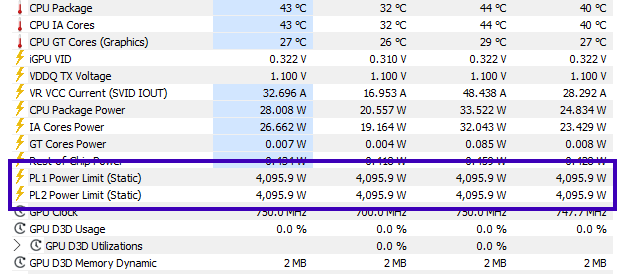
To check, look at PL1 and PL2 in HWiNFO. On an i9 K, both should read 253 W. A value like 4096 W means the board is not using Intel’s profile. As you can see in the screenshot below.
Ideally, with Intel default settings at baseline, it should look something like this:
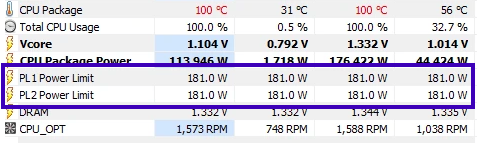
Keep in mind that Performance and Extreme show the same 253 W on an i9 K, so the power limits only tell you that the profile is Intel’s. The BIOS shows which of the two is selected.
If your board already loaded performance, leave it just like that. If it loaded Extreme, you can move to Performance, and the section on which one to choose below explains why.
Before you change these settings
Many boards load their own power settings instead of Intel’s. Some go as far as 4096 W for PL1 and PL2, which basically means no limit at all. MSI’s own water cooler preset, for example, sets 4096 W and 512 A, above anything in Intel’s table. So turn on Intel Default Settings instead of leaving the board on Auto.
Extreme sounds like the one for any good K chip. But a 400-amp current will come through your motherboard’s VRM, and an entry-level Z790 and B760 board can fail to deliver it pretty easily. Intel’s rule is the highest profile your board is designed for, and for most boards that is performance.
Baseline cuts PL2 to 188 W and Iccmax to 249 A. Intel says Baseline is not recommended for K chips, and the cost is real performance in heavy loads. Baseline also does not fix the actual problem, which is in microcode, not in the profile.
Which one should you choose?
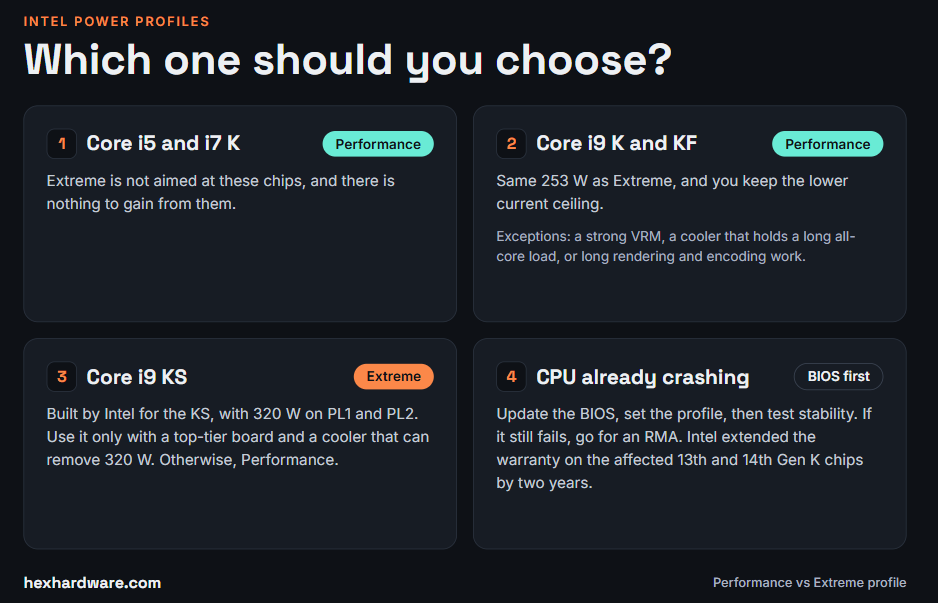
1. Core i5 and i7 K users
Choose performance mode. Extreme is not aimed at these chips, and there is nothing to gain from them.
2. Core i9 K and KF users
I would choose Performance. It runs the same 253 W as Extreme, and you keep the lower current ceiling.
The only time I might change my decision is in three situations: the board has a strong VRM, the cooler keeps the CPU under control in a long all-core load, and your work is long rendering or encoding. If your CPU is already hitting temperature limits, read why a CPU throttles even with a good cooler before touching Extreme.
3. Core i9 KS users
Extreme is the profile Intel built for the KS, with 320 W on PL1 and PL2. Use it only with a top-tier board and a cooler that can actually remove 320 W. Otherwise, Performance is the safer pick here as well.
4. If your CPU already crashes
Update the BIOS first, set the profile, and test stability with the routine in How to Test CPU Stability. If it still fails, go for an RMA. Intel extended the warranty on the affected 13th and 14th Gen K chips by two years. I have also covered Raptor Lake degradation in Is CPU Overclocking Safe?.
How to select it in the BIOS
Menu names change between brands and BIOS versions, so treat these as a guide.
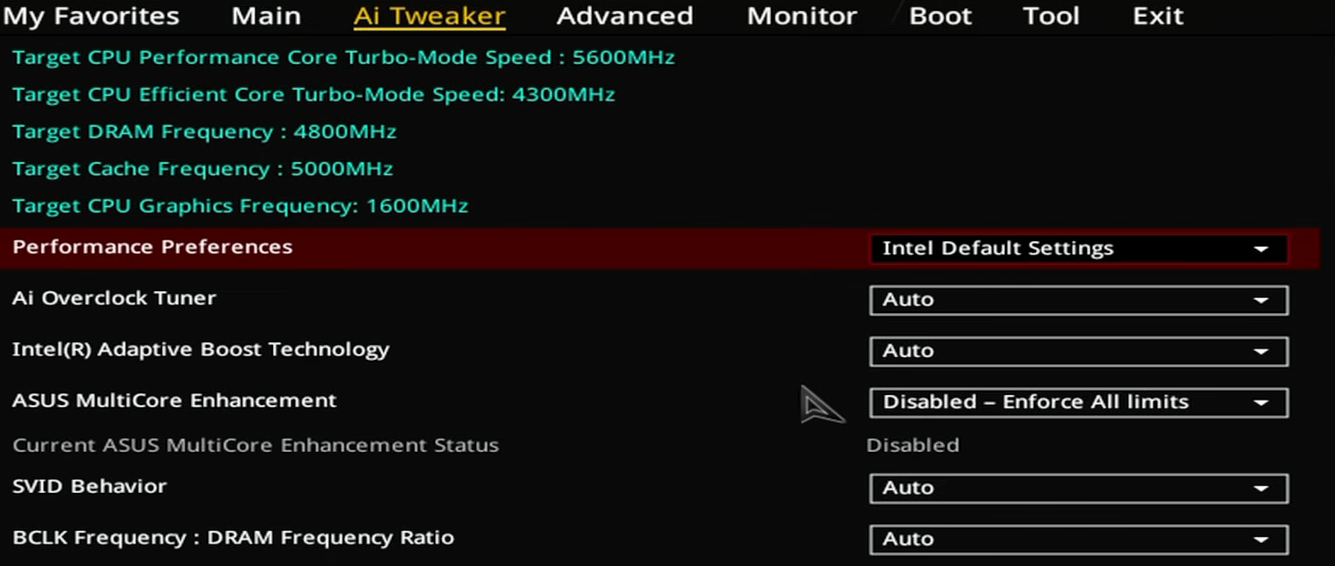
- ASUS: Look for Performance Preferences, select Intel Default Settings, then pick the profile. ASUS says to choose Performance on a 13th or 14th Gen i9.
- MSI: a window on the first BIOS entry lets you choose Intel Default Settings, Tower Air Cooler, or Water Cooler. Later, you can change it from the CPU Cooler Tuning option. MSI’s Intel Default Settings uses the performance values.
- Other brands: search the BIOS for “Intel Default.”
After booting into Windows, check the active limits in HWiNFO.